
Use
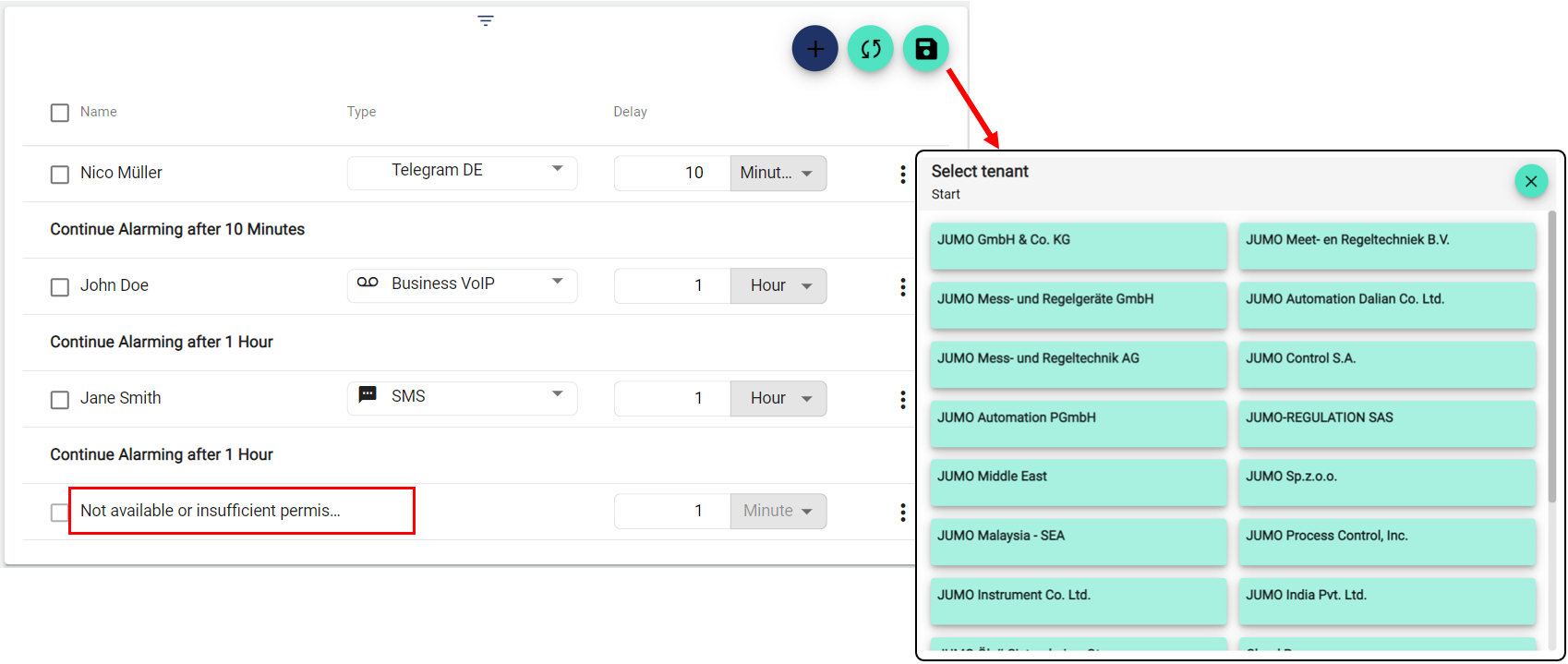
Recipient Group Config allows you to view and adjust a Recipient Group that was created previously in the Configuration. The type of notification (SMS, email, VoIP, push app, etc.), the delay (time until the next alarm step is performed) and the position (changeable via drag and drop) of the respective alarm recipients can be set inside the widget. It is also possible to add further Recipients to the alarm cascade (recipient group) or to remove individual alarm steps.
The respective Recipient must be created first.
Add Recipient to the Group: You can do this by clicking " ... " and searching for the user you want to add to the group. To add the selected user, click the checkmark on the left side of the column. You can then set the delay for the notification. The delay can be displayed in either hours or minutes. You can then select the type of notification. After saving, the alarm cascade is active.
Each change in the widget also changes the settings of the respective Recipient Group in the configuration.
Configuration
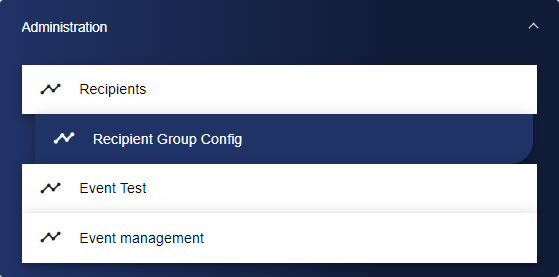
Select the Recipient Group Management widget from the Administration category.
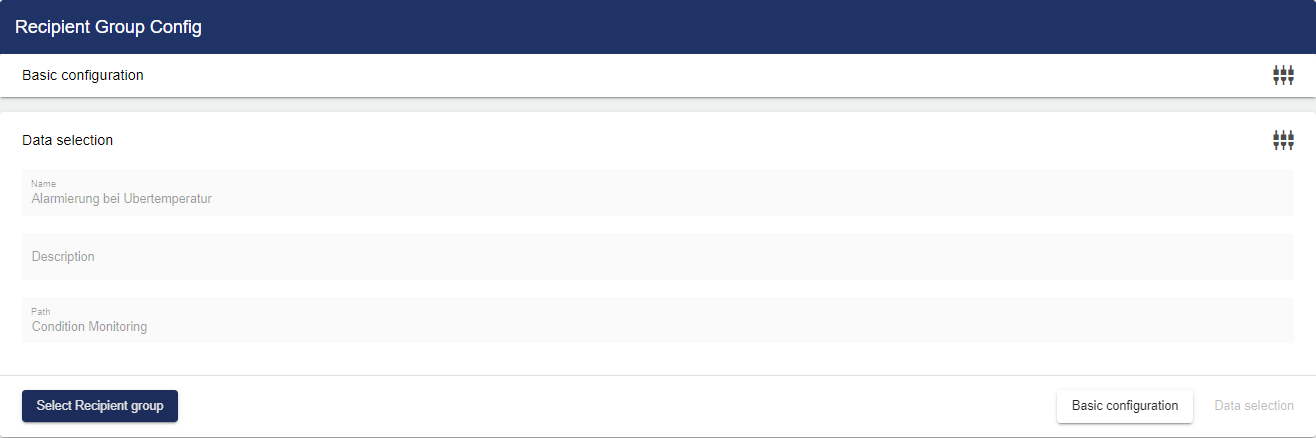
Adjust the Recipient Group Management via the Basic Configuration. First of all, assign a suitable title to your Recipient Group Management here.

Then go to the "Basic Settings of the Recipient Group" tab and click "Recipient Group".
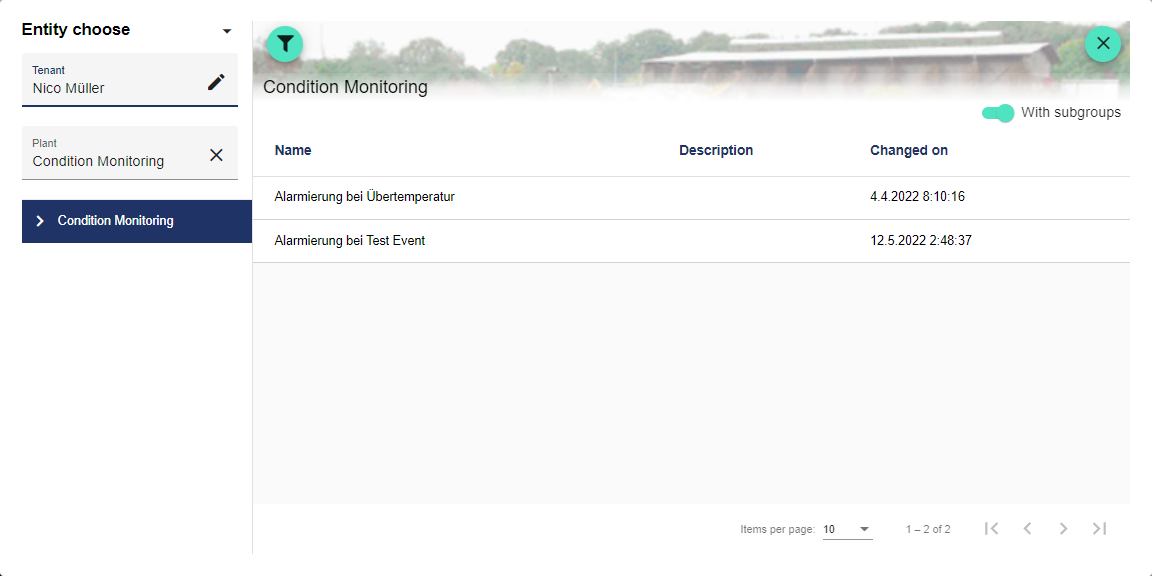
Clicking "Select Recipient Group" opens the Select Entity window. You can add a Recipient Group that was created earlier.
Once you are satisfied with your configuration, you can save it.