Use
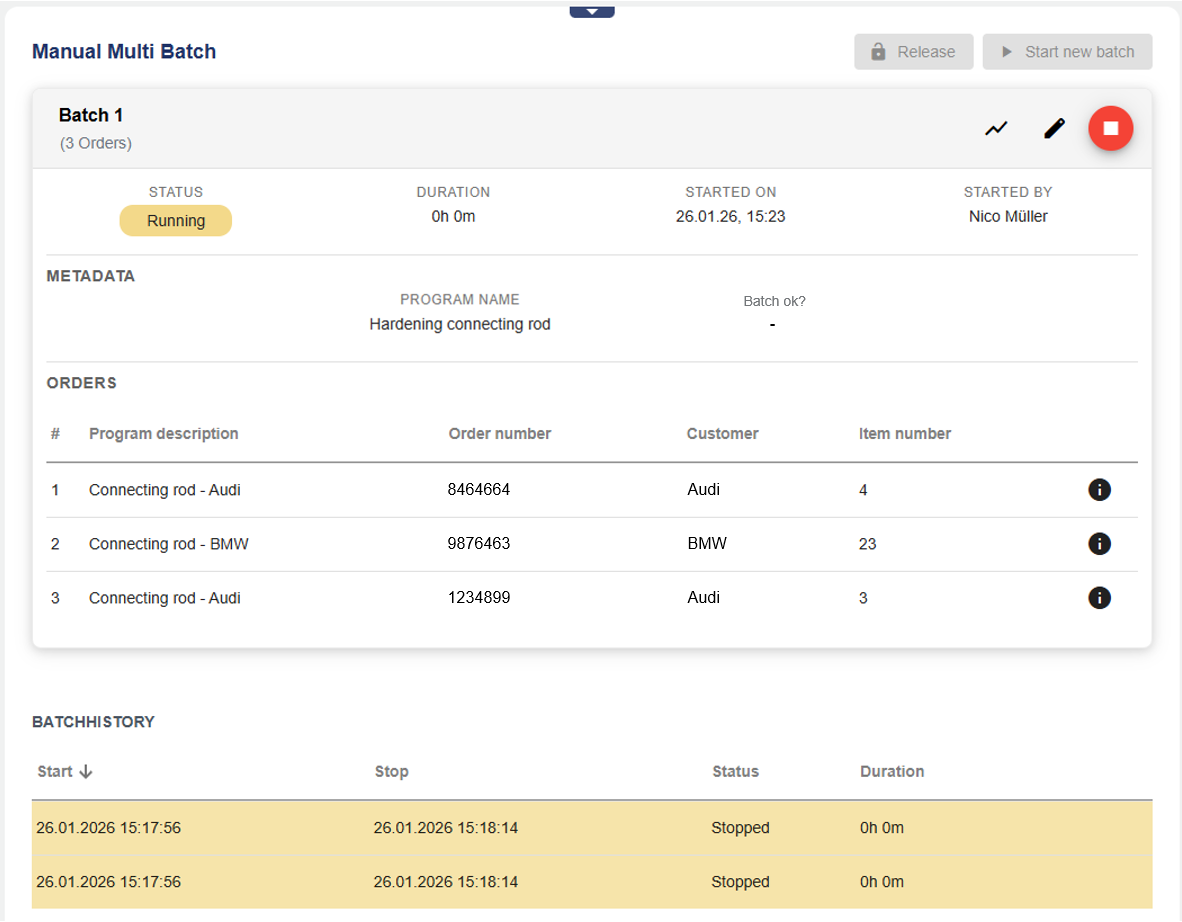
Batch control allows you to start and stop batches with or without a program. Programs can be selected, released, and started together with a batch. The program can be started with a batch directly via the platform or released by it. Once released, the actual program must first be started on the control (HMI) before batch recording begins.
The widget also allows a program run to generate several different order-specific batch entries in the archive at the same time (multi-batch). The associated batch metadata can be entered line by line for each order. A logic prevents incorrect entries and controls the associated program start.
When batches are released, started, or stopped, batch data can be recorded manually via the platform or by signal (e.g., from an HMI input). It is also possible to display past batches over a defined period of time in the widget. Current curve progress and batch reports can also be viewed via the widget.
To use the widget, a Batch definition must first have been created.
It is also possible to operate several parallel batches.
Configuration
Select the Batch Control widget from the Batch category.

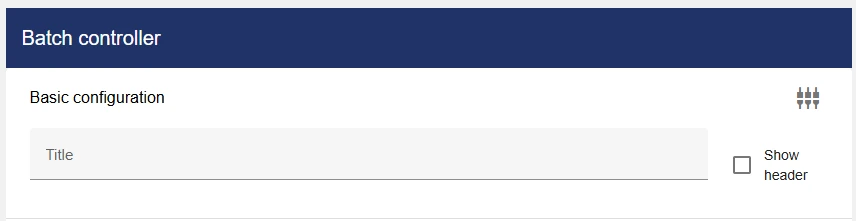
Basic configuration
Data selection
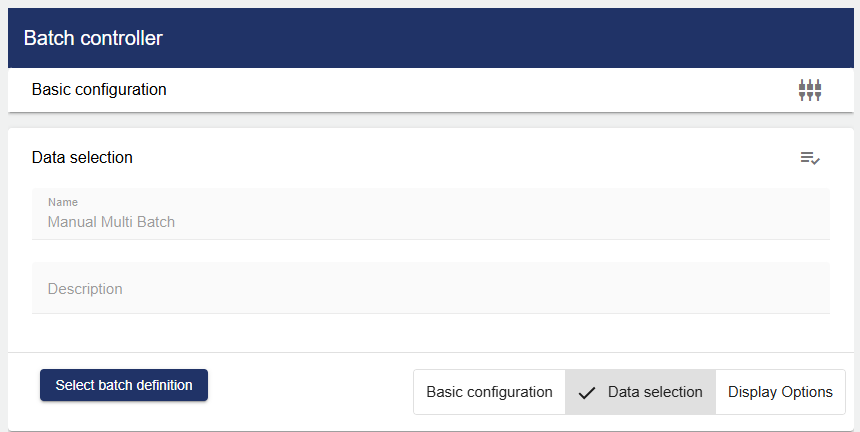
Here, a batch previously created in the configuration under Batch definition can be selected.
Display options
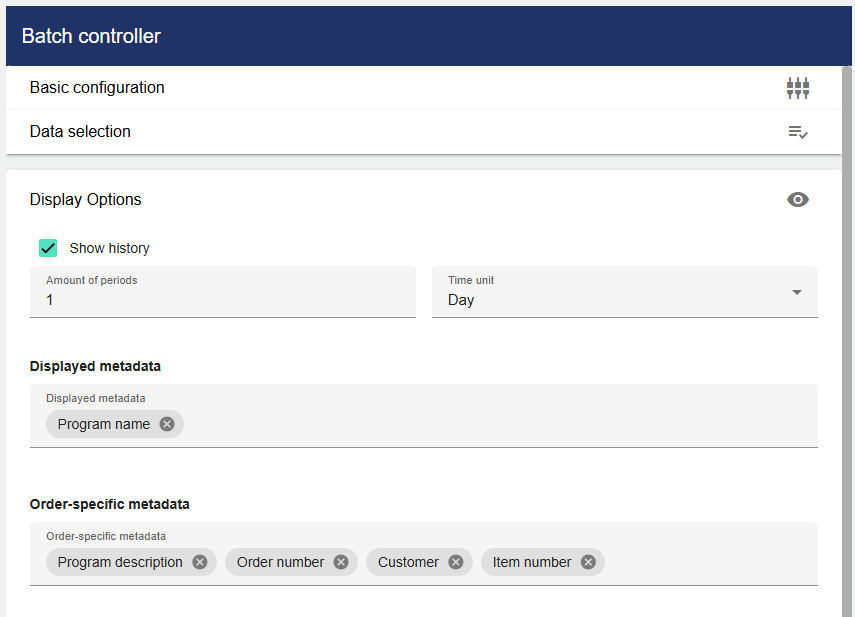
Under Display Options, you can set whether and for how long past batches are displayed in the lower area of the widget (Show history).
Under Displayed Metadata and Order-specific metadata, you can define which batch data should be displayed in the widget. It is possible that not all batch data is relevant enough to appear in the overview.