
A batch contains information about completed production units. The batch definition is required for the Widgets: Batch.
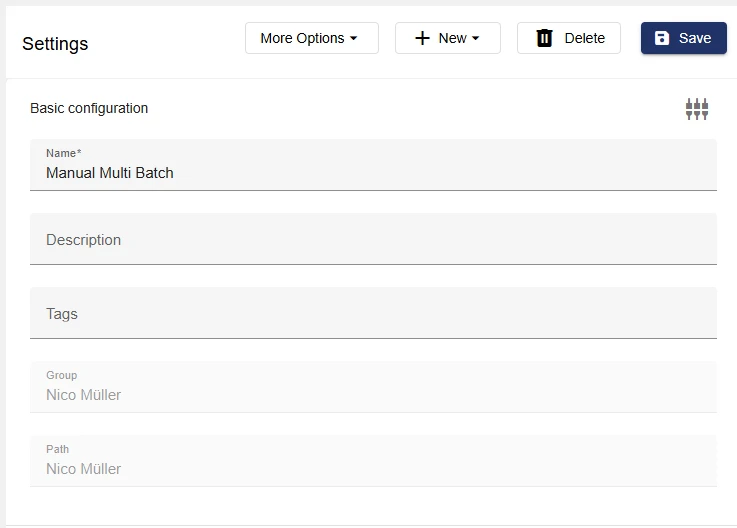
Basic configuration
A name must be assigned here. The description text is optional. The group and path are filled automatically. Tags for faster searching or grouping of objects can be selected or added here.
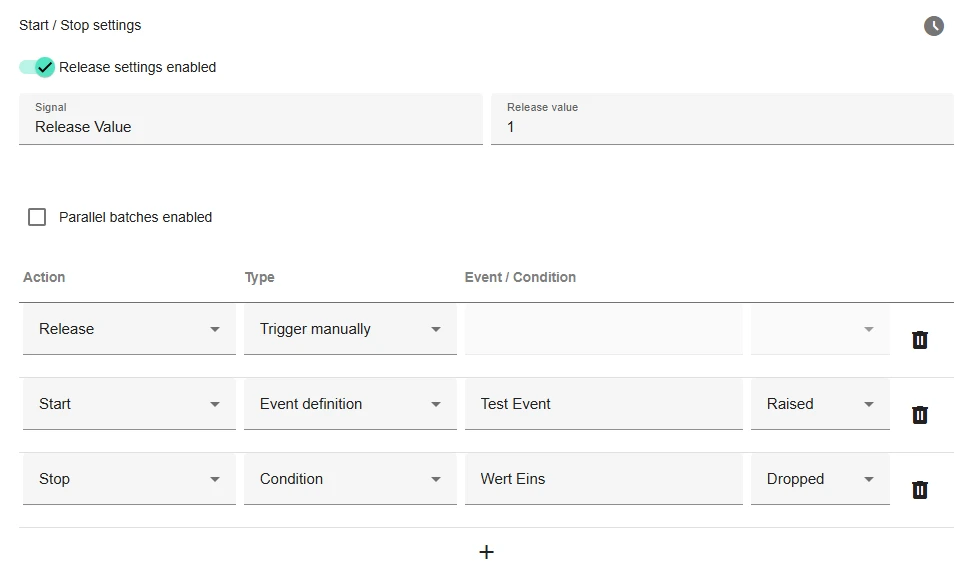
Start-/ Stop settings
In this setting, you must select how the batch start and batch stop are defined. It is also possible to allow parallel batches. In this case, several batches can be started simultaneously with one batch definition.
Release settings enabled: Before a batch is started, a “Release” can be added upstream. This “Release” allows the actual start of a batch to take place, for example, only on the control (HMI) together with a program. A batch release is usually used when a batch is started with a program. When releasing the batch, a program selection can be made.
To activate the release function, the check mark above must be set. A release signal is then selected. The release value, e.g., “1,” is set as the target value when the batch has been released in the Widget: Batch control. For a new batch run, this signal must be reset to the initial value, e.g., “0,” via the control (PLC) or script.
|
Here a raised or dropped event defines the start or stop of a batch. In this case, the "Start batch" button is grayed out in theWidget: Batch control. |
|
|
Here a raised or dropped signal condition defines the start or stop of a batch. In this case, the "Start batch" button is grayed out in the Widget: Batch control. |
|
|
Trigger manually |
Here, the batch is started and stopped via the IoT platform. The "Start batch" button is available in the Widget: Batch control. |
-
Raised→ Event occurs
-
Dropped → Event falls off
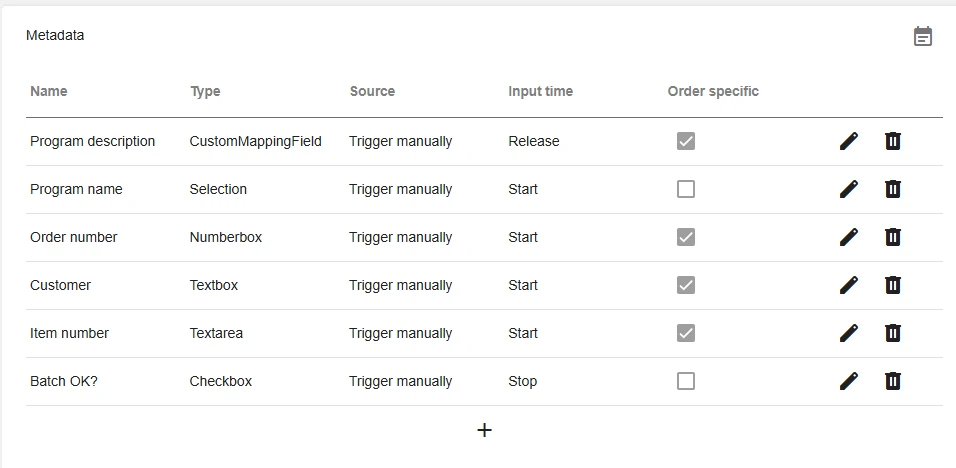
Metadata
In the metadata of the batch, freely selectable inputs can be defined. These must be entered in the Widget: Batch control at the start, at the stop, for release or during the run of a batch.
Entering metadata requires a “Type” (see table below), a “Source” (signal, manual, incremental) with information on when this query should be made (start, stop, enable), whether this entry is “Optional” or mandatory, and whether it should be “Editable” after entry. It is also possible to enter metadata validated according to “Type” and to allow only certain entries. The “Order-specific” field is selected if multi-batches are required. These metadata entries then apply only to one order, not to the entire batch.
-
Signal → Metadata type is recorded by signal
-
Trigger manuelly → Metadata type is entered via dashboard
-
Incremental → Adds +1 to each batch start. Does not appear in the input field.
Further down in the field, you can select a “write-back signal” and define a “write-back reset value.” The write-back signal is a setpoint signal that is written as soon as the metadata field is filled in. This means that, for example, when using the “number box,” an order number can be written to a setpoint signal. The write-back reset value is written to the write-back signal when the batch is stopped.
|
Check box |
Control box for hooking |
|---|---|
|
Number box |
An integer (0, 1, 2, 3 ...) is entered here. Optionally, the input of the number can be restricted between a minimum and a maximum. |
|
Text box |
A free single-line text is entered here. Optionally, the input can be restricted under "Validation" with a regular expression in the input possibility: |
|
Text area |
A free multiline text is entered here. Optionally, the input of the text length can be limited. |
|
Selection |
Here you can select between several objects per list. The selection options can be entered one after the other by comma. |
|
Date select |
A date is entered here. |
|
User select |
A user is selected here. The selection is made via the pre-selection of the desired tenant. All persons entered in the user management are available for selection. |
|
Mapping |
This field accesses the list of Custom mappings in the administration (field “Mappings”). It is required for multi-batches. When adding multiple order-specific batches in the “Widget: Batch Control,” only assignments with the same value can be selected. This ensures that only orders with the same program assignment are processed. The user is only shown the name of the “User-defined assignment” in each case. The assigned value is written as the setpoint value to the “Write-back signal.”
|
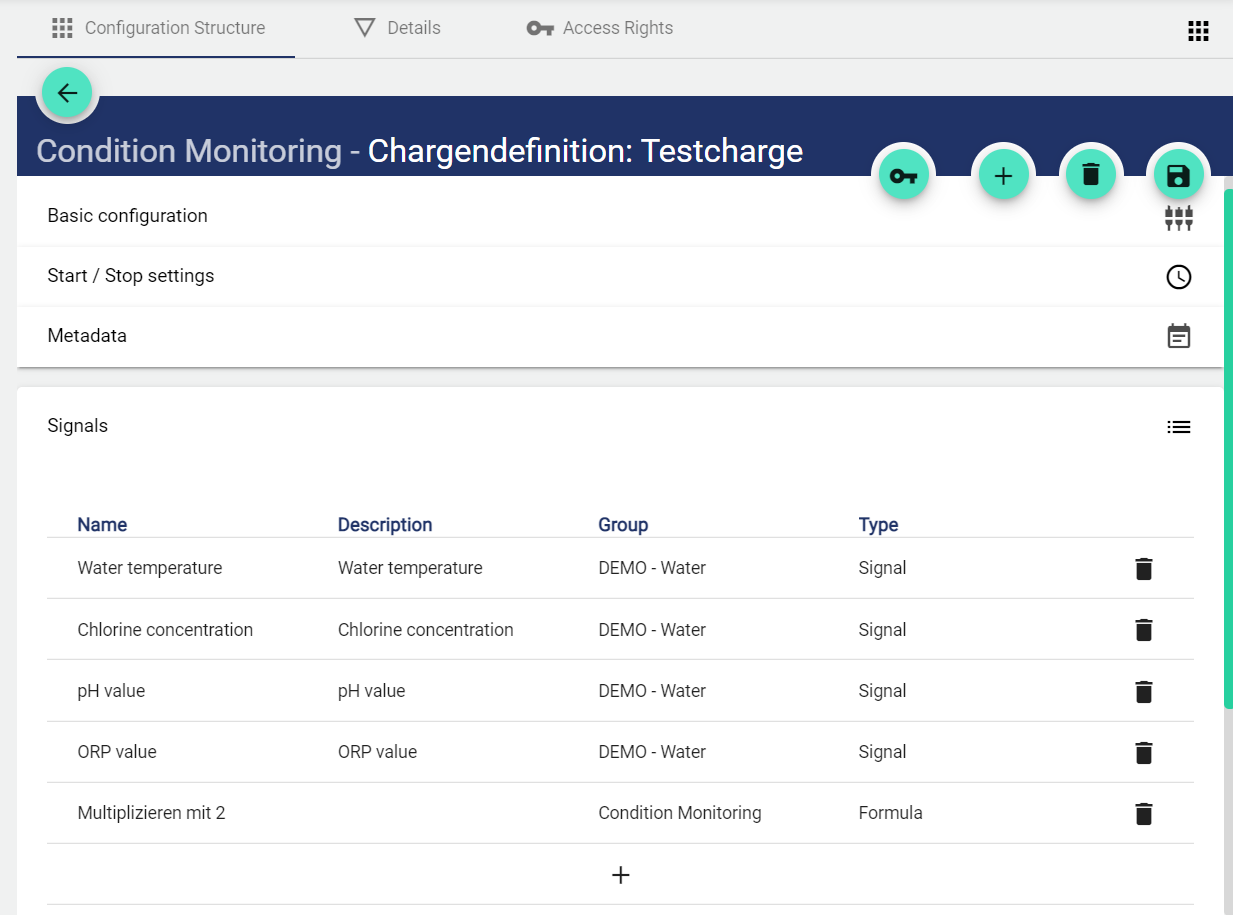
Signals
All signals or formulas added here are assigned to the batch during the run of a batch.
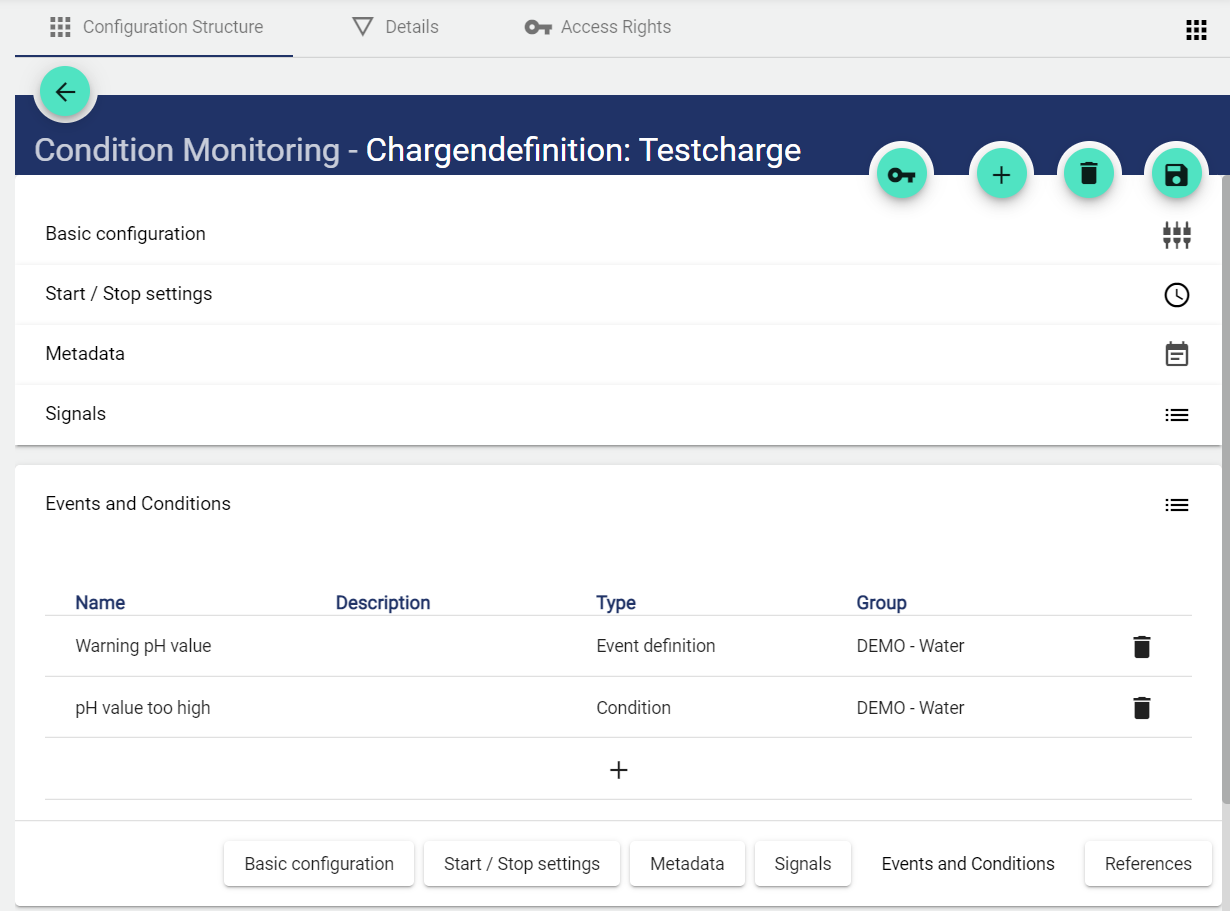
Events and conditions
All events or conditions added here will be assigned to the batch during the process and can be displayed in the report.
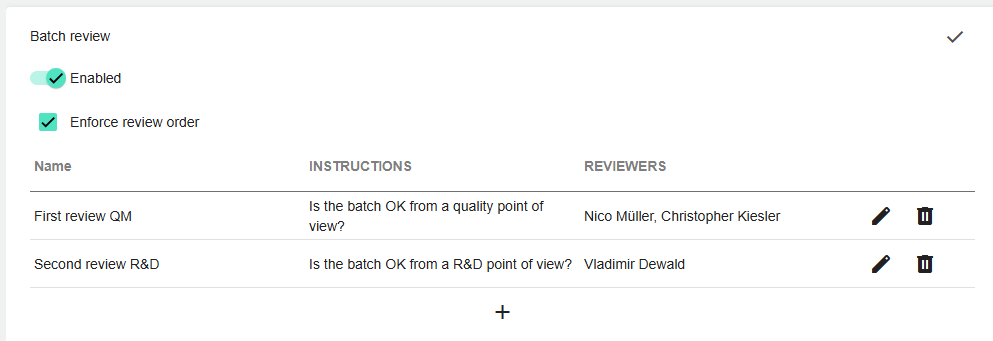
Batch review
This setting can be used to decide whether or not a batch review is "enabled" for the batch. The batch review can be done after the batch is finished in the "Widget: Batch Archive."
New reviews can be added using the "plus symbol." The "name" and "instructions" can be freely defined and appear during the batch review.
Each reviews (line in the screenshot below) must be approved by an reviewer . The persons entered can approve in parallel. For example, representatives or persons with the same expertise could be entered here.
If the "Enforce review order" button is checked, the reviews (lines in the screenshot below) are performed one after the other. If it is not checked, the reviews can be done in parallel.
When the batch is started, the reviewers are assigned to the respective batch. Any changes to the reviewers must be made before the batch starts.
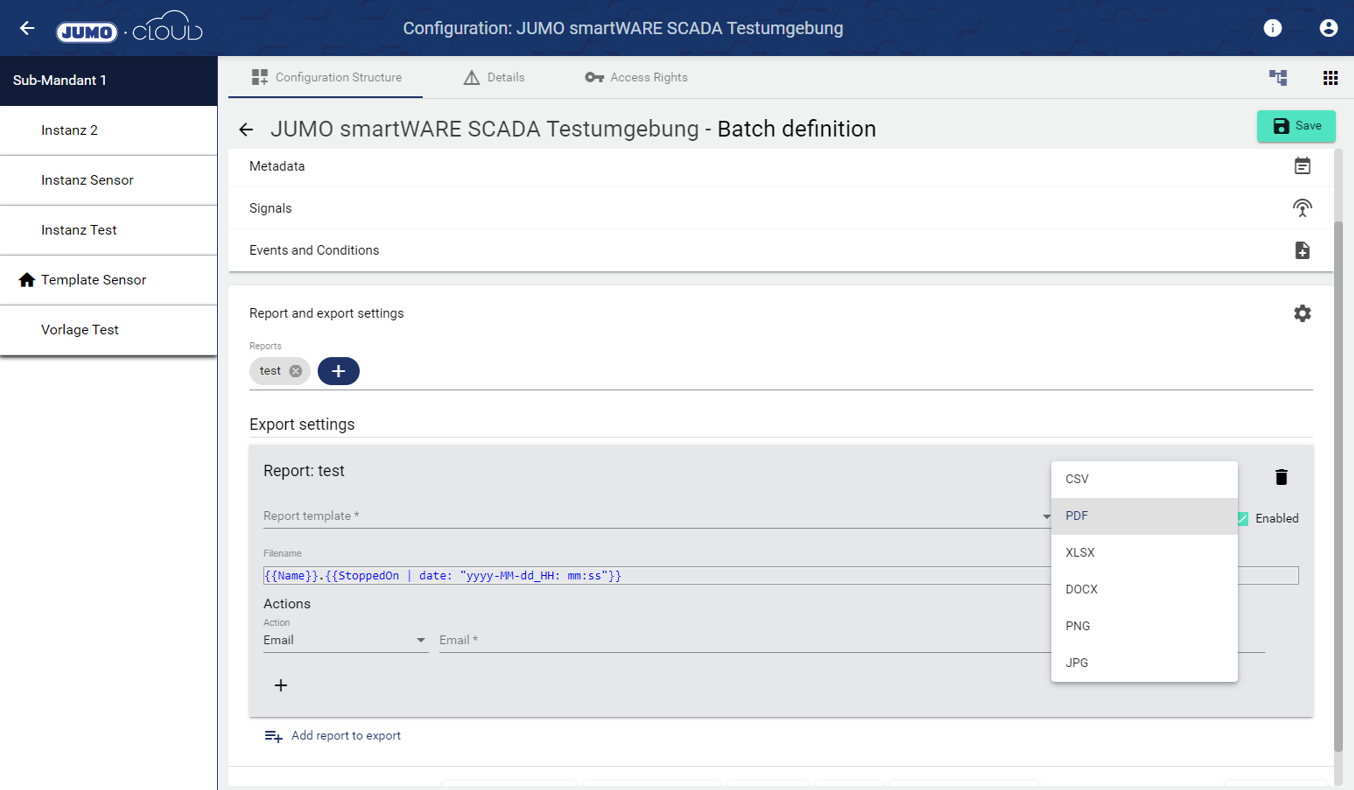
Report and export settings
By adding one or more reports, the batch can be viewed in a customized design depending on the report. In addition, it is possible to send batch reports automatically event-based in different formats by mail or to save them in a directory.
The file name can be supplemented with individual batch data such as batch duration, batch number, etc.
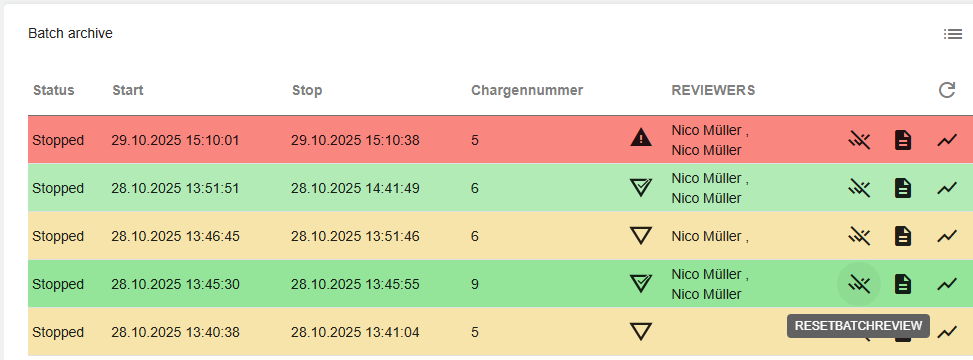
Chargenarchiv
Im Chargenarchiv werden die gleichen Informationen wie im Widget: Chargenarchiv angezeigt, inkl. aller Kopfdatenfelder.
This button 
References
All references to the batch definition are displayed in the references.
AuditLog
The AuditLog is a change log that transparently shows how the object was changed. For some objects, it also shows which target values were set by a specific person. Power users can use the button on the right-hand side to get a detailed view of exactly what has been changed in the configuration.
The AuditLog can be used to quickly trace what happened to the object last. It corresponds to an extract from the Control Operation Archive.