
Benutzung
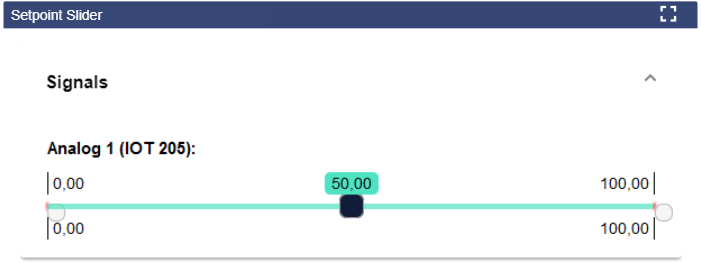
The Setpoint Slider is used to set an analog signal or an analog setpoint within a defined range.
Configuration
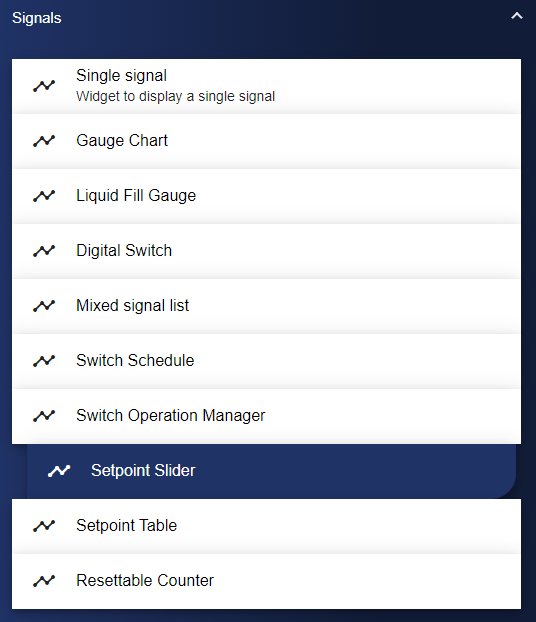
Select the Setpoint Slider widget from the Signals category.
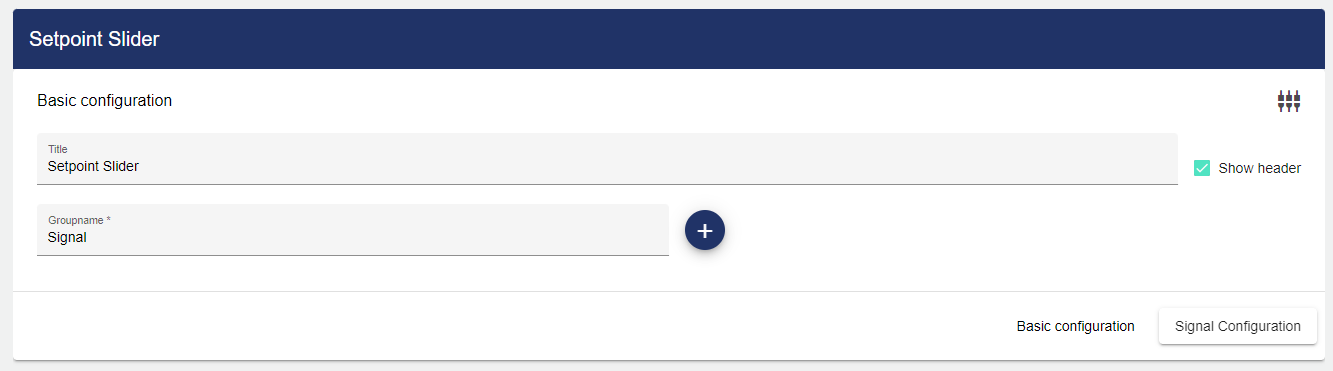
In the Basic Configuration of the Setpoint Slider, assign a suitable label (title). The header can be displayed by selecting the check box. You also need to add a Group name. Click the Plus button to create the respective configuration of the Group.
Under the Signals configuration, you now need to select a signal via the Plus button.
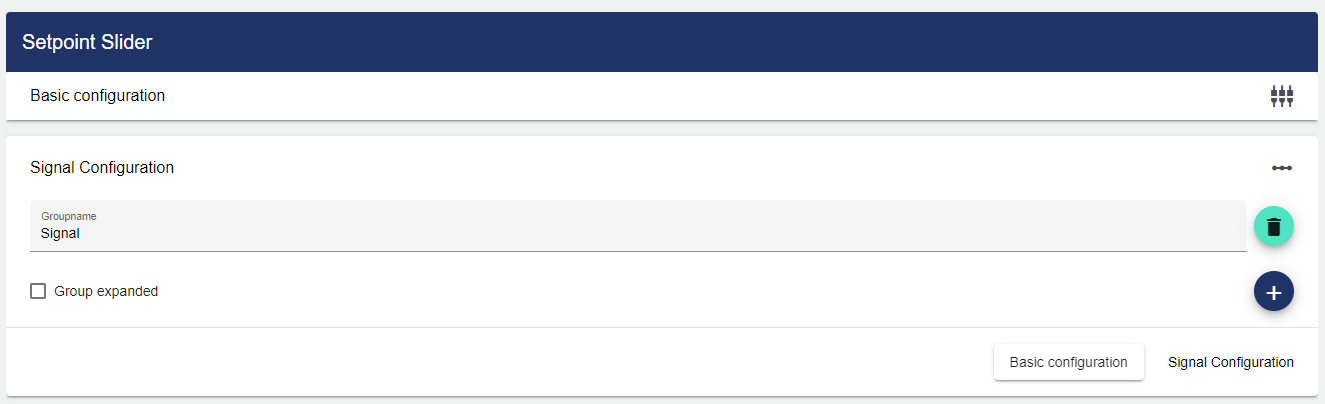
If you want to expand the display of the Group in the Dashboard, activate the corresponding checkbox here.
Clicking the Plus button opens the Select Entity window. You can add a previously created signal here.
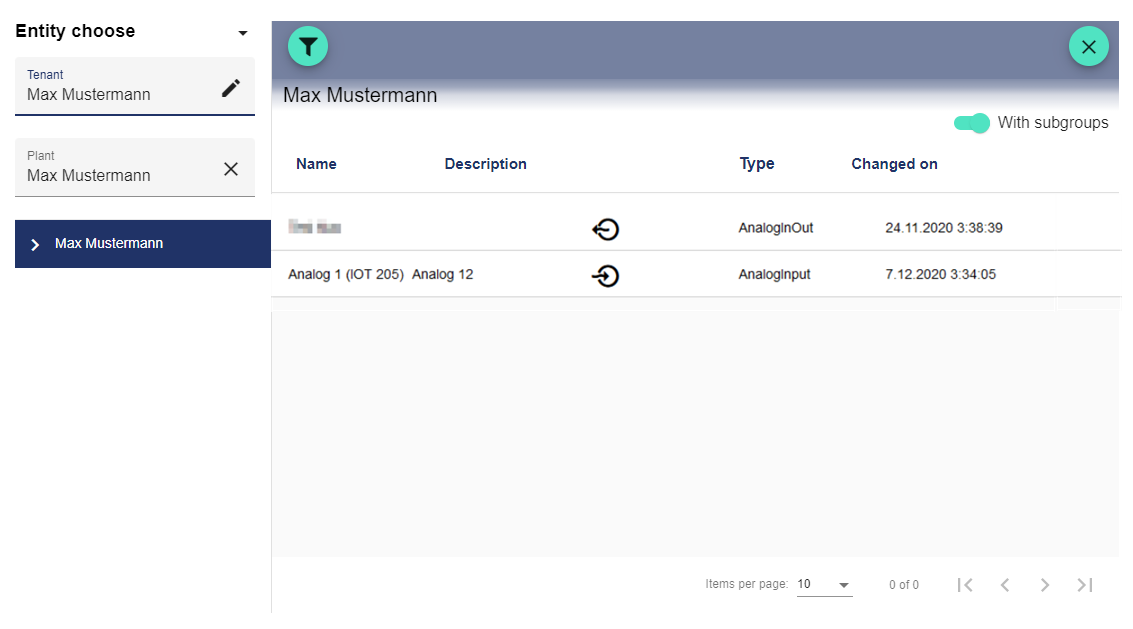
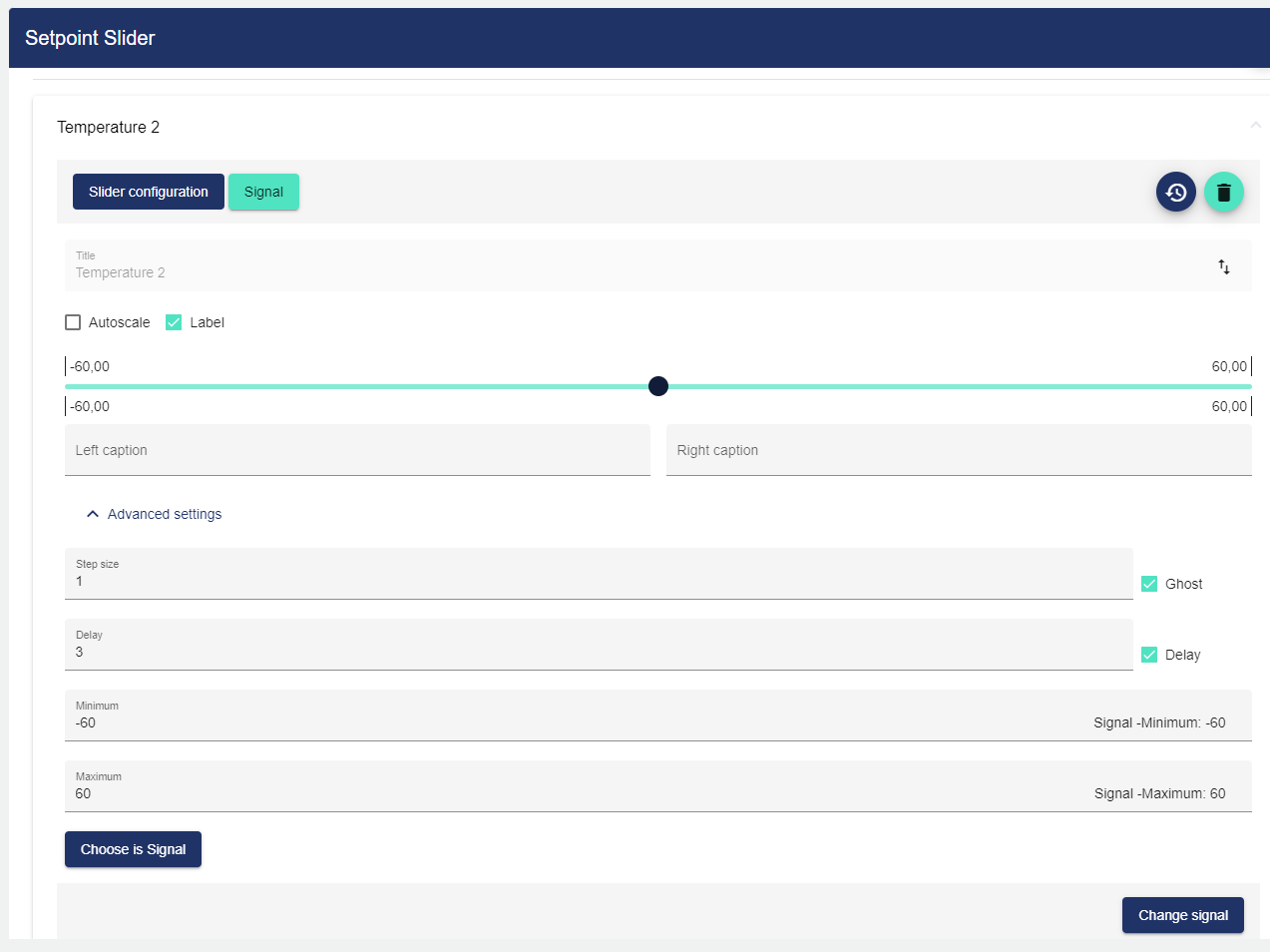
You can add multiple signals that were created earlier. Various settings can be made for each signal. Automatic scaling and the labeling of the slider can be activated by clicking a button.
|
Setting |
Meaning |
|---|---|
|
Subtitles |
Subtitles can be added to the left and right under the slider. |
|
Increment |
You can change the increment of the slider here. If the "Ghost" function is enabled, when the slider is changed, the old position of the slider is seen in a transparent form. |
|
Delay (in sec.) |
In the Delay field, you can enter a value by which the adjustment of the analog setpoint is delayed. During the delay, the operation can be canceled. Click the "Delay" selection field to activate or deactivate the delay. |
|
Minimum |
The value entered here determines the minimum value of the slider. |
|
Maximum |
The value entered here determines the maximum value of the slider. |
Once you are satisfied with your configuration, you can save it.