
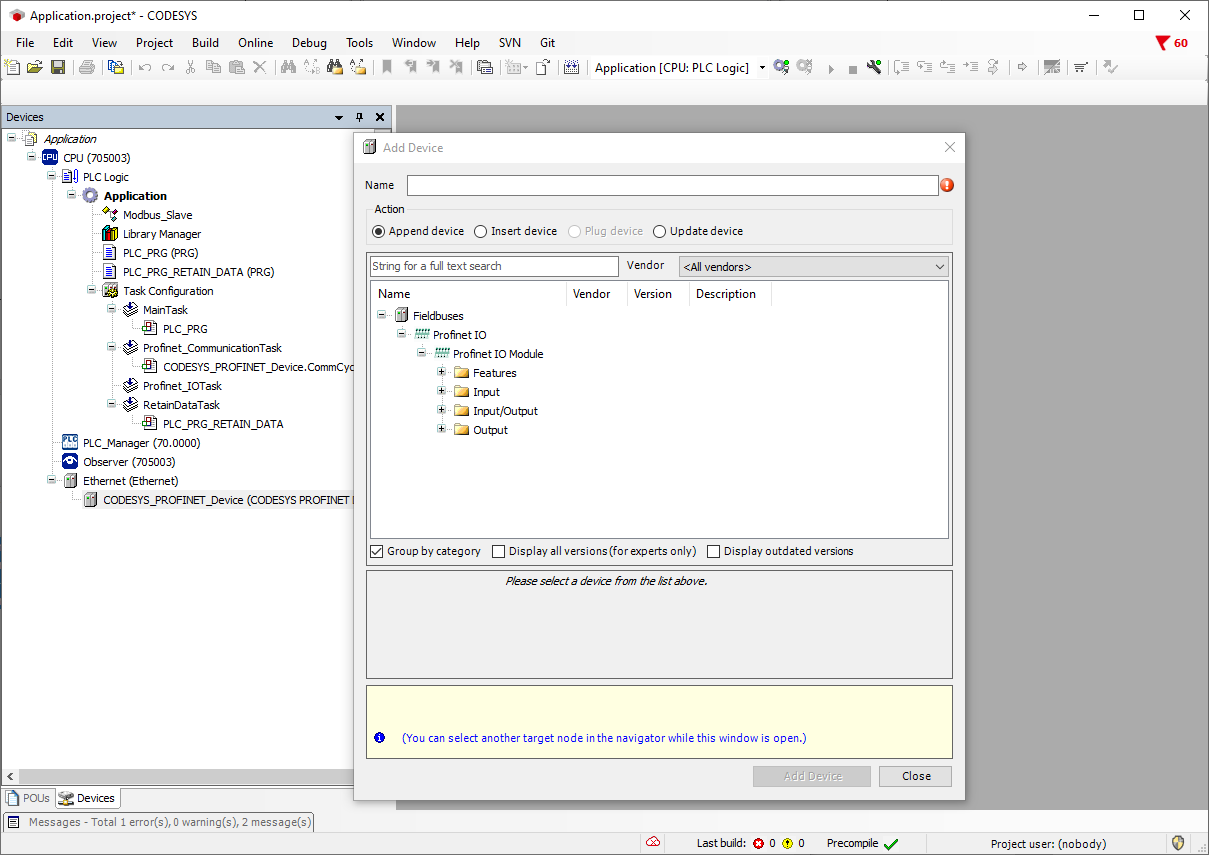
The Ethernet interface must be added to the variTRON that is to be used as a Profinet I/O device for Siemens TIA via the context menu of the CPU and the Add Device... menu item.
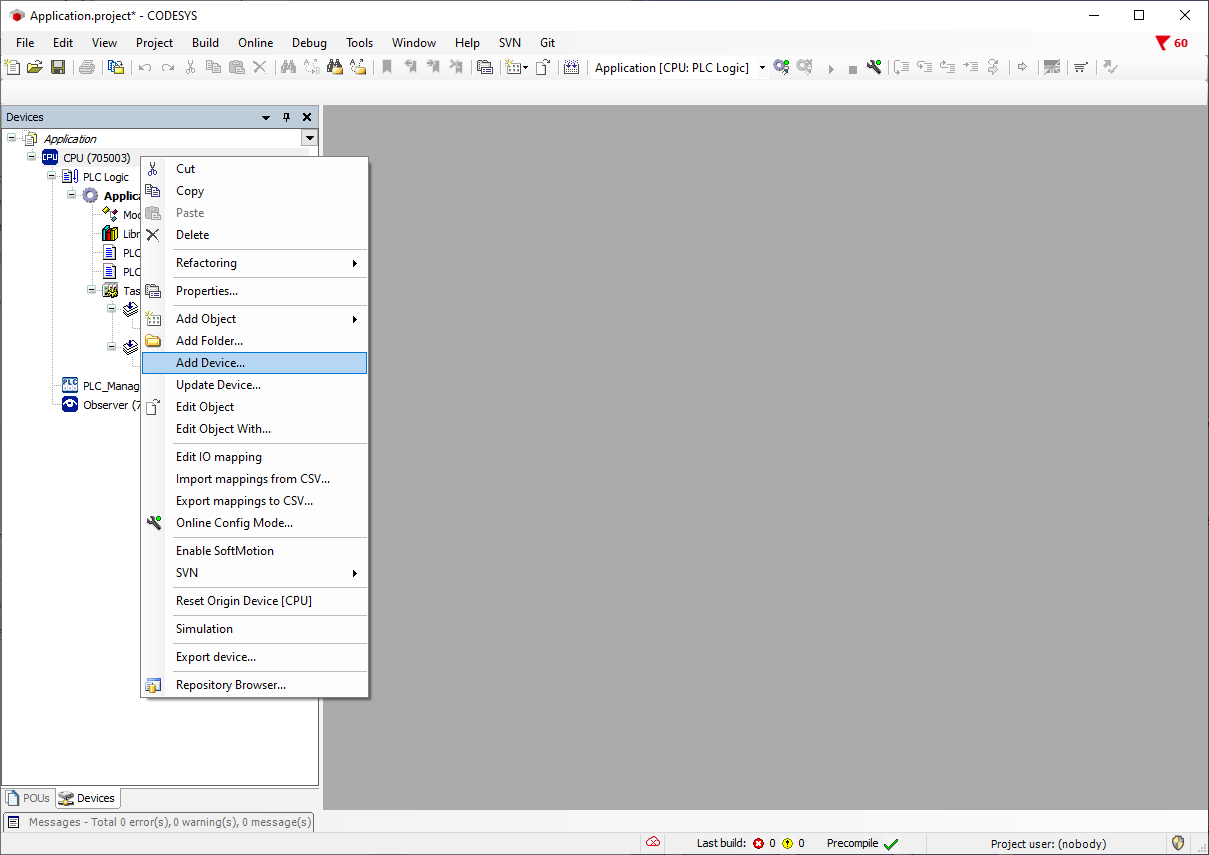
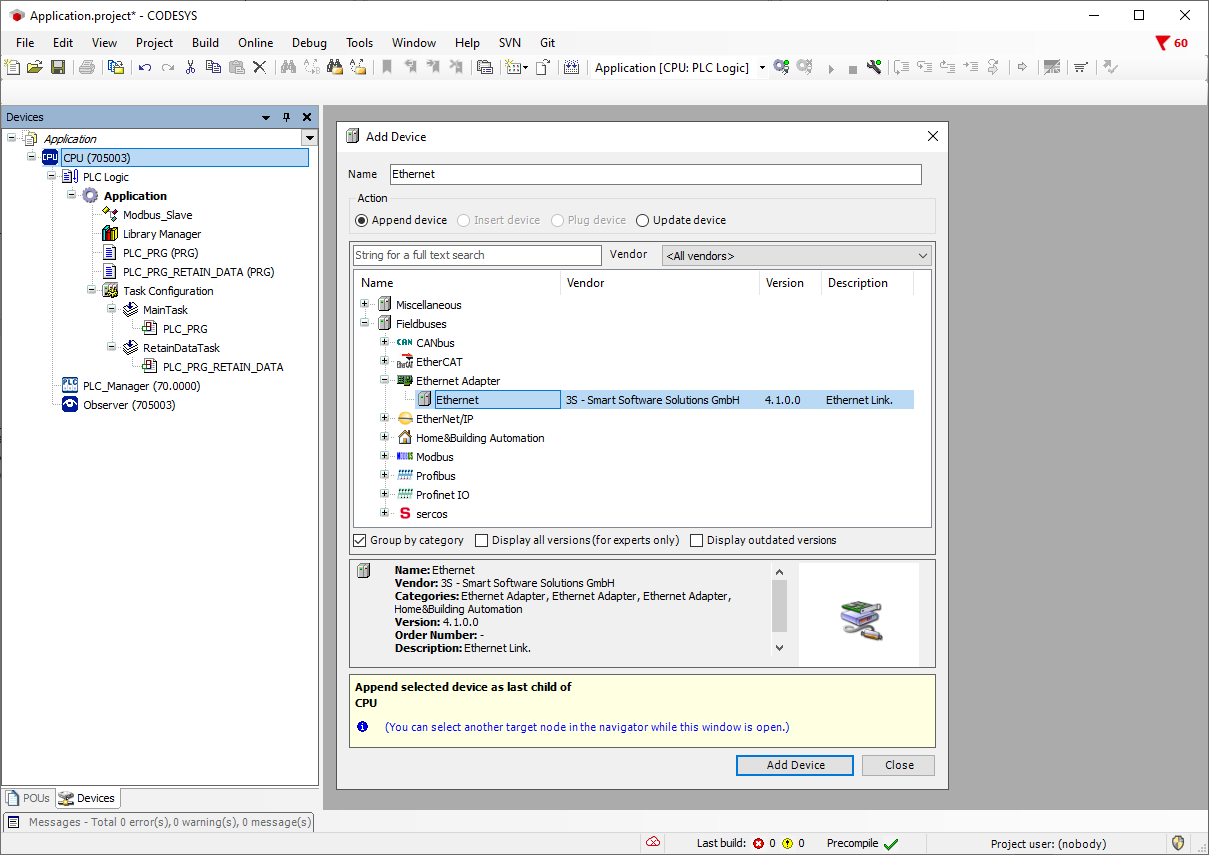
The CODESYS Profinet Device is then added via the Add Device... menu item in the context menu of the Ethernet devices (Fieldbuses → Profinet IO → Profinet IO Device → CODESYS PROFINET Device)
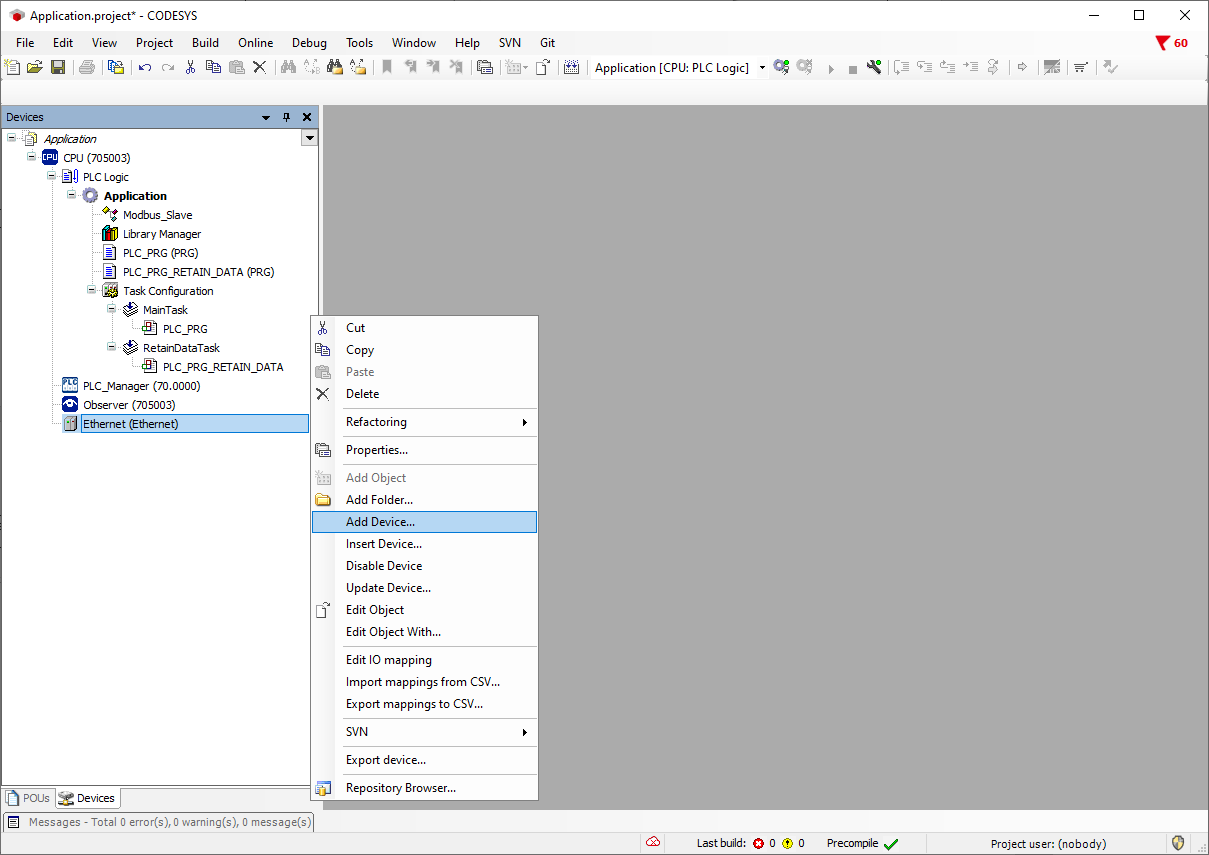
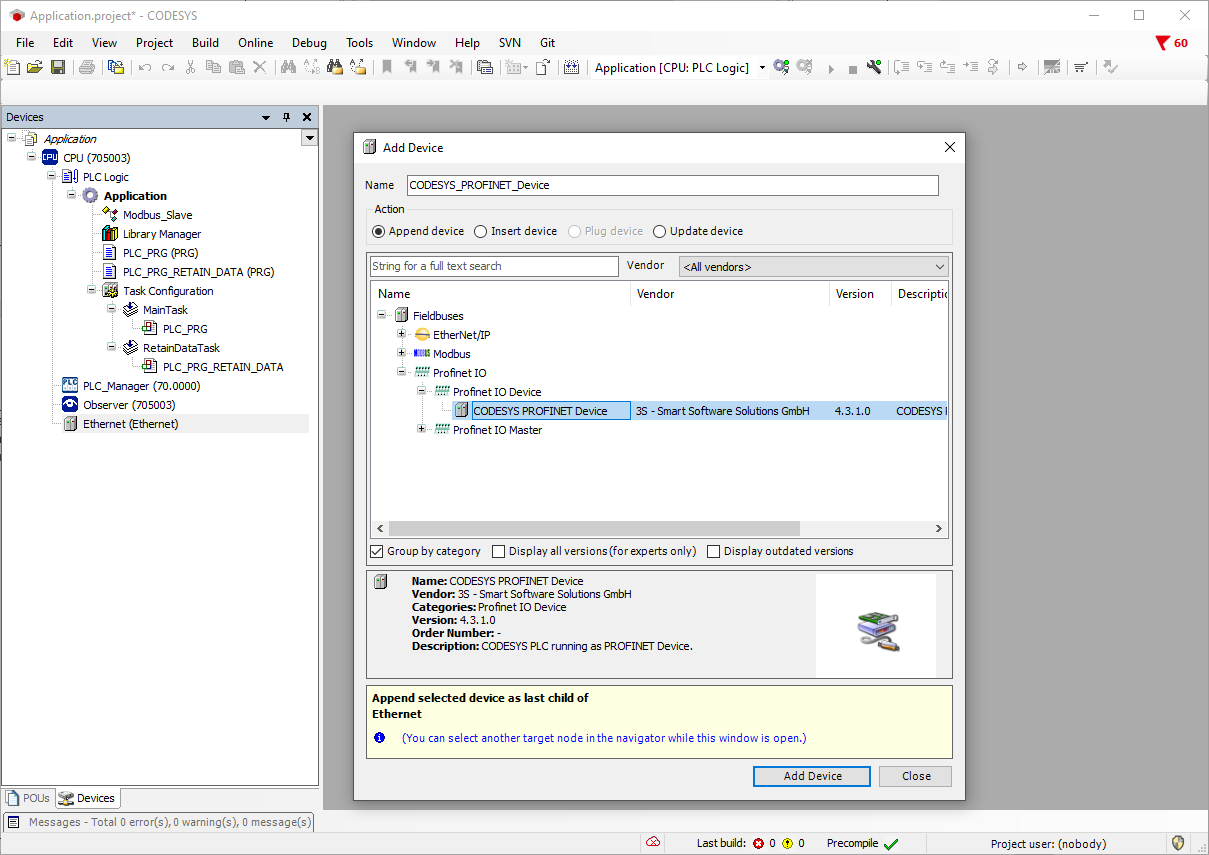
The I/O modules are then added via the Add Device... menu item in the context menu of the CODESYS PROFINET Device.

In this window, you can now create the I/Os that are to be read later in the TIA Portal.
Please note that an input configured here is also an input in the TIA Portal. The same applies to the outputs.
An input/output is now selected and added with Add Device. Once the configuration is finished, you can close the window.
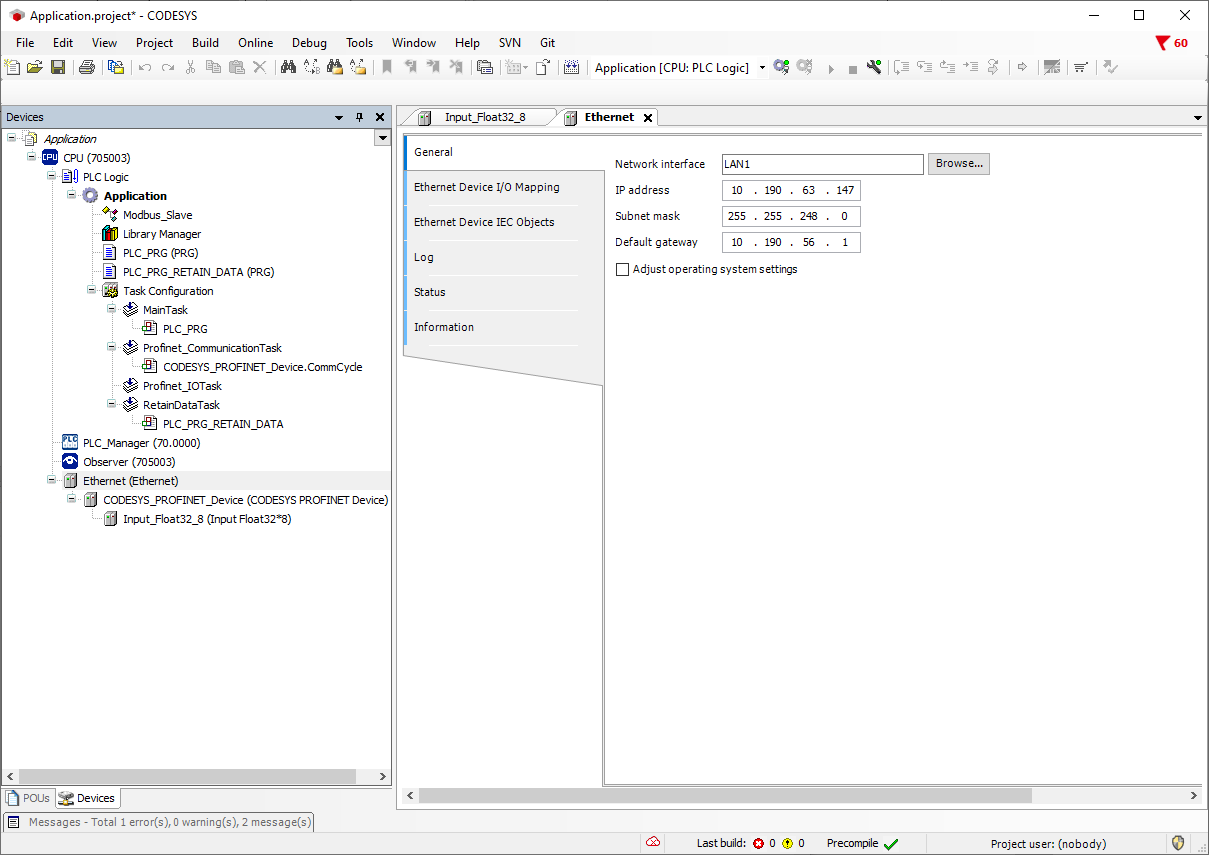
Double-click on the Ethernet menu item on the left in the menu tree to open a new window for the Ethernet interface settings. You can set the Profinet IP address here. You need to note which IP address is being changed (LAN1, LAN2). This may mean that the variTRON can no longer be reached via the address set in the setup software.
If an IP address is assigned here which is no longer traceable and the variTRON is therefore no longer accessible, the variTRON can be reset to factory settings via the device display under the menu item "System status" → "Reset Origin".
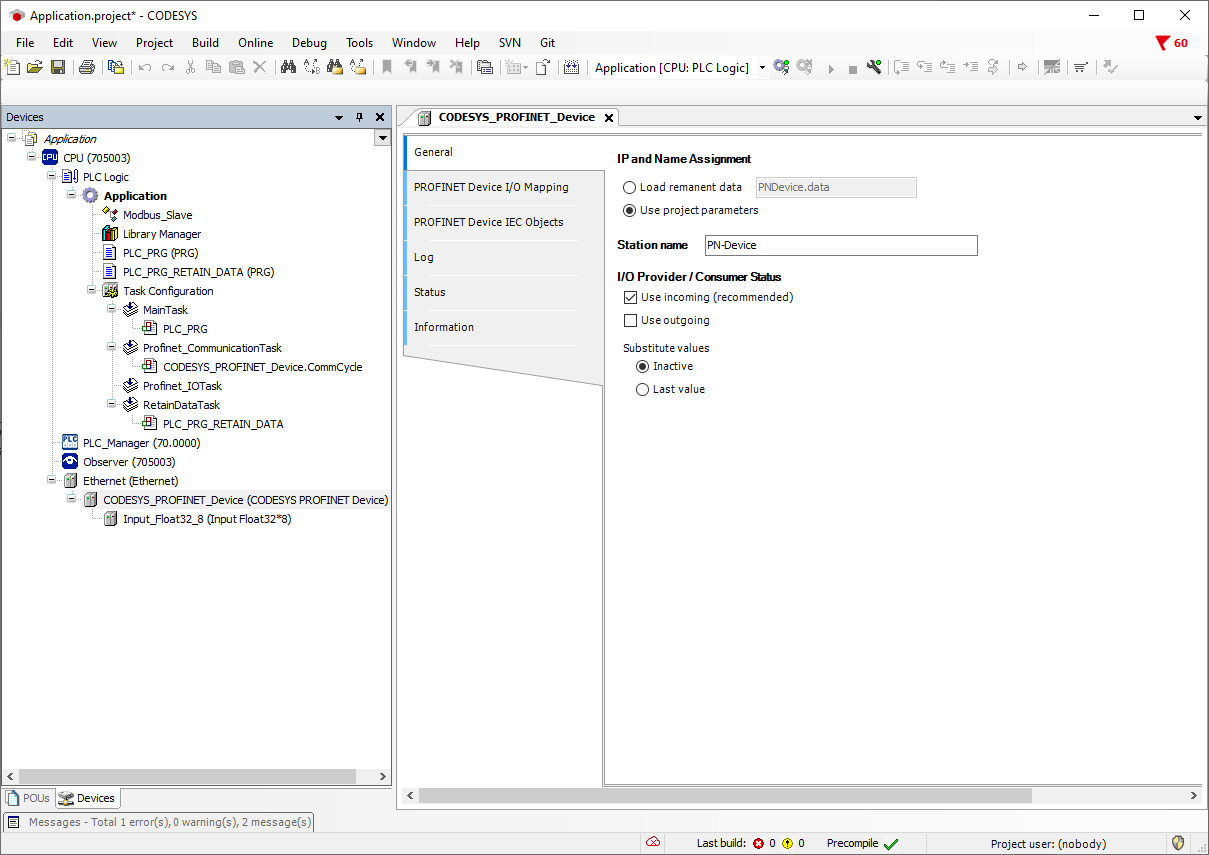
Double-click on the CODESYS_PROFINET_Device menu item on the left in the menu tree to open a new window for the Profinet interface settings. The station name of the variTRON can be set here. This must be identical to the Profinet name configured in the TIA Portal.
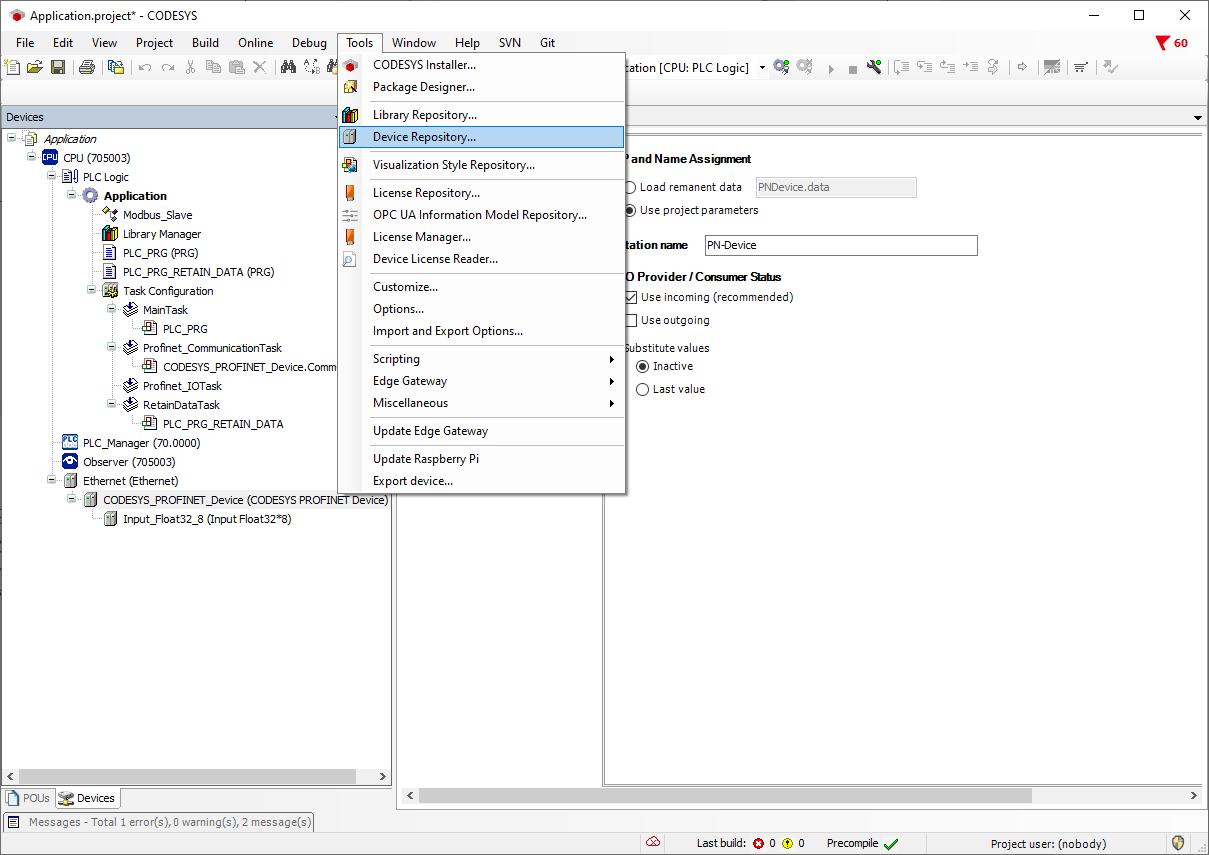
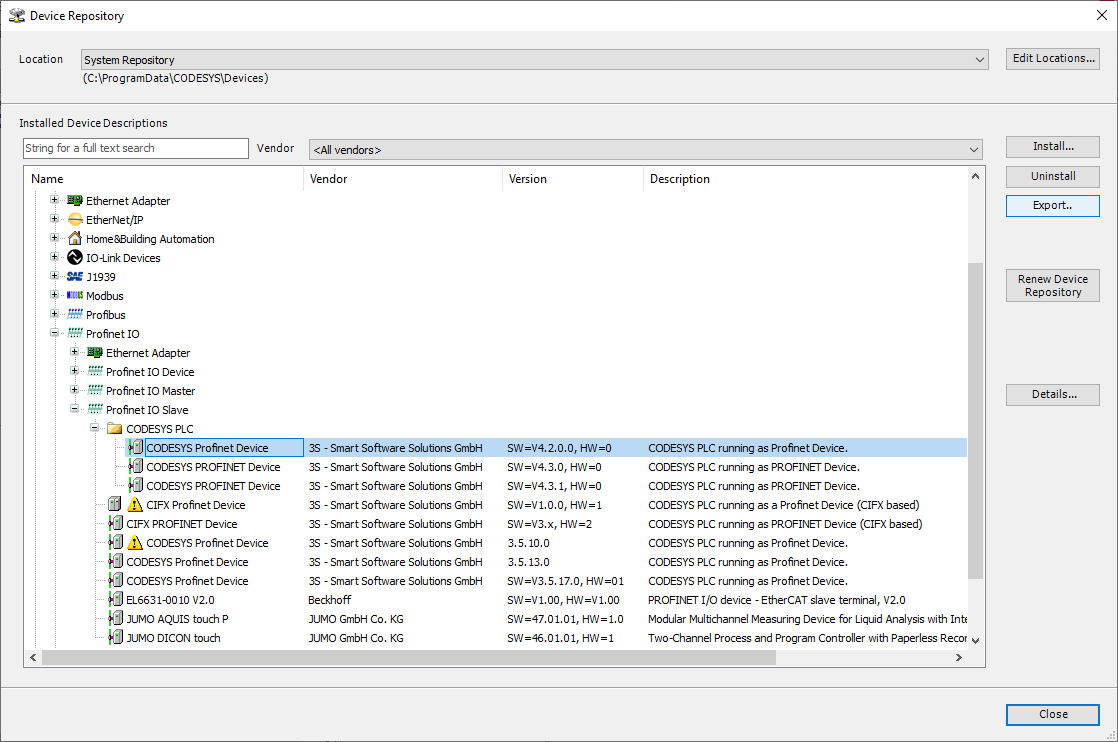
To export the GSDML , the Device Repository is opened via the Tools menu.
In the device repository under Fieldbuses → Profinet IO → Profinet IO Slave → CODESYS PLC, the menu point CODESYS Profinet Device can be selected and then exported as a ZIP file using the Export key.
The zip file must now be unpacked in a folder on your own PC.

The following files should have been unpacked from the zip file.

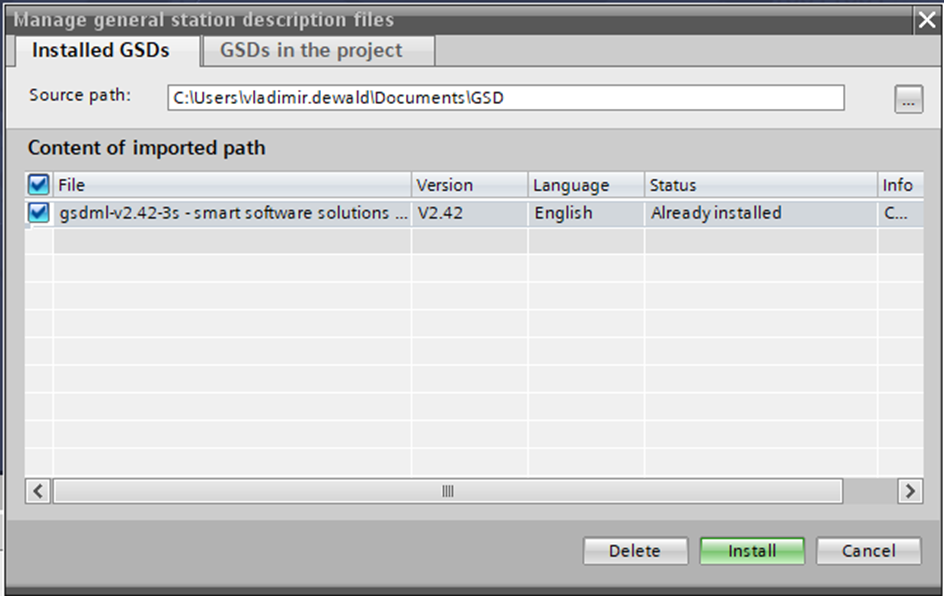
In the TIA Portal, you can now use the function Manage device description files to import the GSDML created from the CODESYS in the TIA project. The variTRON is then added to the hardware catalogue.
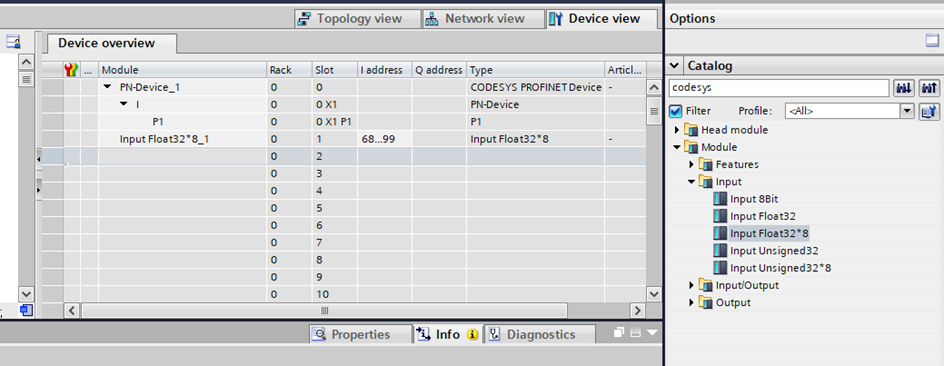
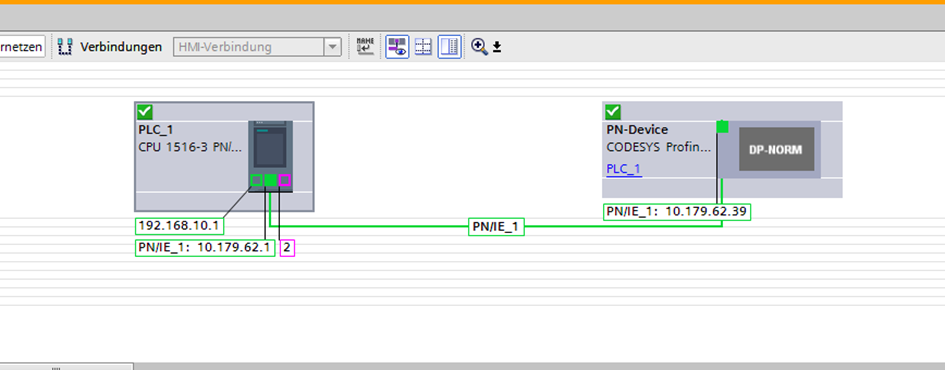
The variTRON can be selected via the hardware catalogue under Further field device → Profinet IO → IO → 3s-Smart Software Solutions GmbH → CODESYS PLC → CODESYS Profinet Device and can be added to the hardware configuration.

If you double-click on the inserted variTRON in the network view, the device view opens. Similar to an ET200, I/Os can now be attached to the variTRON.n.
Please note that the configuration of the I/O modules must correspond to the configuration in the CODESYS software!
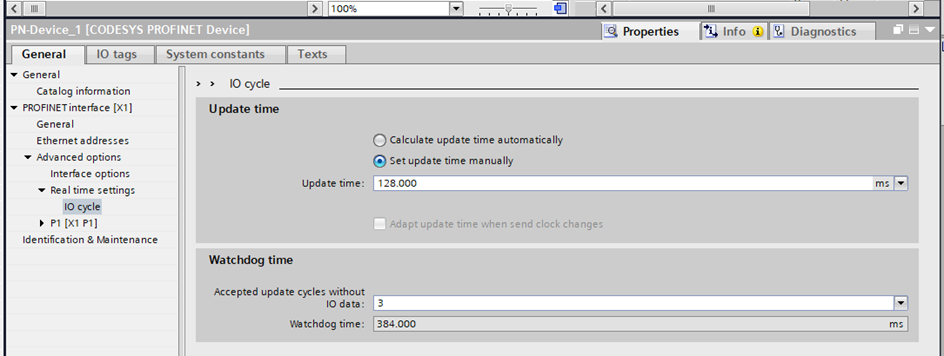
Then update time for the variTRON should then be set to 128 ms.
The connection should work after transmitting the project to the controls.
___________________________________________________________________________________________________________________GSDML (General Station Description Markup Language)