
4.22 Update from
1. Widget improvement: Alarm Planning
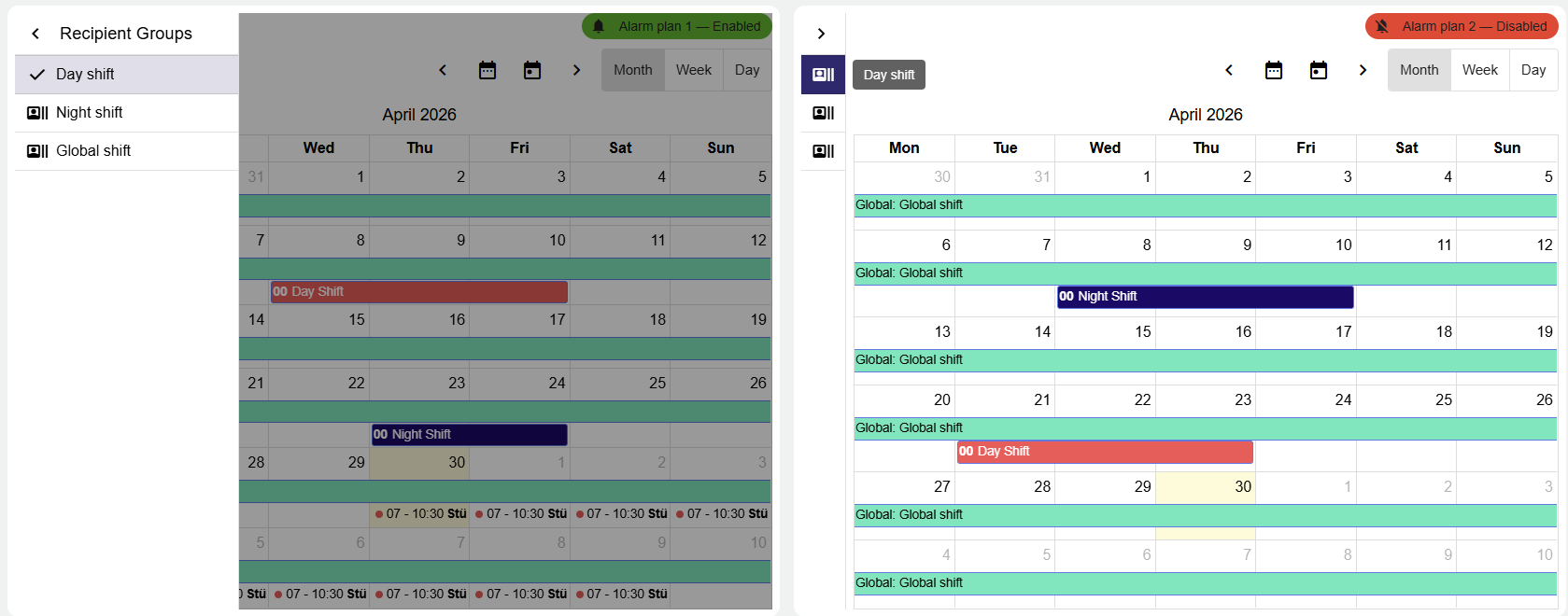
This version improves the user-friendliness of the Widget: Alarm Planning. Using the widget and scheduling on-call shifts is now significantly easier and more intuitive than ever before. In addition, you can now quickly see in the top-right corner of the widget whether the “Alerting plan” is active or not. You can also use this button to activate or deactivate the “Alerting plan”. As a result, testing and maintenance can be carried out more quickly and easily.
Improved user-friendliness when working with on-call schedules and alarm planning
2. Add empty widgets faster & position them more effectively
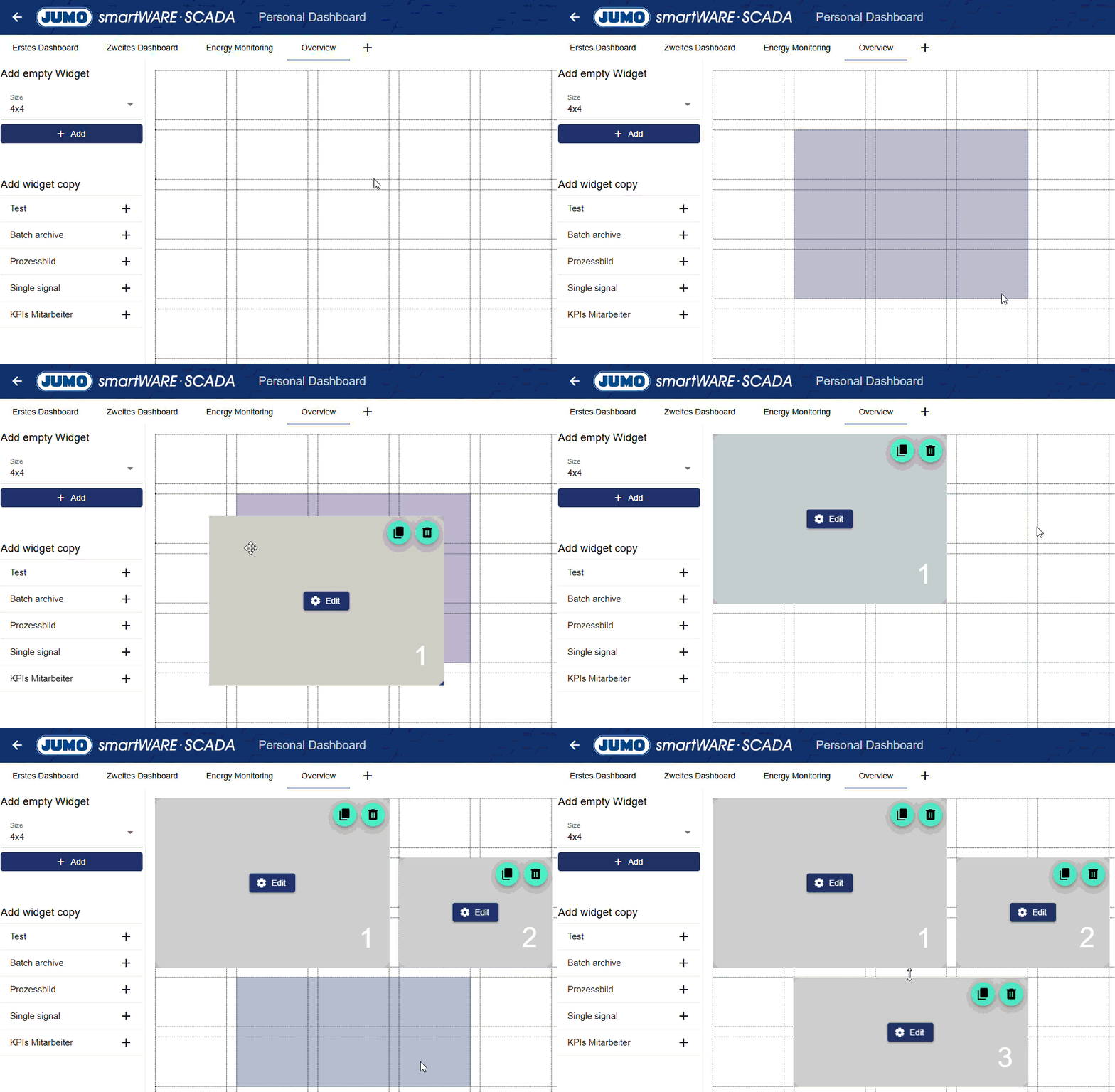
Adding and moving widgets has never been easier! Now, simply press and hold the mouse button to quickly and easily add a new blank widget in various sizes. When moving widgets, a preview shows where they will be positioned.
Work more efficiently and quickly in the dashboard area
3. Optimization of the SCADA Licensing Model
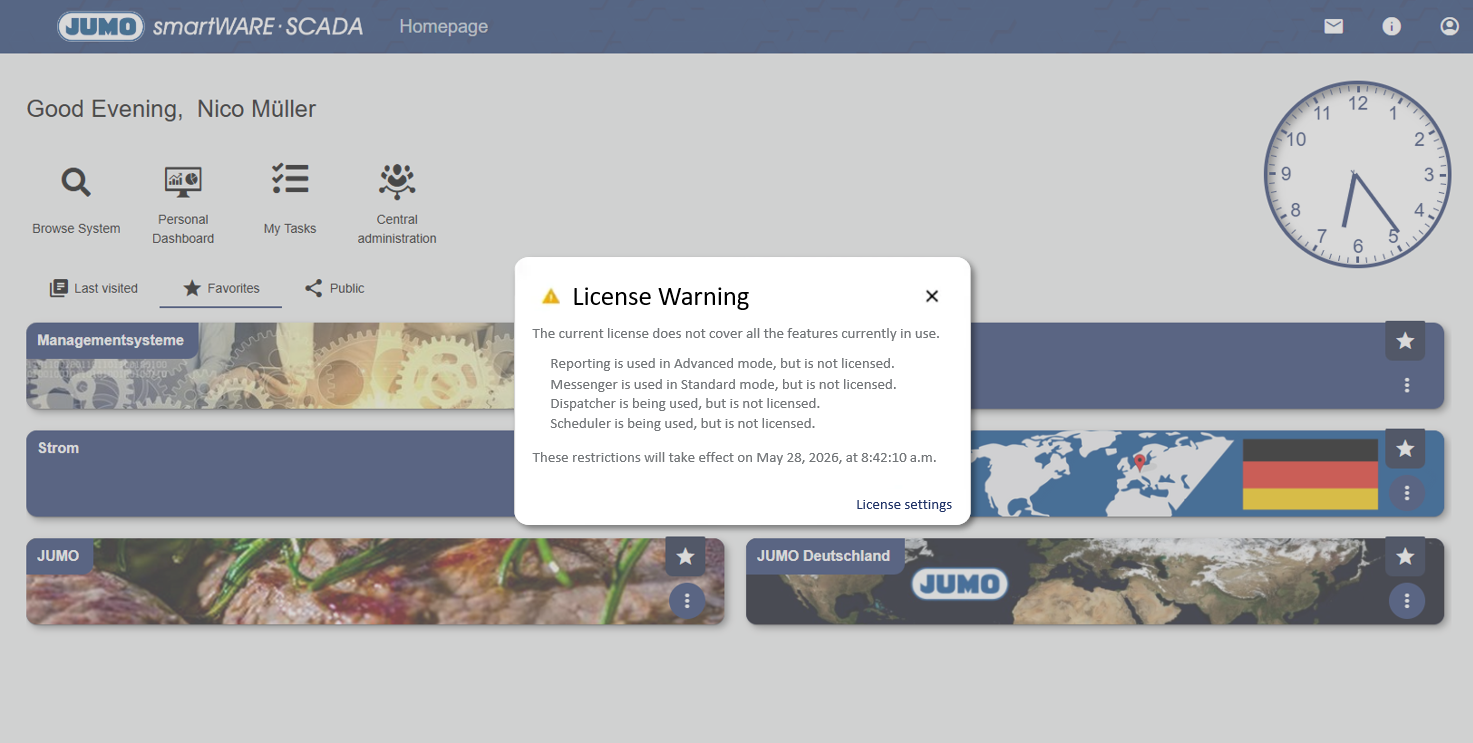
Starting with this version, the JUMO smartWARE SCADA licensing model is fully implemented. If a module or function is not covered by the existing license, a License Warning will appear. This warning indicates a 30-day grace period and lists the functions that are currently not licensed. If the license is not extended within 30 days, the application can subsequently only be used within the licensed scope.
Greater transparency in the management of licenses
The License Portal for activating a SCADA license has also been improved. It now differentiates between two functions: “Activate” and “Upgrade”.
|
Activate |
Upgrade |
|---|---|
|
When you purchase a SCADA, JUMO will now send you a Voucher Code. This code must be activated in the license portal along with the SCADA’s one-time UID (Unique Identifier). This generates a license key that activates the SCADA. 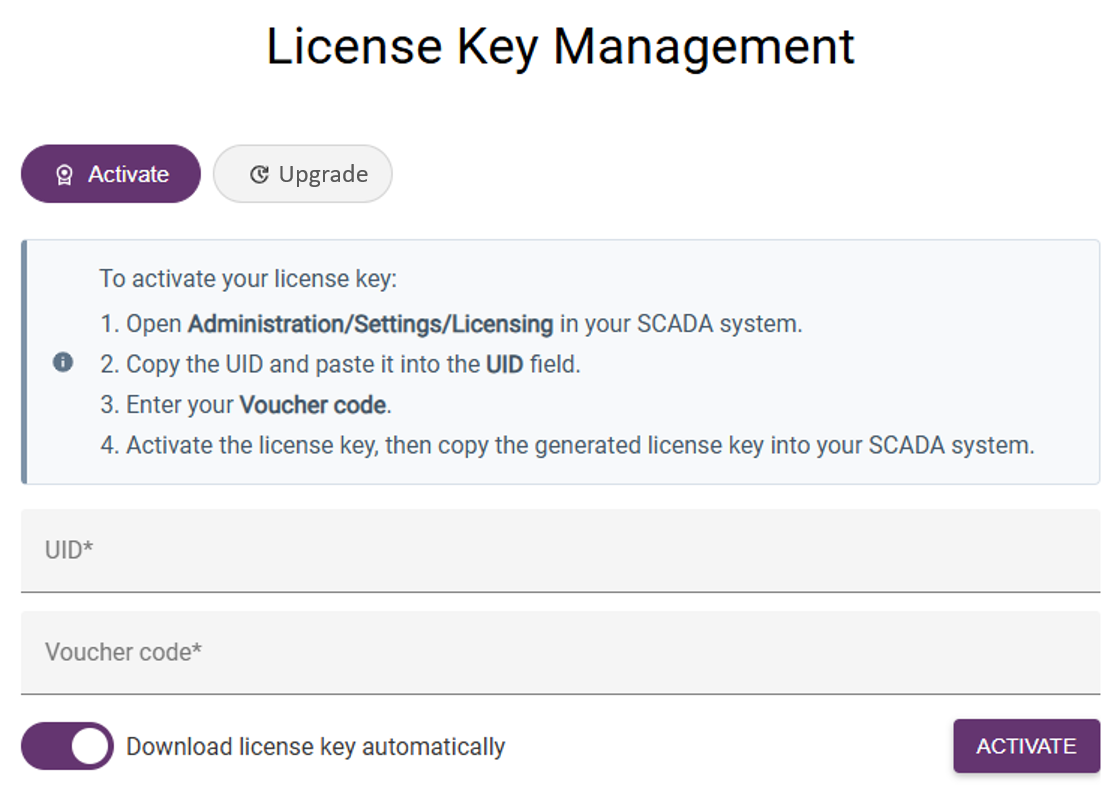
|
If an already activated SCADA license needs to be extended (more signals, more modules, more functions) or receive an update (Version 4.22 → Version 4.23), the “Upgrade” section must be used. License extension: To do this, the user must first contact JUMO with their extension requests (e.g., more signals). Once payment has been processed, JUMO will extend the license in the background. The customer can then use their Activation Code to generate a new “license key”, which unlocks the SCADA with the extension. License Update: To do this, the user must also use their Activation Code to generate a new license key in the license portal, which unlocks the SCADA for the new version. A new “license key” is only issued if the corresponding SCADA is authorized to perform an update to a higher version. Only after this step the actual SCADA update (pull) can be performed on the server. 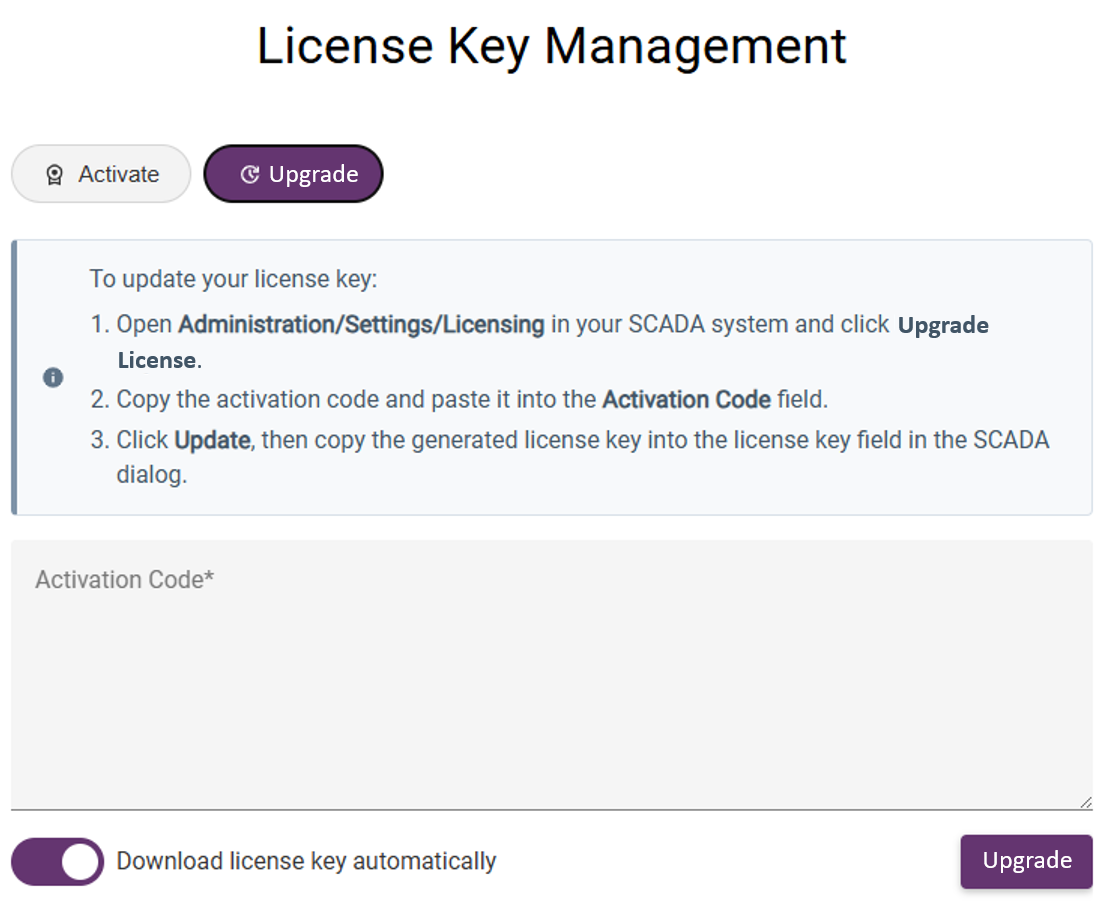
|
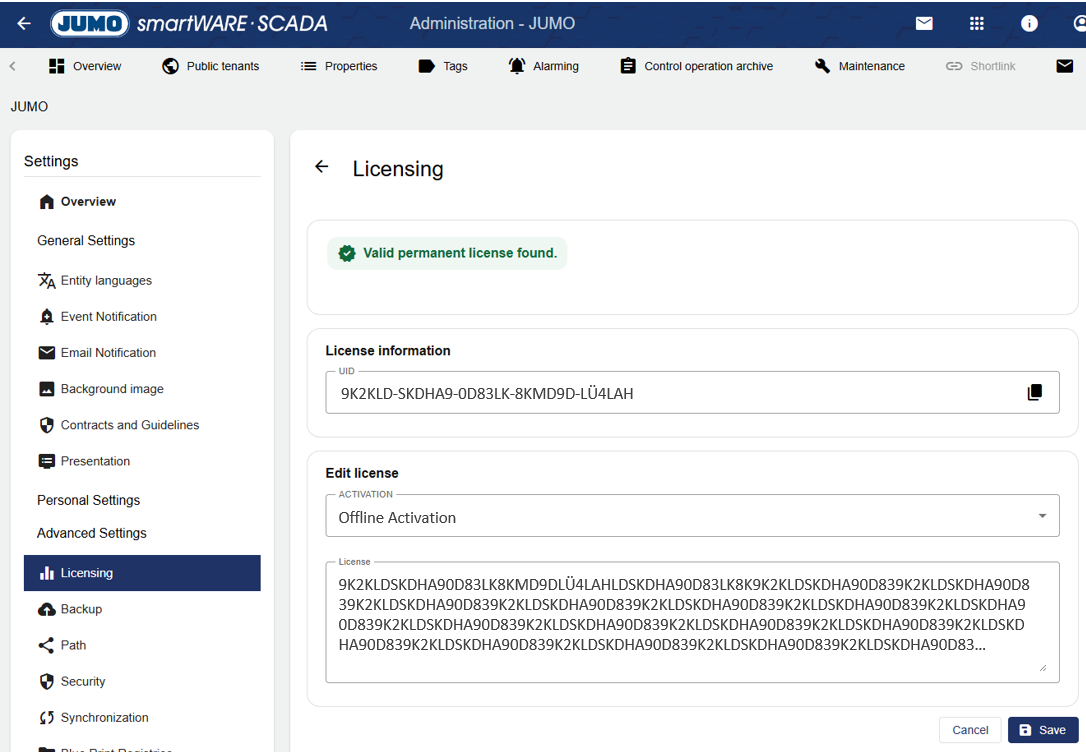
Once the new license key has been generated in the portal, it can be added under “Edit license”. There are two options available here:
-
Online Activation: This type of activation uses a JUMO internal engineering license. The SCADA server requires an internet connection every 2 hours to keep the license active. For “Online Activation,” only the Voucher Code is required. Activation via the license portal using the UID takes place automatically in the background. You do not need to enter a License key.
-
Offline Activation: This type of activation is used for standard SCADA installations. The SCADA server receives a permanent license even without an internet connection.
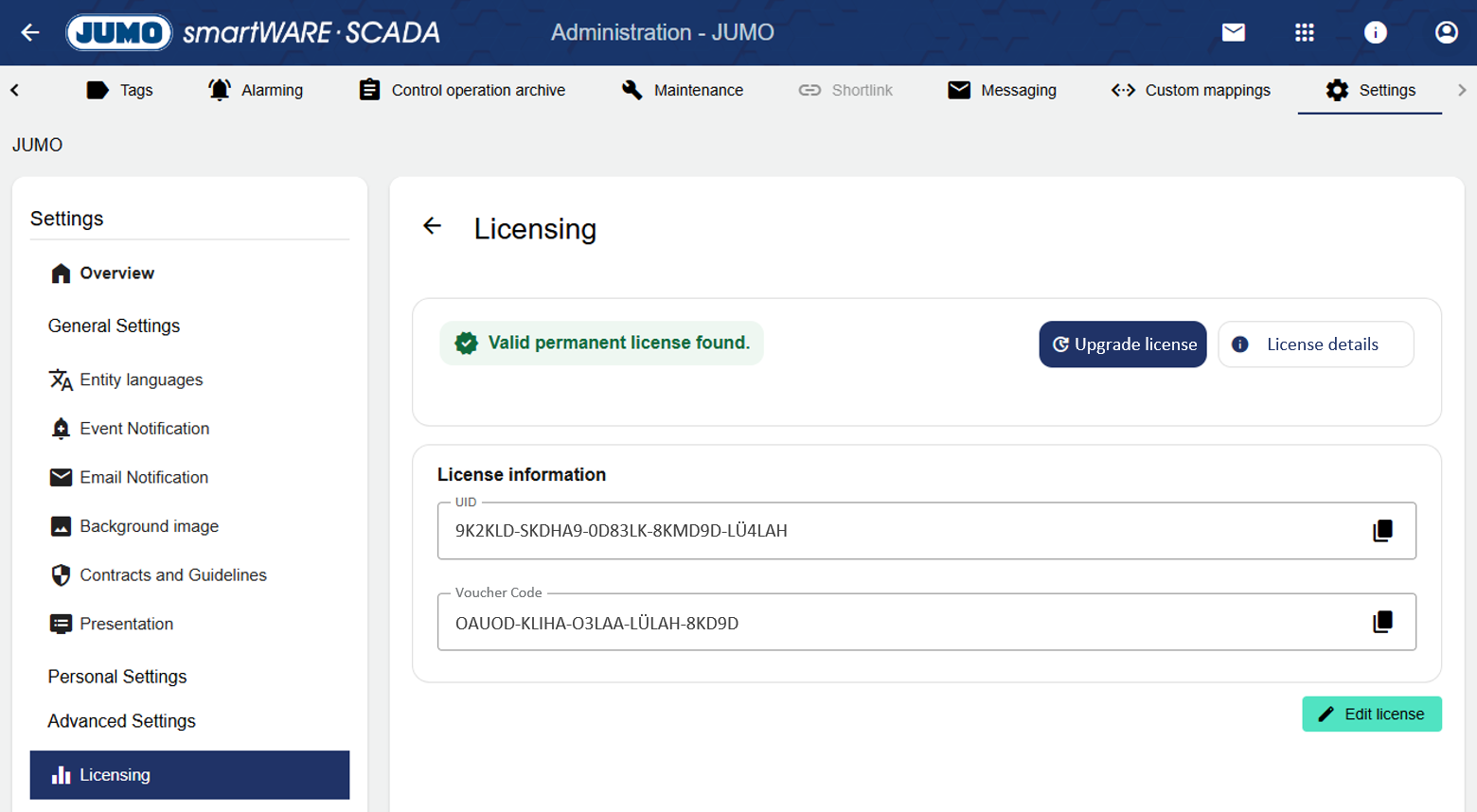
The Upgrade license button provides the functionality described above for extending and updating a SCADA license and generates the individual “Activation Code.”
License details shows which features are included in the license. From now on, the “Target version” section is also displayed. It contains two entries:
-
Version: The “Version” indicates the maximum SCADA version to which a software update can be performed. Every SCADA system sold can be updated by two (2) stable versions (e.g., from the current version 4.22 to the target version 4.24) without purchasing the Software Update Service (SUS), as described in the data sheet. After that, a SUS is required to pull stable or unstable versions or to perform a SCADA server update. If this target version is not higher than the current version, an “upgrade” of the license must be performed via the license portal as described above. A SCADA update (pull) can only be performed if the target “version” under “License details” is higher than the current version of the SCADA.
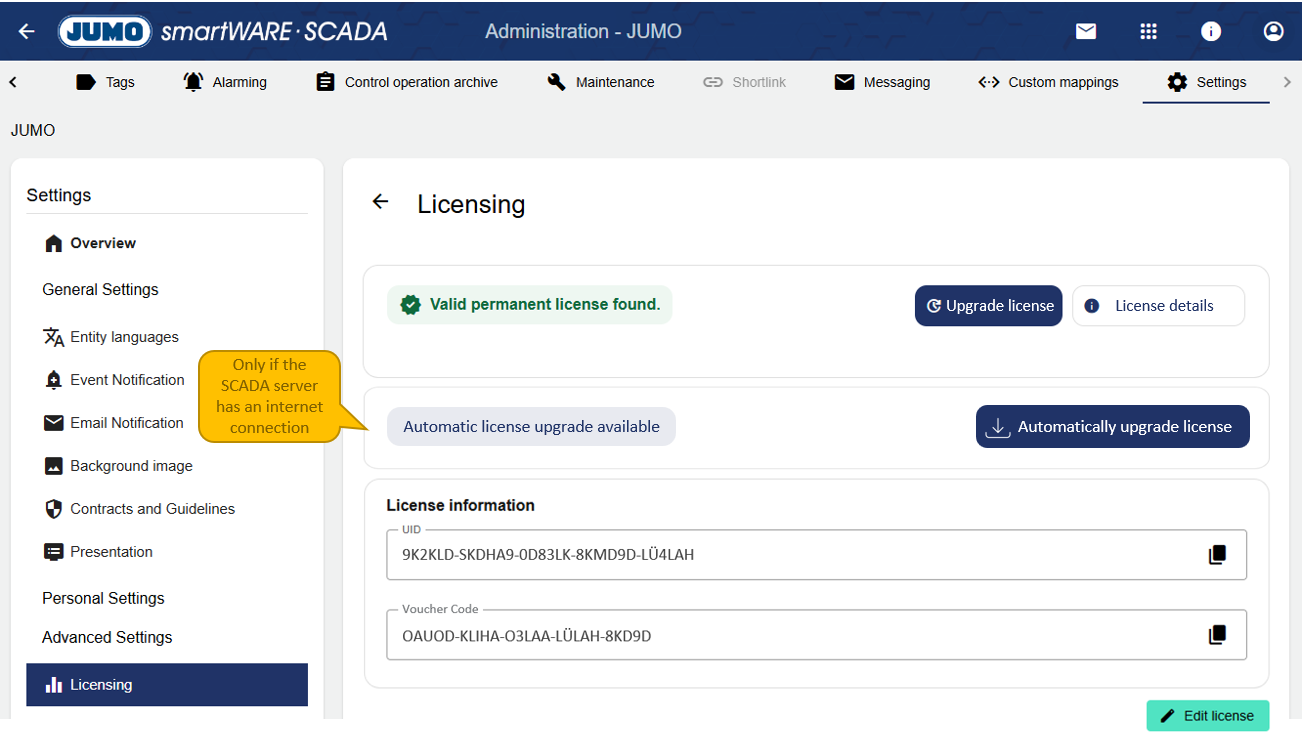
SCADA servers with an internet connection periodically check the license portal. As soon as a new stable update is available and the SCADA server is authorized to do so, additional information appears, and the license update process described above can be performed automatically via the portal with the click of a button. However, the SCADA server update (pull) must still be performed manually, for example, to update from version 4.22 to 4.23.
-
Software Update Service: Indicates whether the Software Update Service is licensed or not. This display only works if the SCADA server has an internet connection and access to the JUMO license server; otherwise, “unknown” appears here.
4. REST API expanded to include Batches
The REST API functionality of the JUMO Cloud and the OpenAPI specification have been expanded to include batch functionality. Starting immediately, it is possible to retrieve header, meta, and process data for a completed batch via the API.
Expanded functionality when using batches and the REST API

5. Widget: Pie chart with formulas available
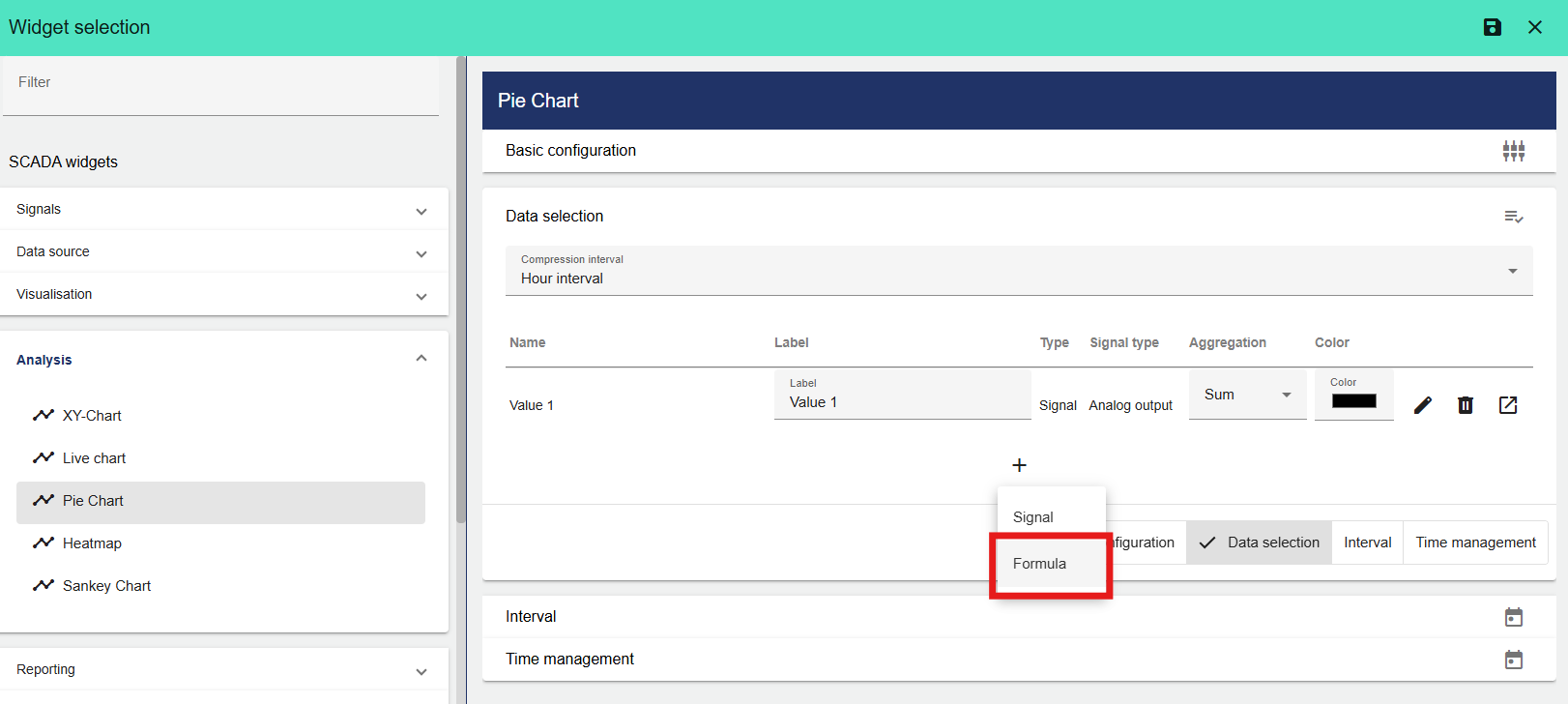
The Widget: Pie Chart is now available for use with Formulas in addition to Signals. Since there is no need to enter a formula into a signal separately, this saves time and money.
Lower costs by reducing the number of signals
6. Improvement Widget: Recipient Group Config
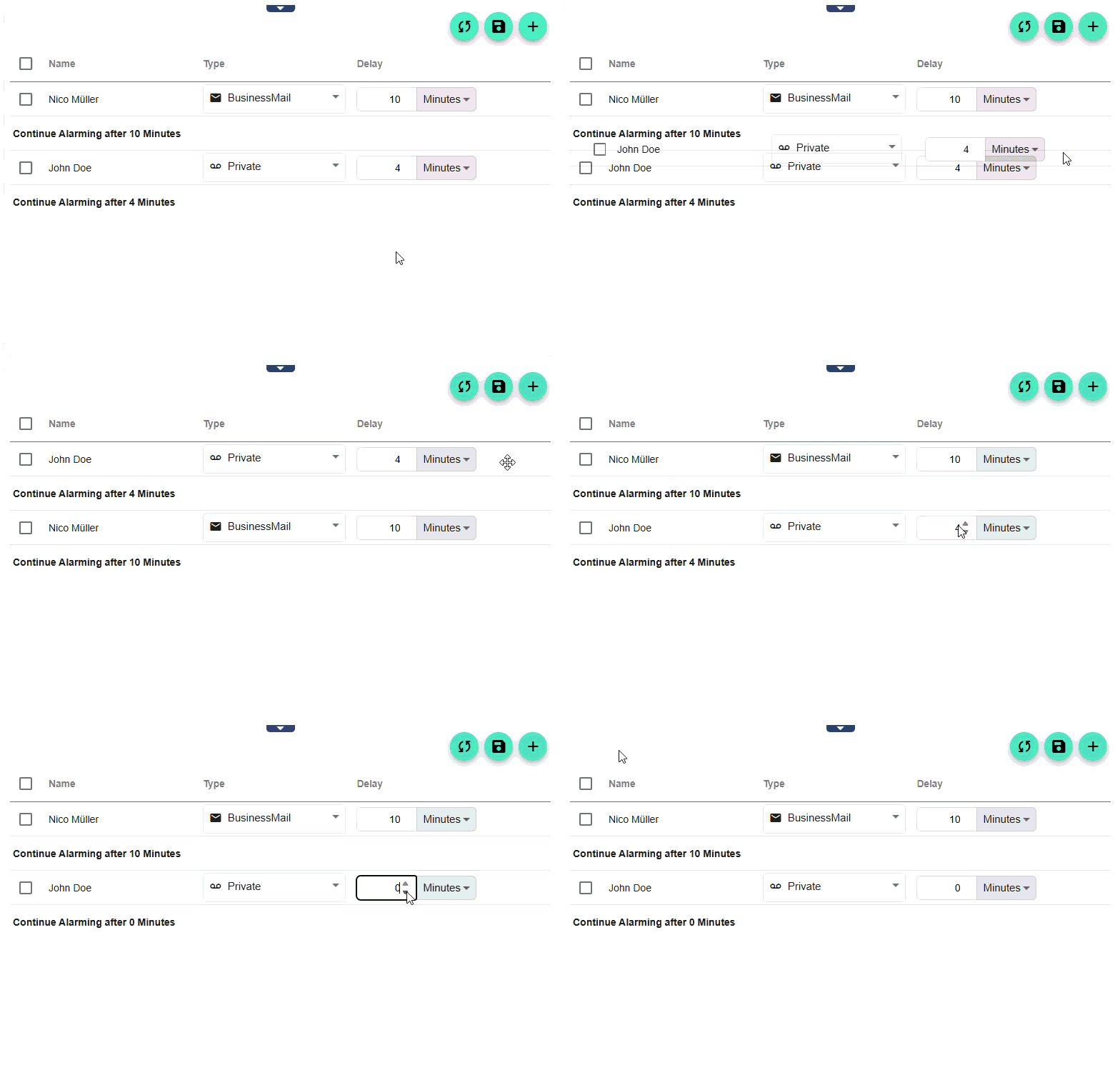
The Widget: Recipient Group Config has been optimized for user-friendliness. You can now quickly and easily change the order of alarm recipients using drag-and-drop. It is also possible to set the delay to 0. Previously, a very small value close to zero was displayed here.
Improving user-friendliness when working with alarm cascades
7. Other important features
-
Optimization Widget: XY-Chart
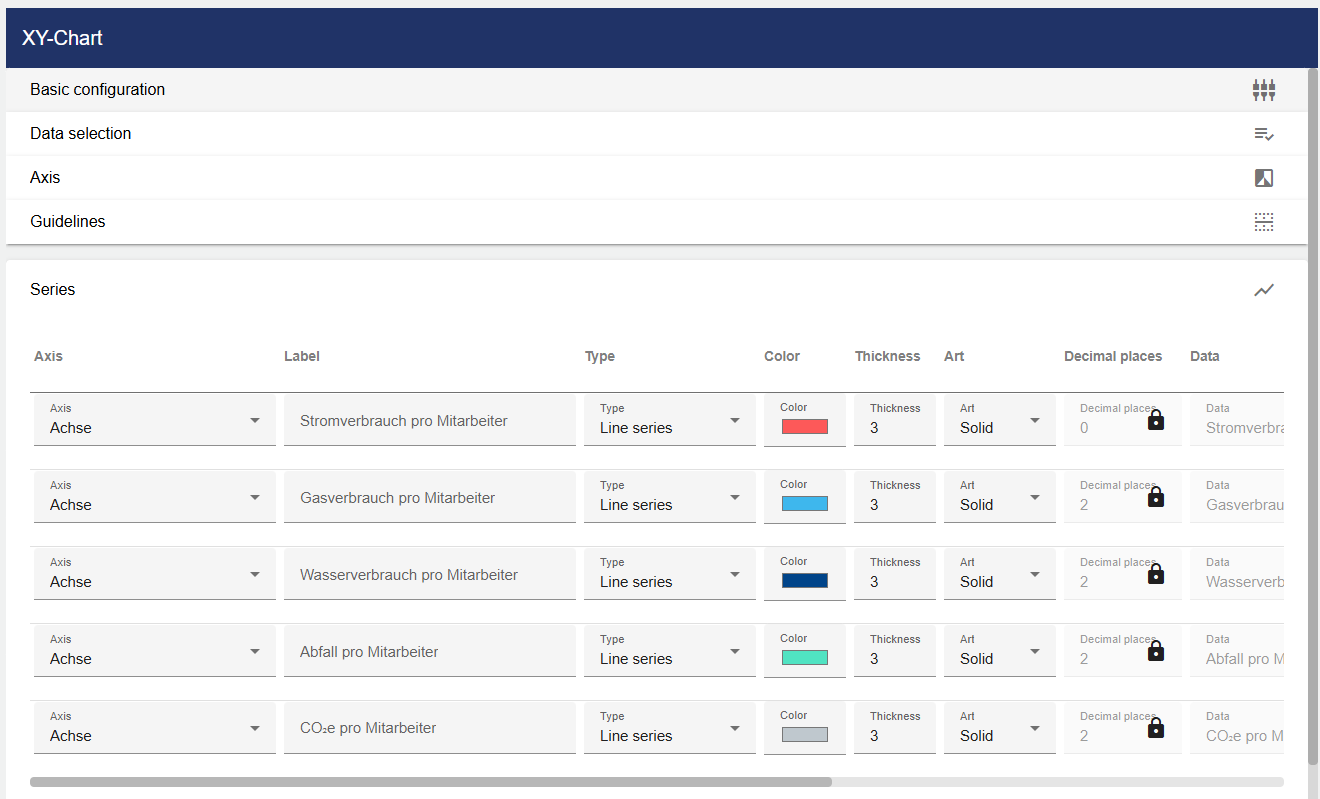
The user-friendliness of the Widget: XY-Chart configuration has been improved. In particular, it is now much easier to assign axes and adjust settings in the "Series" section. Additionally, the balloon tooltips are no longer transparent in the view.
-
Signal names are now displayed in the connections
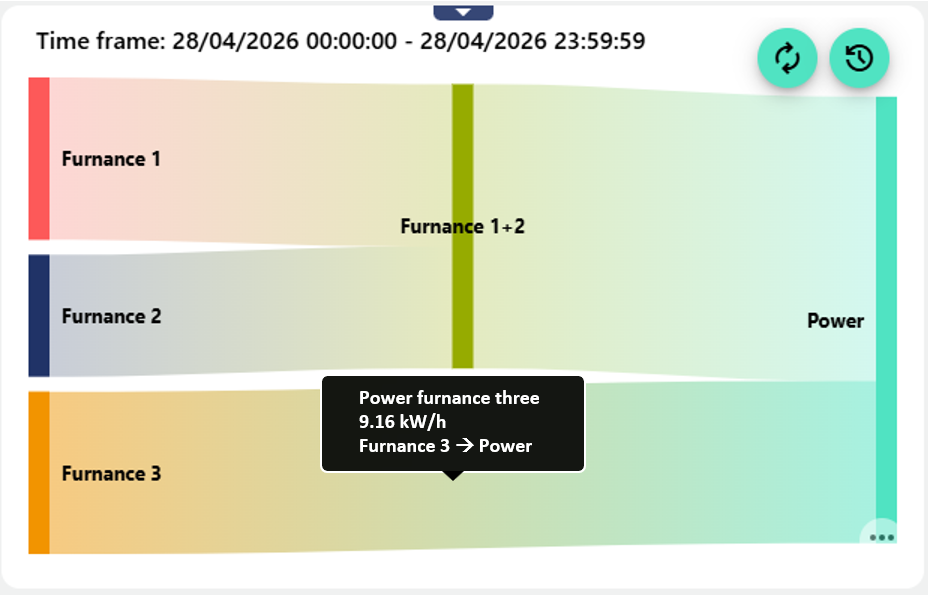
From this version onward, the Widget: Sankey Chart includes the corresponding signal name in addition to the value and the start and end points of a connection.
-
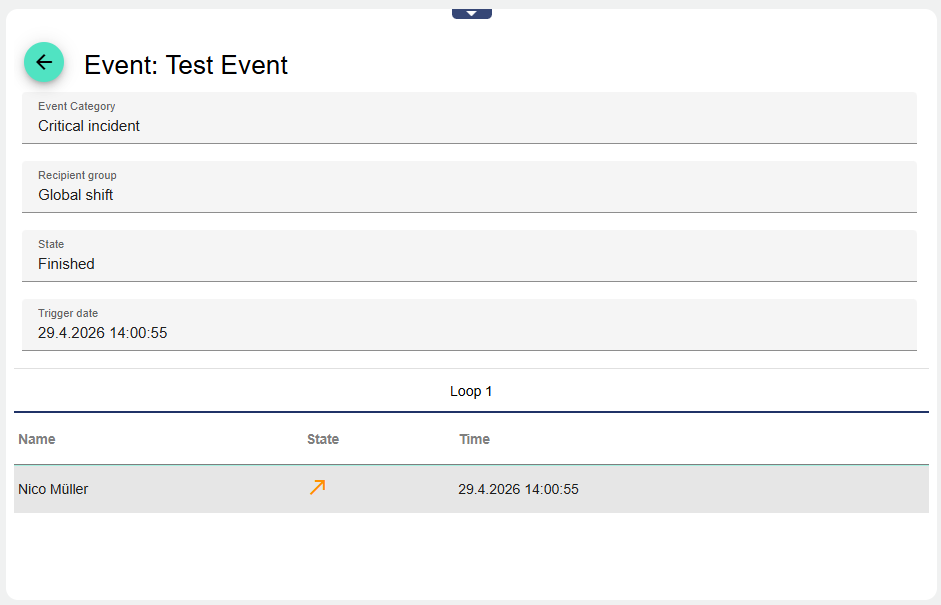
Optimizing the display in the Widget: Entered Alarming
In this version, the event, category, and other related information are displayed more clearly than before, in accordance with the design guide.
-
Bug fixes and system maintenance