
JUMO smartWARE Evaluation is only available to logged-in users.
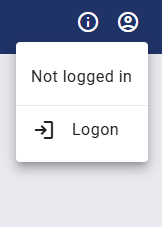
Clicking on the "User" icon shows whether a user is logged in or not.
If no user is logged in, "Not logged in" is displayed. Logon can be carried out using the "Logon" button.
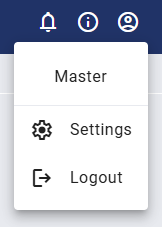
If a user is logged in, their name is displayed (Master here). Settings can be made or the user log out.
Logon
The user name and password must be entered to log on.
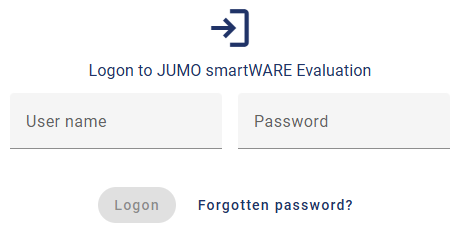
The following data must be entered the first time you log on:
-
User name: “Master”
-
Password: “9200”
If you cannot remember the password you have set, you can set a new password using the "Forgotten password?" command. A window will then open in which you have to enter your user name.
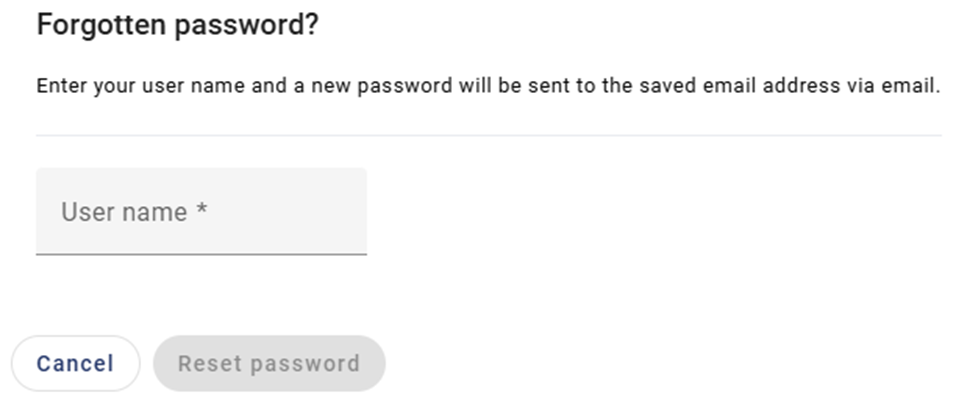
Then use the "Reset password" command to have a new password automatically sent to the saved email address.
JUMO smartWARE Evaluation can only be used when you have logged on successfully.
Logout
After log out, the logon screen is automatically displayed to enable the user to log on again.
Settings
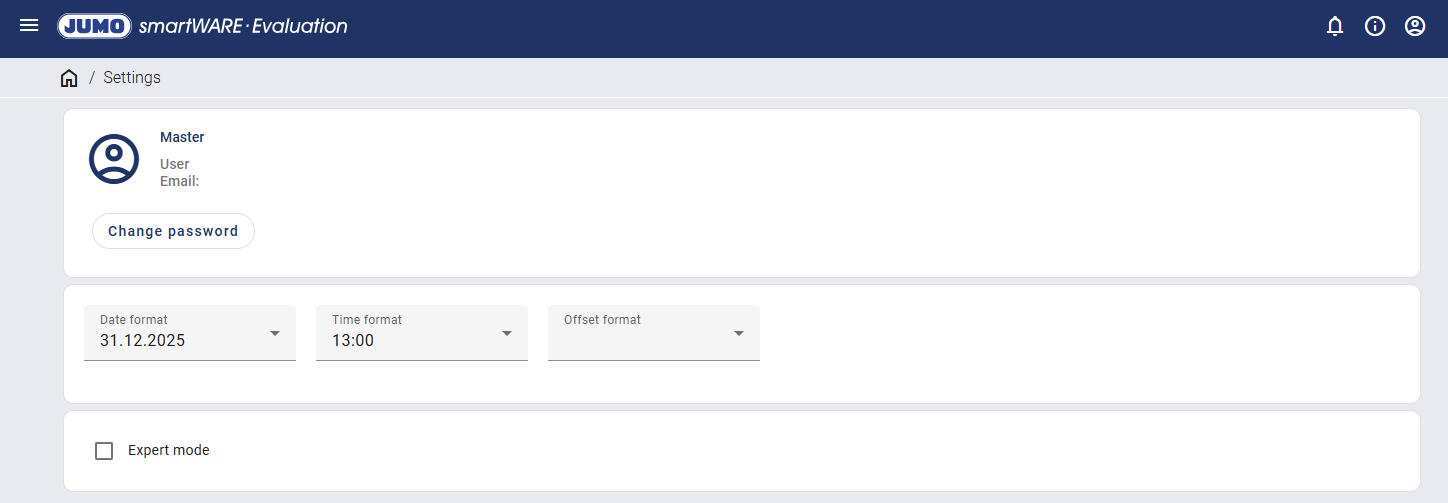
The password can be changed in the settings.
The date and time format and the offset format can be selected using the relevant drop-down menu. The setting applies to all system displays which indicate the date or time.
Expert mode is activated by checking it.
Changing the password
The previously used password must first be entered for confirmation to change the password.
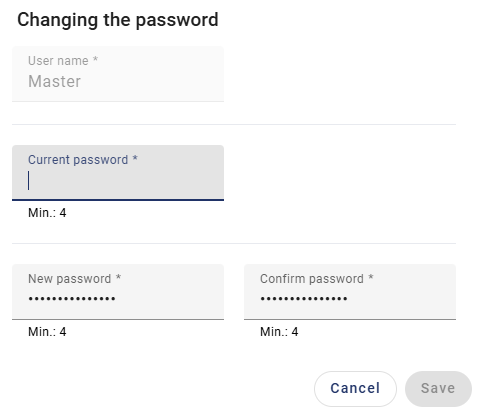
Then the new password must be entered twice and confirmed using the "Save" button.
The new password must have at least 4 characters.
Expert mode
Expert mode is intended for debugging purposes and enables additional system information to be called up. It is recommended that expert mode is only activated if needed, as its use may require increased computing power.
The following additional information is displayed:
-
Evaluation / Dashboards / Further options
-
"Create service file" menu item
-
-
Setup/data overview / Service / Data status
-
"will soon be removed from evaluation area" and "in the process of being transferred" statuses
-
In the tooltip: "Number of exports" and "Number of files" display
-
Tabular listing and partitions
-
-
Setup/data overview / Service / Disk space
-
Disk space system:
-
Division up to tables and indices
-
Datastore / Devices: "Number of exports" and "Number of files" display
-
-
Disk space per device:
-
Specification of the disk space for events, process data, batch data, and Datastore
-
-
-
Setup/data overview / Service / Administration
-
WebGL can be deactivated
-
Display of the utilization of Dataview in the backend over the last 8 days
-
-
Setup/data overview / Datastore / Datastore system: storage 1 / Devices
-
Last data sent to the Datastore:
-
List of the last 500 (instead of 5) exports
-
-
-
Setup/data overview / Datastore / Datastore system: storage 1 / Archiving
-
Archiving per device:
-
"Number of files" display at month and day level
-
In the tooltip: Specification of the date on which the file was restored
-
-
-
Setup/data overview / Datastore / Datastore system: storage 1 / Disk space
-
Disk space system:
-
"Number of exports" and "Number of files" display
-
-