
The Dashboard is the central element for controlling and visualizing process information in the form of Widgets.
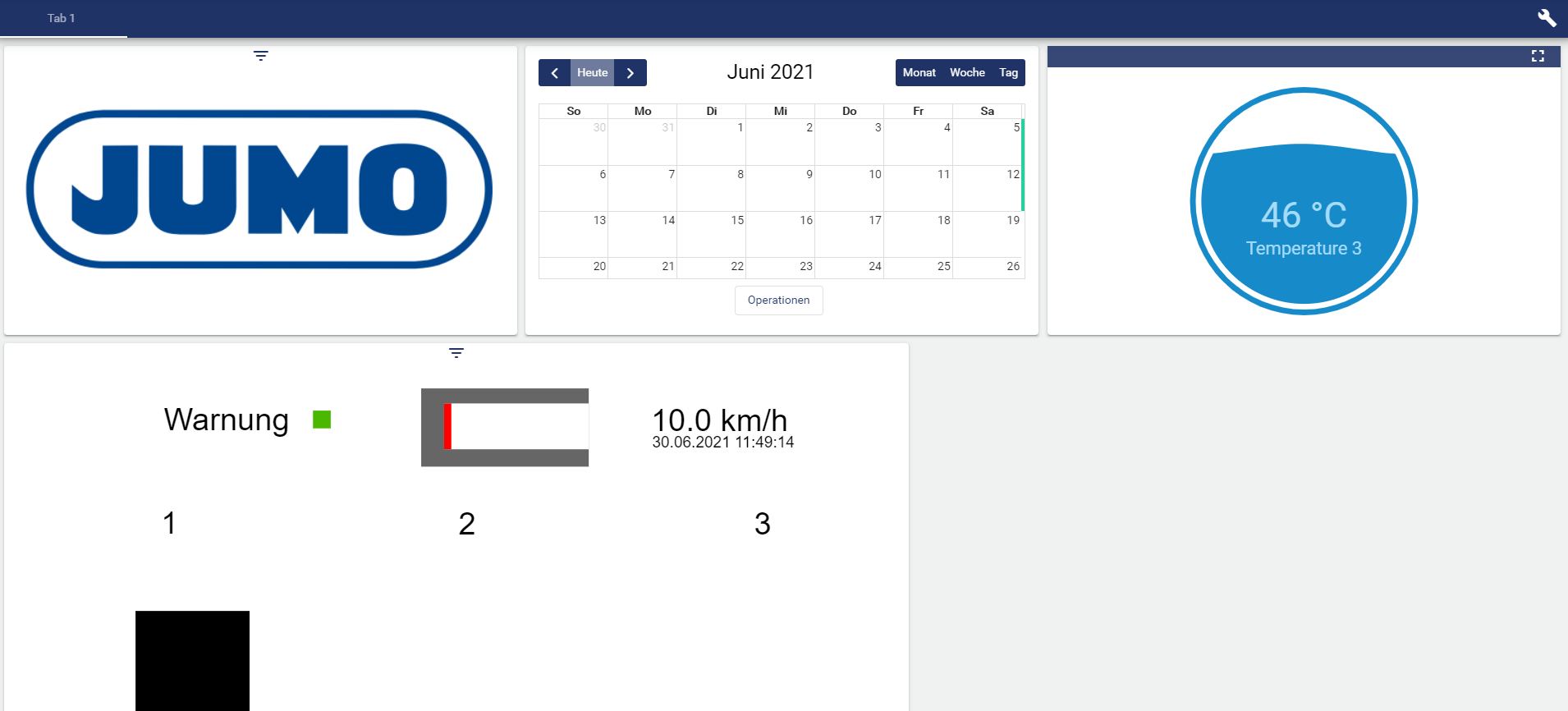
Normal Dashboard view
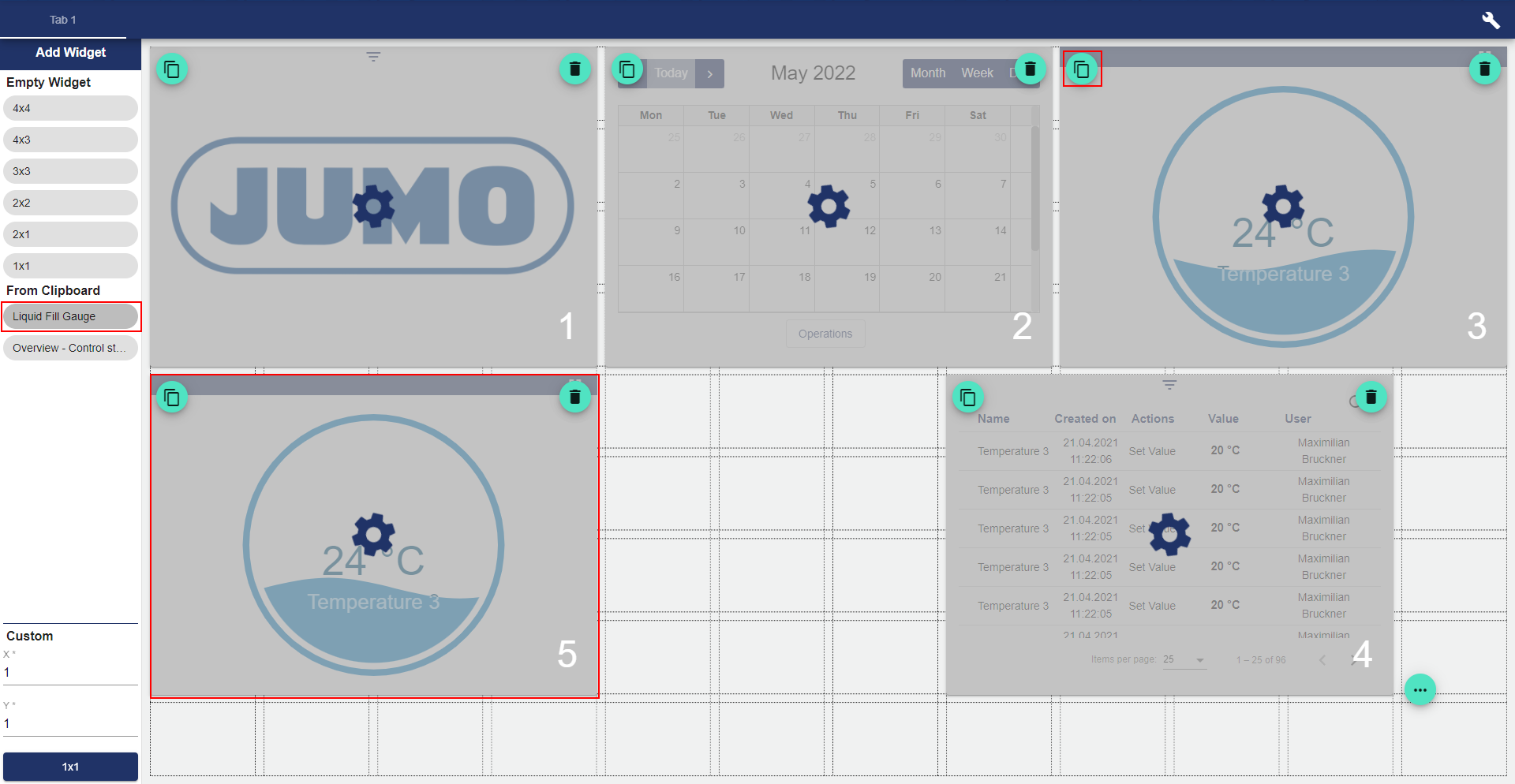
Overview of the Dashboard in Edit Mode
In Edit mode, existing widgets can be added, modified or copied. All signals and settings are automatically copied to the new widget.
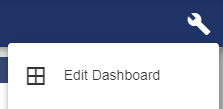
Switch to the Edit mode of the Dashboard using the wrench in the upper right corner:
-
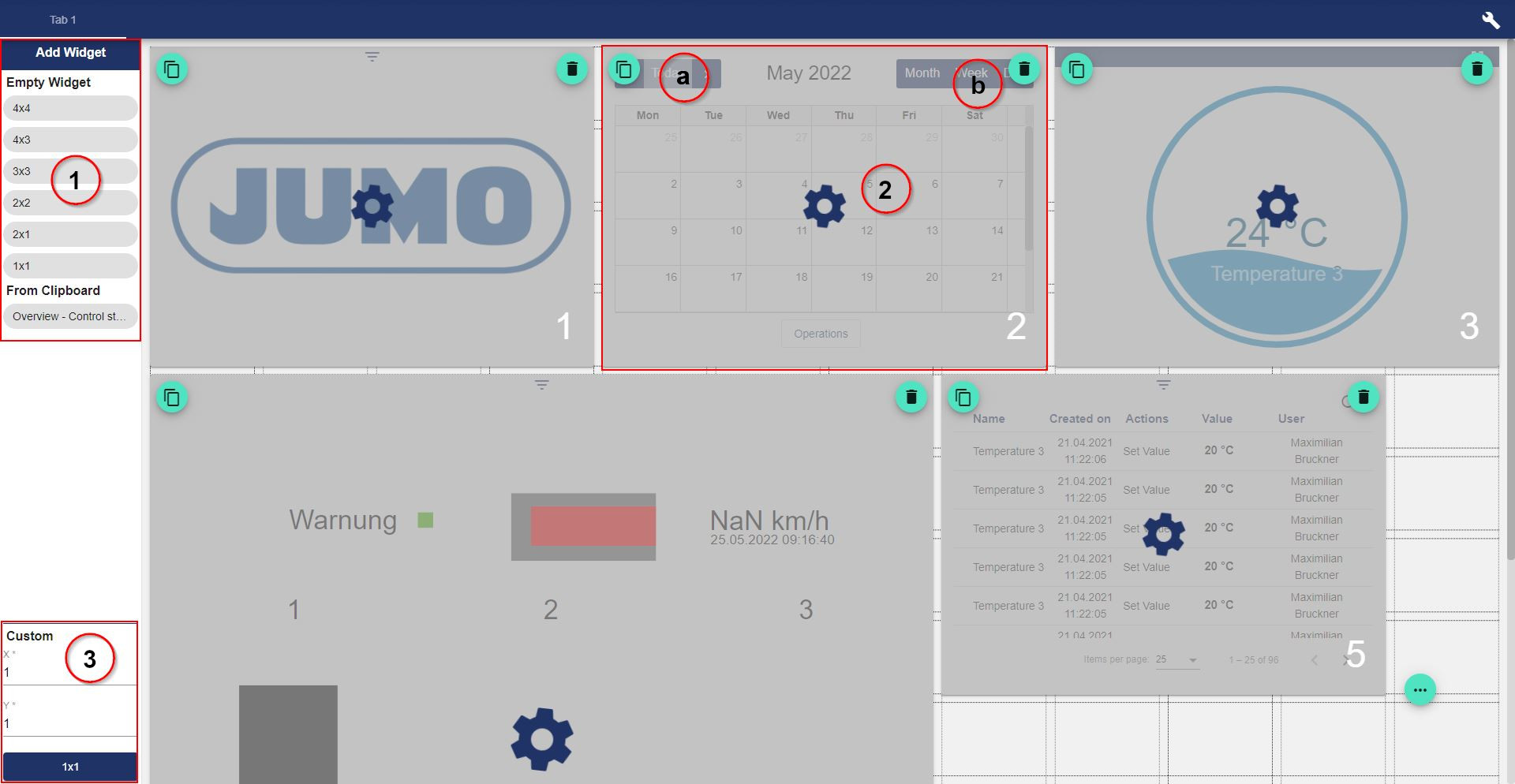
Add new widgets with a pre-defined size or paste from the clipboard.
-
Edit widget:
-
Copy: Select the icon to place the widget on the clipboard.
-
Delete
-
-
Add widget with user-defined size.
Widgets are copied using the following icon:

When the icon is selected, the widget is saved to the clipboard and can be pasted from there.
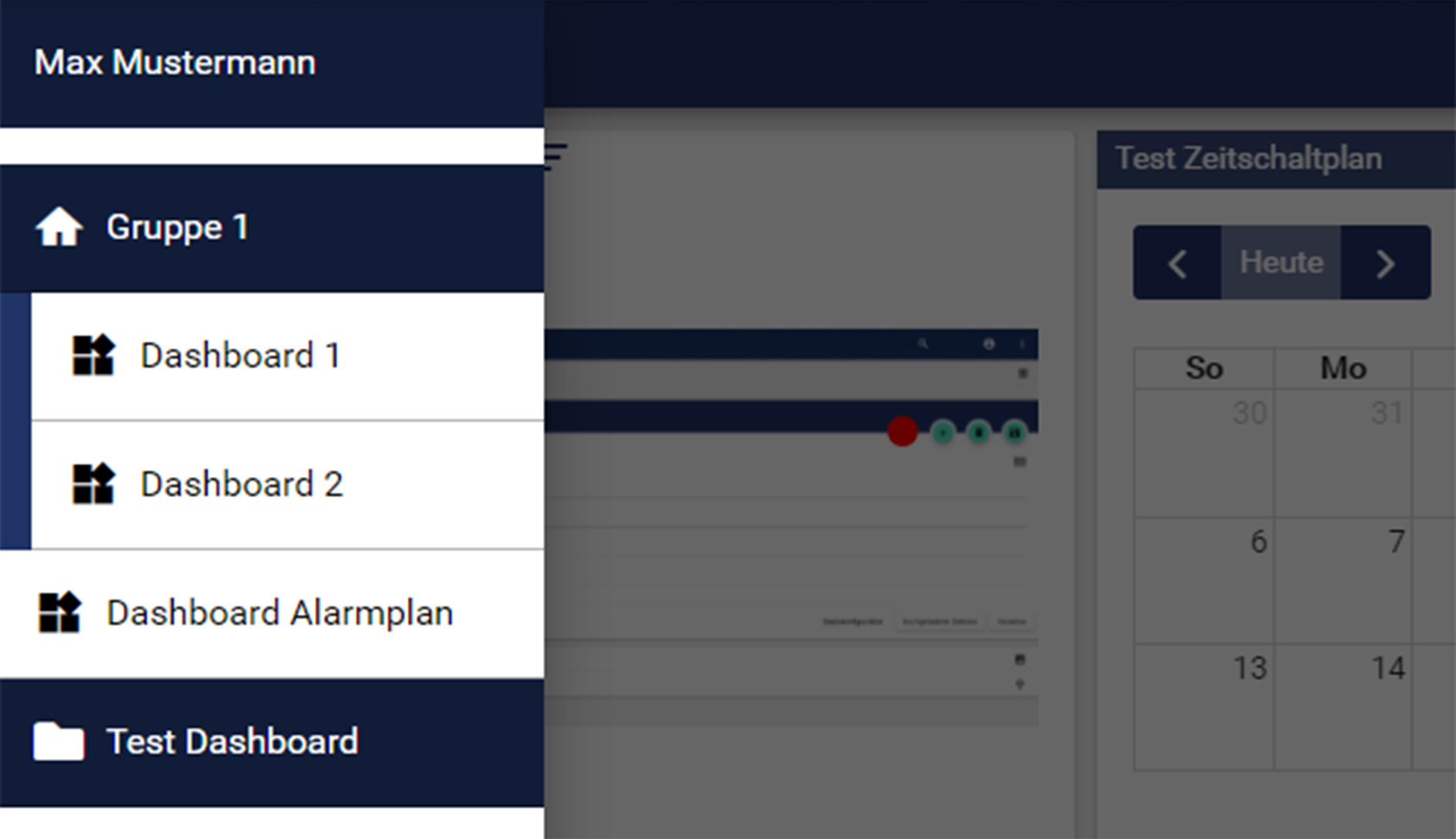
Sidebar and Navigation between Dashboards
You can use the sidebar to conveniently switch between your Groups. Each Group may contain several Dashboards. The sidebar can be displayed via the menu icon in the upper left corner.
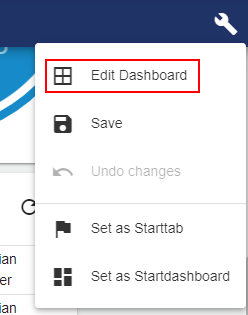
Edit Mode
To enter the Edit mode, click on the three vertical points above one another and select the menu item: "Edit".
To edit the widgets, the Edit mode must always be activated!
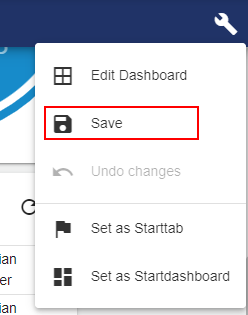
Saving after Editing
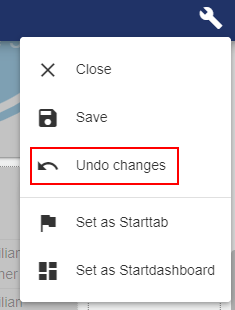
Any changes made to the visualization of the Dashboard or to the arrangement of the widgets must be saved for the changes to take effect. For this purpose, click on the three vertical points above one another and select the menu item: "Save".
Undoing Changes in Edit Mode
To undo the changes that have not yet been saved, click the three vertical points again - while in Edit mode - to select the menu item "Undo" and review the changes that were made previously, even after saving. If you reload the browser tab or leave the page, this is no longer possible.
Widgets
Widgets are easy-to-use program elements that you can use in a variety of ways in your Dashboard to visualize processes and interact with your system. (The term "Wi-dget" is an artificial word consisting of the words "Window" and "Gadget"..
Available Widgets
You can find all available widgets in the chapter Widgets.