
Benutzung
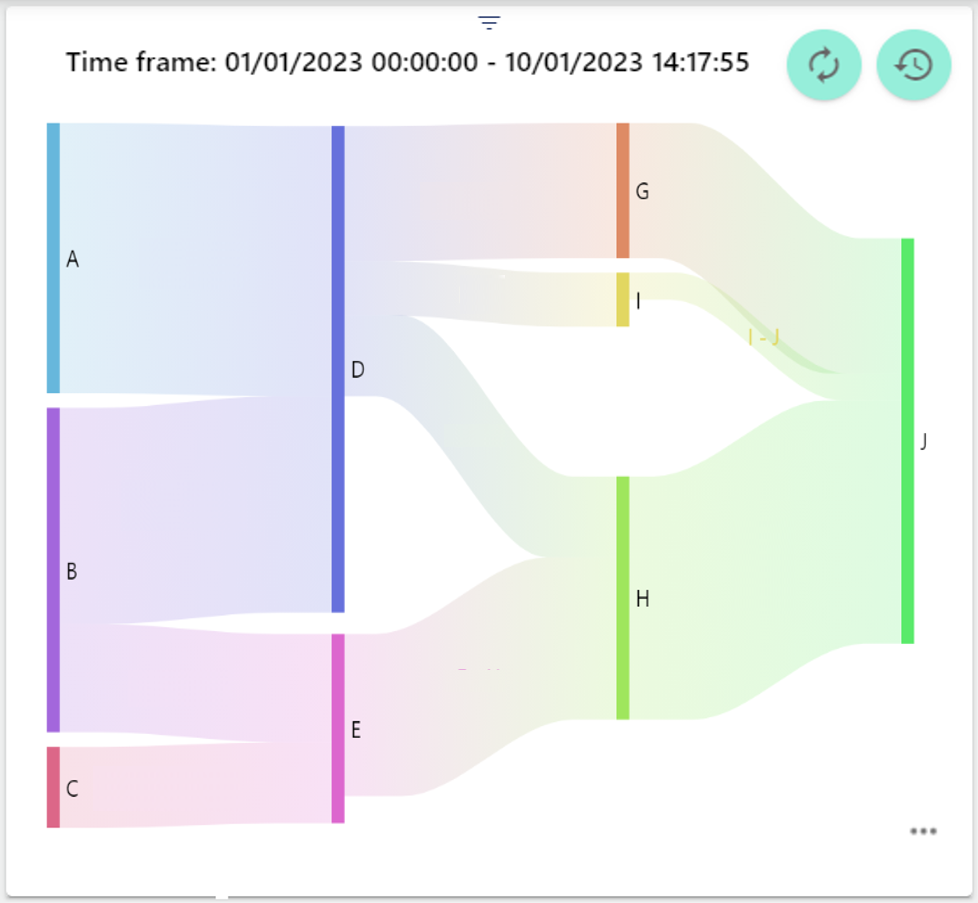
Processes are represented graphically by means of a Sankey chart. For example, Sankey charts are used to process and visualize flow values in chronological order. The Sankey Chart serves to visualize energy flows, especially in relation to the ISO 50.001 Standard. An analog input signal is required for this.
The widget can only be used in its entirety if the SCADA-Lizenz comprises the "Analyse Module".

|
Refreshes the historical view without performing a browser refresh. |
|---|---|

|
Open the “time control” area to analyse different time frames. |
Configuration
Select the Sankey Chart widget in the Analysis category.
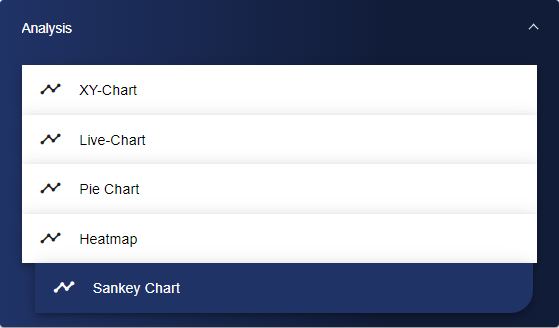
Initially, you are in the Basic Configuration tab. This is where you give your Sankey Chart a suitable title, which should be assigned in a meaningful way to facilitate later retrieval/identification of the Sankey Chart.

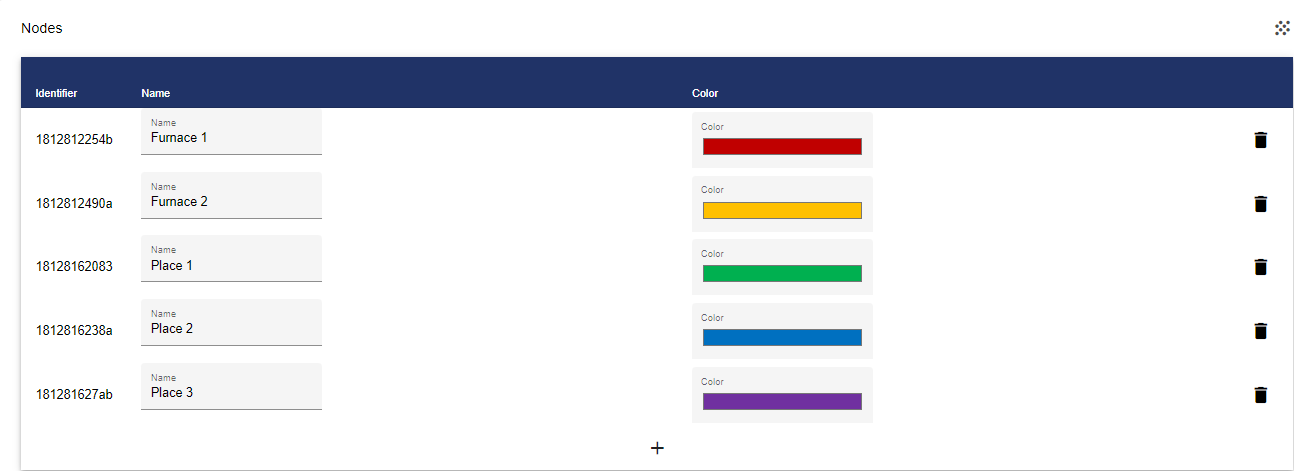
In the Nodes tab, you define start and end points for flows to be displayed in the chart. It is possible to define multiple start and end points. Theoretically, each created point can be used as a start and end point.
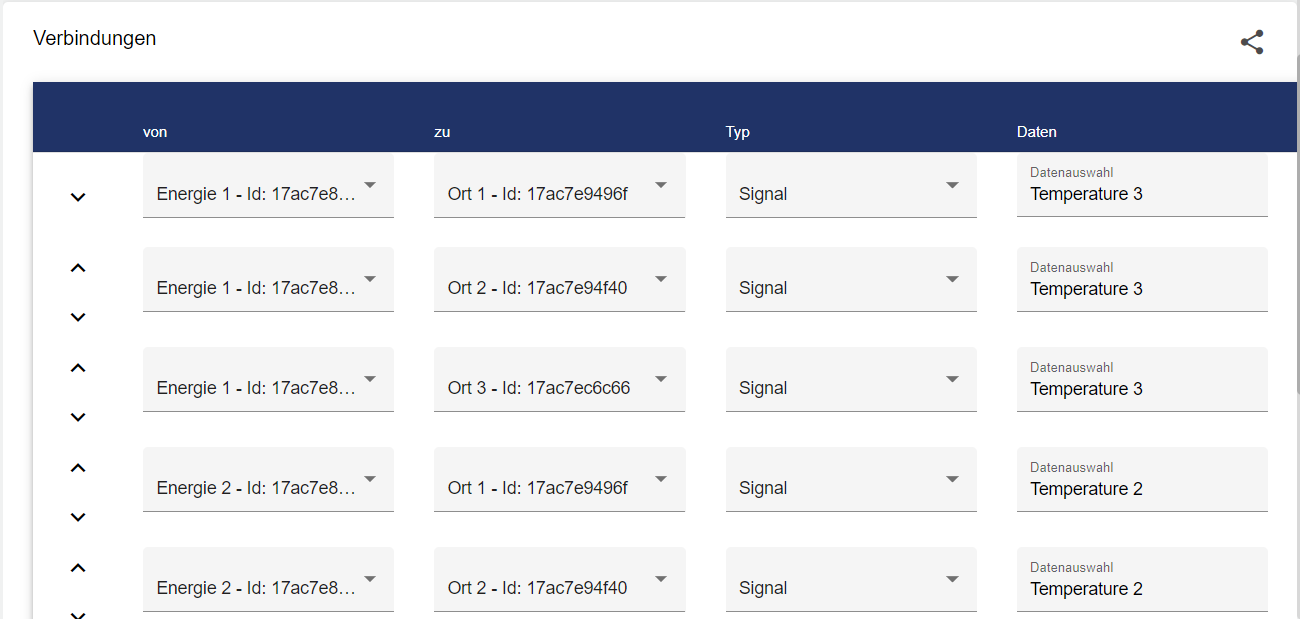
In the Connection tab, you can create a relationship between the points previously created in the Nodes tab. To do this, a starting point must be specified in the "from" column and an end point in the "to" column. In the Type column, you can choose between Signal and Formula. Clicking "Data selection" in the "Data" column opens the Entity-Select window. There, depending on the type selection, you can now select a formula or an analog input signal.
Then you only have to set the interval of the data to be displayed.
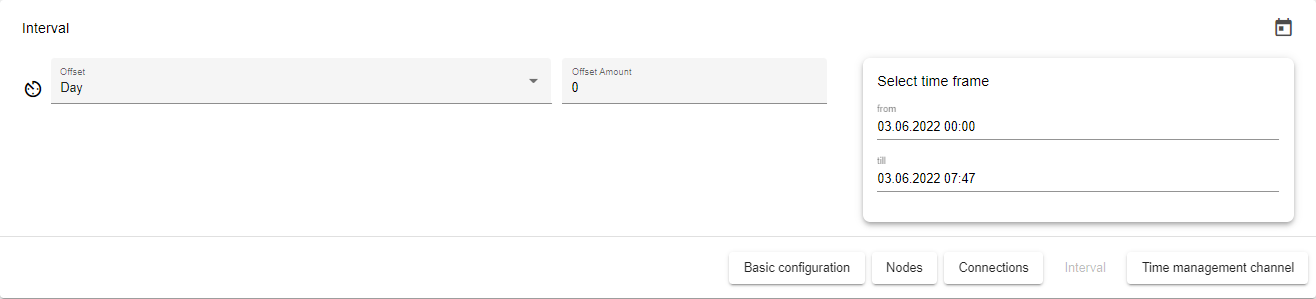
To display the data for one or more days, set the time frame to Day; the period number defines how many days in the past should be displayed. The same applies to any other time frame setting (week, month, quarter, year)!

|
Basic setting for the length of the interval. |

|
Offset. This setting can be used to specify an offset for the time frame. Both into the past and into the future. |
Finally, you can define a channel under the "Channel" tab, first assign a channel name. This channel name must be unique. The channel is used to link multiple charts on the Dashboard. This channel name can then be assigned in multiple analysis widgets. By assigning the same channel to different analysis widgets, the time periods of the different analysis widgets can be controlled simultaneously.

Once you are satisfied with your configuration, you can save it.