
Base configuration
Once the installation has been carried out properly, the services are automatically started with the default settings.
The base configuration is carried out with the "Config smartWARE" program under "JUMO smartWARE Evaluation".
The following configuration options are available:
The following window opens when starting the base configuration:
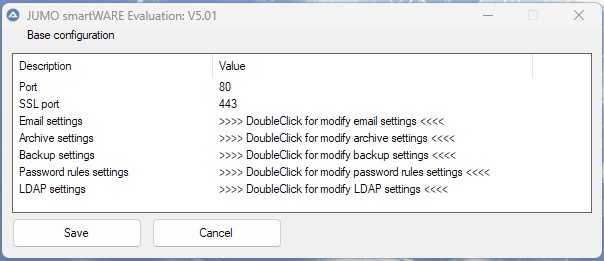
The correct parameters must be entered to ensure successful operation of JUMO smartWARE Evaluation. The base configuration process is described below.
Port configuration
The device that sends the data to JUMO smartWARE Evaluation is connected to a port. The port number "80" is pre-set as standard. If the port is already being used by another program, the port can be changed.
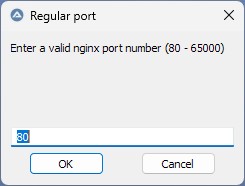
Double-clicking on "Port" opens the input window, which can be used to edit the port number. The change is confirmed with "OK" and becomes active the next time JUMO smartWARE Evaluation is started.
If the ports have been changed, the relevant port must also be specified when accessing the GUI in the browser. Below are a couple of examples:
In general, communication using HTTP or HTTPS is possible. For this, two separate ports can be configured.
Port = HTTP
SSL port = HTTPS
If the standard port in JUMO Config smartWARE is modified, the Datastore URL must be modified in the Datastore gateway settings in Web Cockpit.
Example:
If the SSL port is modified to "5443", the Datastore URL is "eval2.jumo.digital:5443/store".
SSL port assignment (HTTPS)
The SSL port number "443" is pre-set as standard. If the SSL port is already being used for another program, the port can be changed.
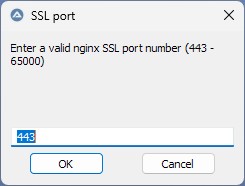
Double-clicking on "SSL port" opens the input window, which can be used to edit the port number. The change is confirmed with "OK" and becomes active the next time JUMO smartWARE Evaluation is started.
Email settings
To enable JUMO smartWARE Evaluation to send emails, for example for automatically transmitting daily or batch reports, the access data for the user's own mail server has to be entered. Double-clicking on "Email configuration" opens the email settings.
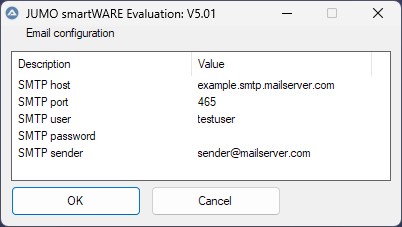
Double-clicking on the relevant entry again allows the user to edit the relevant value. The change is confirmed with "OK" and becomes active the next time JUMO smartWARE Evaluation is started.
After installation and execution of the base settings, JUMO smartWARE Evaluation must be started using Supervision smartWARE. This is also required after an update.
Password rules
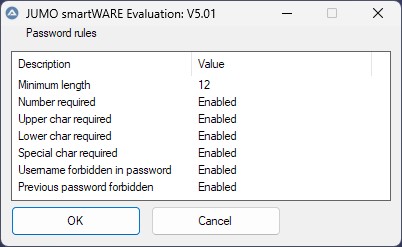
The following rules can be configured for the password:
|
Rule |
Description |
|
|---|---|---|
|
Minimum length |
Defines the minimum number of characters (digits, letters, and special characters) that need to be included in a password. |
|
|
Number required |
Enabled |
The password must include at least one digit. |
|
Disabled |
No check. |
|
|
Upper char required |
Enabled |
The password must include at least one capital letter. |
|
Disabled |
No check. |
|
|
Lower char required |
Enabled |
The password must include at least one lowercase letter. |
|
Disabled |
No check. |
|
|
Special char required |
Enabled |
The password must include at least one special character.
|
|
Disabled |
No check. |
|
|
Username forbidden in password |
Enabled |
The password must not contain the username. |
|
Disabled |
No check. |
|
|
Previous password forbidden |
Enabled |
The new password must differ from the previous password. |
|
Disabled |
No check. |
|
LDAP (Lightweight Directory Access Protocol)
LDAP (Lightweight Directory Access Protocol) is a standardized protocol which enables access to directory services. Software can be connected to Active Directory (AD) via LDAP, for example. Existing user accounts from the company directory are therefore used, meaning that no separate local accounts are required.
Rights and roles are automatically adopted from the company network, which ensures centralized and consistent management.
If LDAP is activated, the user is only authenticated using the central ID provider. They are no longer authenticated via local user management. Local users can only log on again when LDAP is deactivated.
LDAP is deactivated as standard.
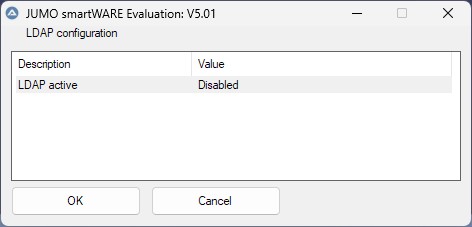
The following setting options are available when activated:
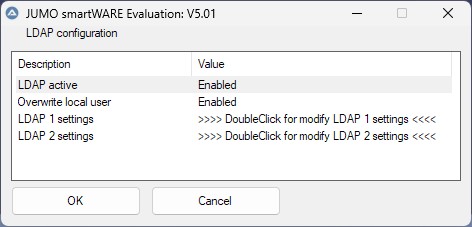
If "Overwrite local user" is activated, an existing local user account whose username corresponds to an entry in the central ID provider is converted into an LDAP user. This is useful if the local user has already created dashboards or other individual content.
A user that is only local can only log on if LDAP is deactivated.
A migrated local user can still log on with their local password if LDAP is deactivated. Once LDAP is activated, they can alternatively also log on with their LDAP password.
Users that only exist via LDAP can only log on if LDAP is active.
The user list shows whether a user was created locally, centrally via LDAP, or by means of migration (local/LDAP).
LDAP user passwords are not saved locally.
LDAP 1 includes all parameters required to connect.
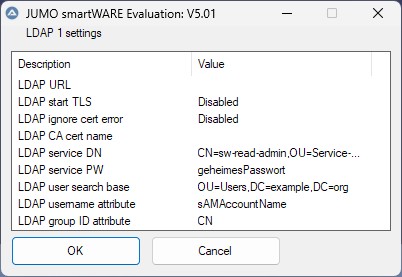
LDAP 2 is intended as an alternative connection and is used if LDAP 1 is not available or is faulty.
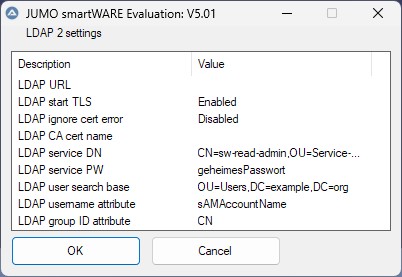
|
Setting |
Description |
|
|---|---|---|
|
LDAP URL |
URL of the server, for example:
|
|
|
LDAP STARTTLS |
Enabled |
An existing, unencrypted connection is converted into an encrypted TLS connection later. |
|
Disabled |
Setting is not used. |
|
|
LDAP Ignore Cert Error |
Enabled |
Certificate errors are ignored. This is required if self-signed certificates are used, for example. |
|
Disabled |
Certificate errors are not ignored. If the certificate is invalid, no connection is established. |
|
|
LDAP CA Cert Name |
Filename of the certificate file, for example "ldap_ca_cert.crt" The certificate file must be copied to the following directory: C:\smartWAREData\dataview |
|
|
LDAP Service DN |
Distinguished Name (DN) of the service user which is used for requests to the Active Directory. The service user is provided by IT and only needs read-only rights in the Active Directory. Example: |
|
|
LDAP Service PW |
Password of the service user which is used for requests to the Active Directory. |
|
|
LDAP User Search Base |
Path in which the users are searched for. Example: At least the domain must be specified: |
|
|
LDAP User Name Attribute |
Attribute of a user which is used as a logon name and for displaying the username. Often
|
|
|
LDAP Group ID Attribute |
Defines the Active Directory attribute which is used to extract the group names from the Distinguished Names (DNs) of the Active Directory groups, for example |
|
JUMO smartWARE Evaluation must be restarted if the LDAP configuration is changed.
The rights a user has is determined by the roles assigned to them.
A centralized Identity Provider such as Active Directory does not use roles, but rather groups. A user can belong to several groups. JUMO smartWARE Evaluation provides the option to assign groups certain roles so that rights can be determined indirectly through membership of a group.
After successful logon, the Identity Provider transmits the user's groups to the application via LDAP. It checks whether the groups are saved in the configuration and assigns them the respective roles based on an assignment table. Specific user rights are determined by these roles.
The following assignments are available as standard:
|
LDAP/AD group |
Internal role |
|---|---|
|
|
|
|
|
|
|
|
|
|
|
|
The assignments listed are intended as a suggestion and can be changed before LDAP is activated by a local administrator in the LDAP groups.
If changes are required, they should be made before startup of LDAP integration.