
JUMO smartWARE Evaluation
Home / Setup/data overview / Service / User management
New users, roles and LDAP groups can be added or edited by the administrator in the user management area. The number is unlimited.
Users
All JUMO smartWARE Evaluation users are listed in a table.
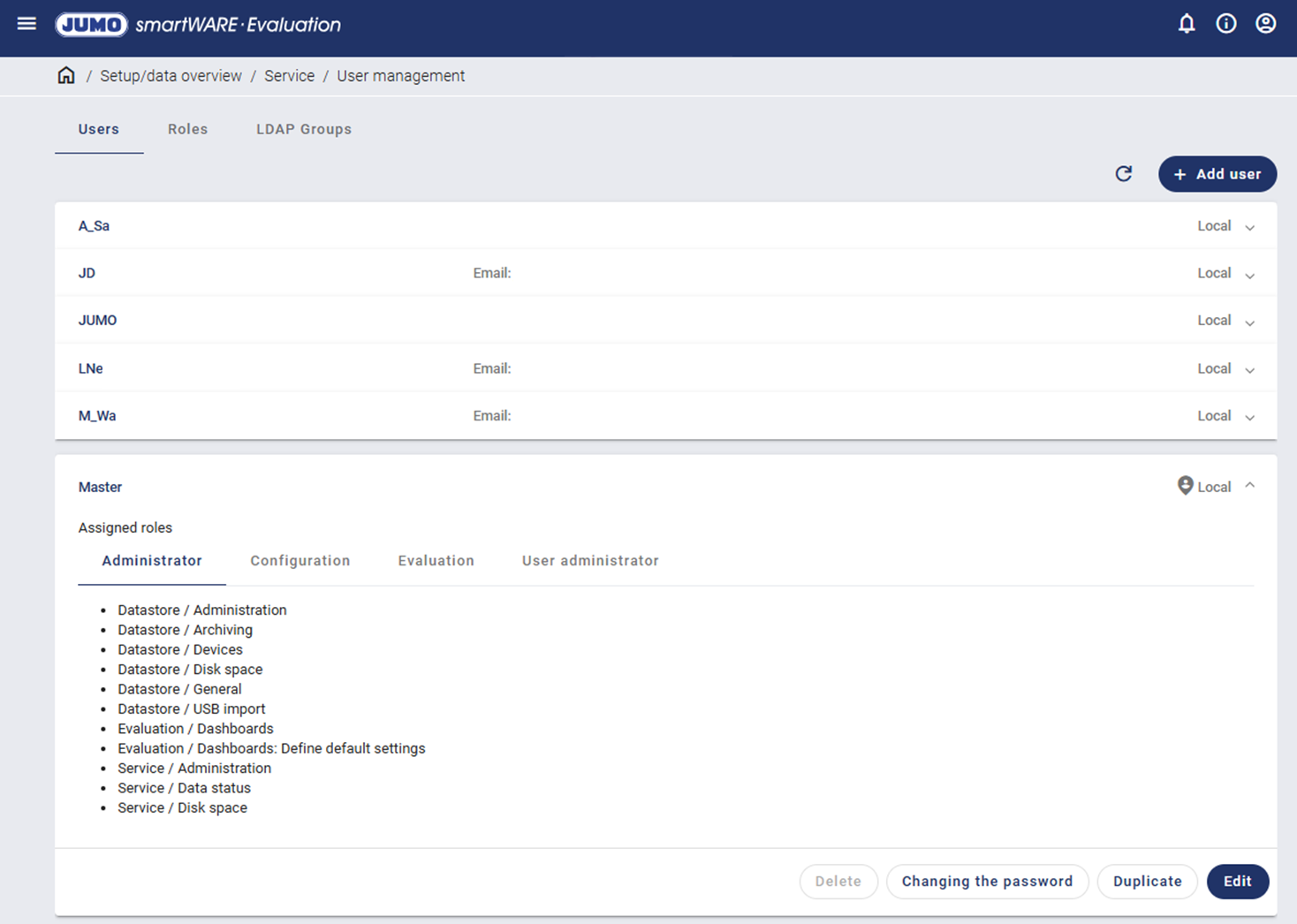
Use the "Update" icon to update the view. Use the "Add user" icon for adding users.
The current user ("Master" here) is indicated by an additional icon.
The roles assigned to a user are displayed by clicking on the respective user.
Users can only be created, edited, or deleted by people with the "Administrator" role or the "User administrator" permission. The password can also be changed.
Adding users
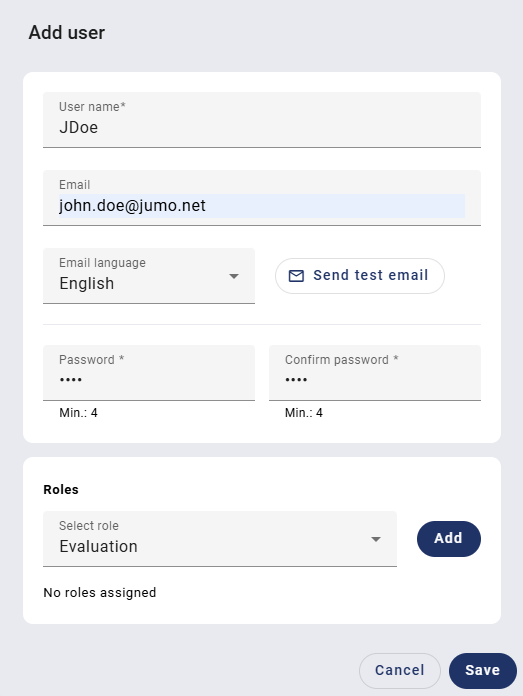
If a new user is created, the following settings must be made. Strictly necessary settings are indicated with an asterisk (*).
|
Setting |
Description |
|---|---|
|
User name* |
User names are intended to uniquely identify users in the system. They are required to logon to JUMO smartWARE Evaluation. |
|
|
An email address can optionally be input in order to receive notifications and created reports by email, for example. |
|
Email language |
The national language of automatically generated emails can be set. German, English, Spanish, and French can be selected. |
|
Send test email |
There is a functional check option. |
|
Password* |
An initial password consisting of at least 4 characters is input. |
|
Roles |
One or more roles are assigned to the user. |
The "Save" button is used to create new users. In this example, the user "JDoe" with the role "Evaluation" was added.
Roles
Four roles indicated with the JUMO logo are available as standard.
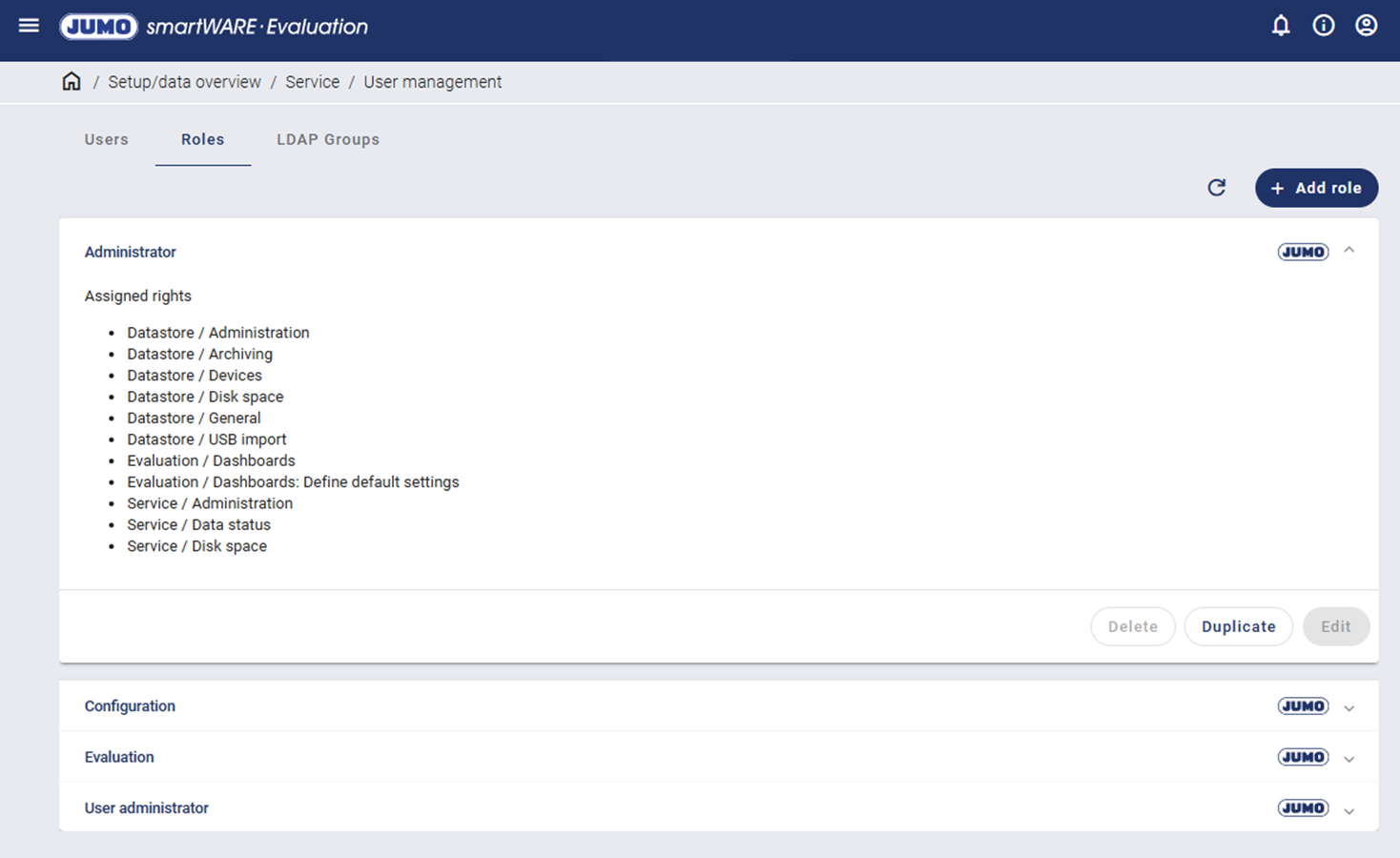
The rights for the relevant role are displayed via the drop-down menu.
|
JUMO standard role |
Rights |
|---|---|
|
Administrator |
|
|
Evaluation |
|
|
User administration |
|
|
Configuration |
|
The "Add role" icon can be used to create additional individual roles.
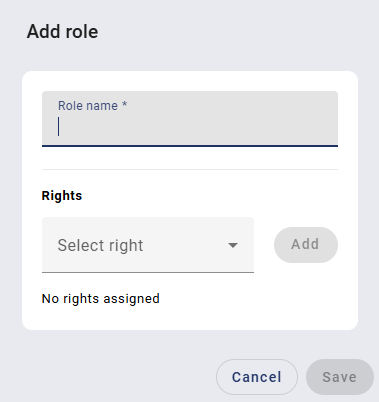
A role can also be duplicated. Duplication corresponds to creating a new role, in which the rights of the original role are already preset.
All roles except the JUMO standard roles can be edited or deleted with the corresponding permissions.
Example:
In the following example, the user "JDoe" is assigned the new role "Monitoring Dashboard & Reports". The user is only to be permitted to evaluate dashboards and reports.
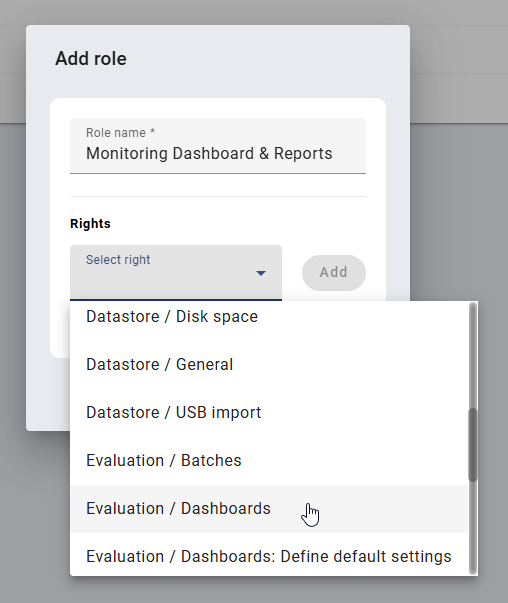
The new role name "Monitoring Dashboard & Reports" was created and the relevant permissions assigned for this role.
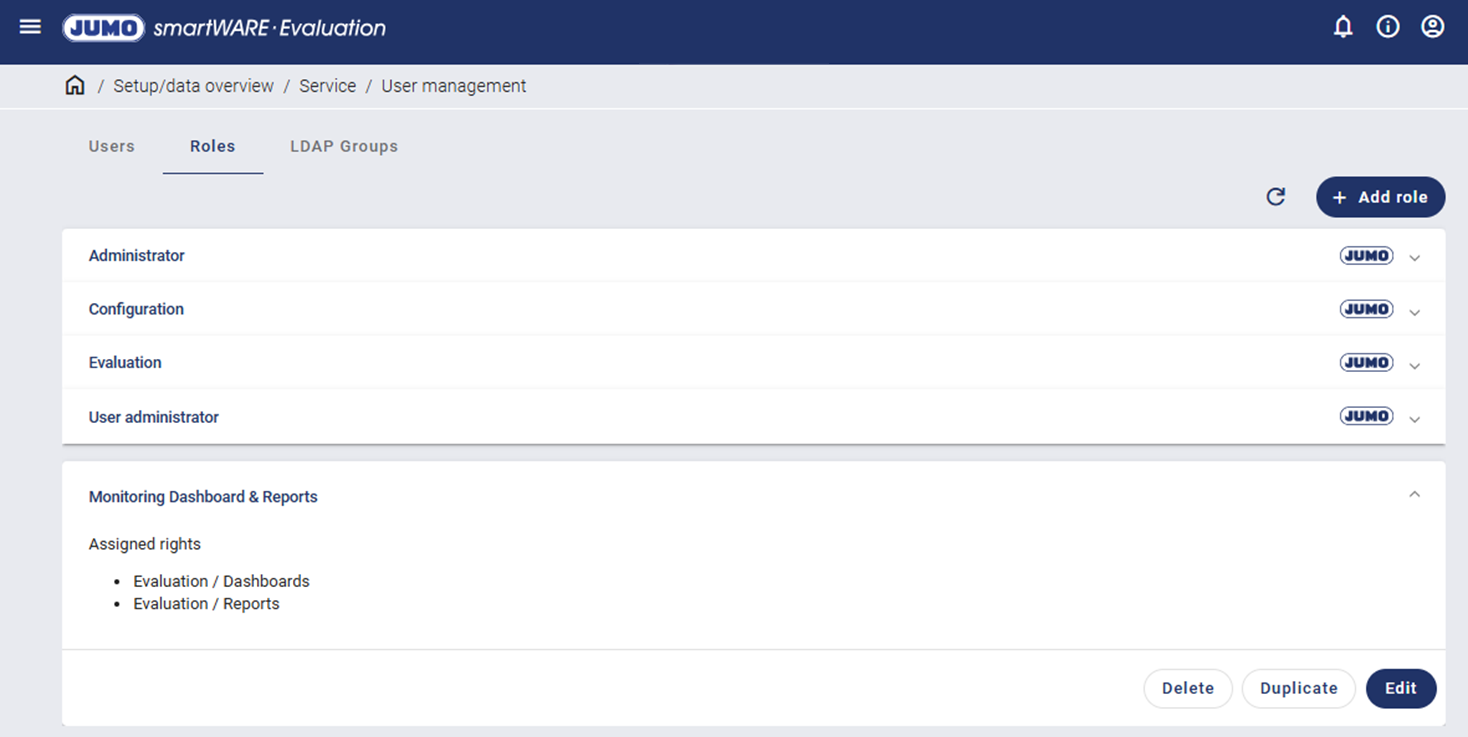
The new role is now displayed in the system. It can be expanded or edited at any time.
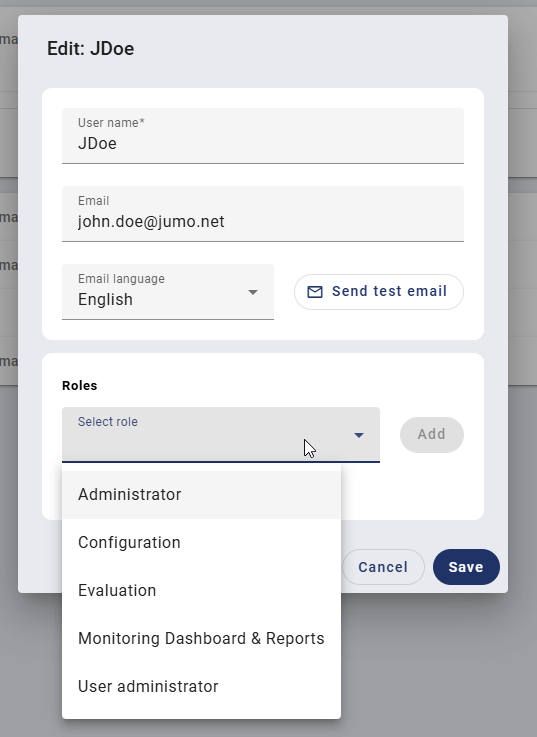
The new role can now be assigned to the user "JDoe" by editing the user.
LDAP groups
LDAP groups are intended to manage users centrally and automatically assign them the appropriate rights. By adding a user to a certain LDAP group, they receive predefined roles within the application, without individual rights having to be assigned manually.
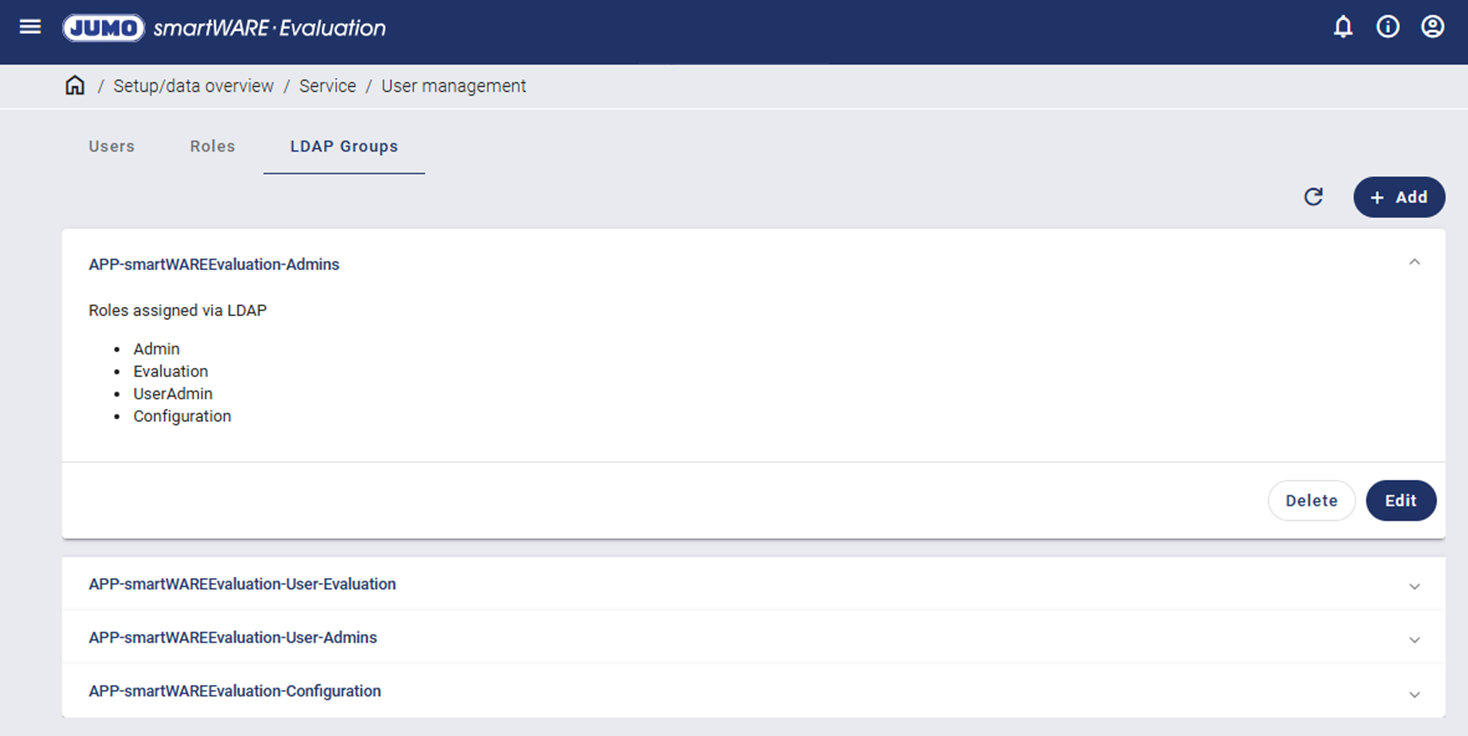
The following groups are available:
|
LDAP group |
Roles |
Description |
|---|---|---|
|
APP-smartWAREEvaluation-Admins |
|
The user has the same rights as the local master. |
|
APP-smartWAREEvaluation-User-Evaluation |
|
The user can read dashboards. |
|
APP-smartWAREEvaluation-User-Admins |
|
The user can manage users and create, edit, and read dashboards. |
|
APP-smartWAREEvaluation-Configuration |
|
The user can create, edit, and read dashboards. |
Users that do not belong to any of the above-mentioned LDAP groups cannot use JUMO smartWARE Evaluation.
If the LDAP service is no longer accessible (e.g. due to incorrect configuration, network problems, or server failure), logon is not possible.
If access is still required, LDAP must be deactivated in the system configuration. Local logon with local user accounts is then possible.
Other individual LDAP groups can be created using the "Add" icon.
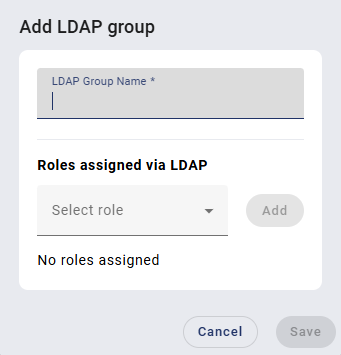
LDAP groups can be deleted, edited, or updated using the respective icons.