
Archiving
JUMO smartWARE Evaluation can automatically archive data. Archiving is deactivated as standard. Double-clicking on "Archive configuration" opens the archiving settings.
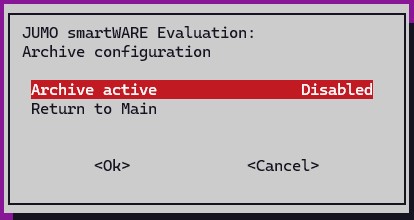
Archiving is activated and the pre-set values displayed by double-clicking on "Archive active".
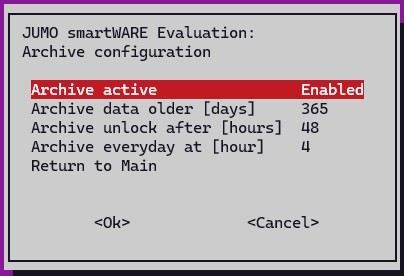
The pre-settings have the following meaning:
|
Setting |
Value |
Meaning |
|---|---|---|
|
Archive active |
Enabled |
Archiving is active. |
|
Archive data older [days] |
365 |
All device data older than 365 days is archived. |
|
Archive unlock after [hours] |
48 |
If a user has restored data from the archive, this data is automatically deleted from JUMO smartWARE Evaluation after 48 hours. The data is retained at all times in the archive. |
|
Archive everyday at [hour] |
4 |
Archiving is carried out daily at 4 am. |
The data for archiving is saved in the "~/smartWAREArchive" directory. A relevant link must be created in Linux for this directory to link to another hard disk drive.
The changes are confirmed with "Ok" and become active the next time JUMO smartWARE Evaluation is started.
Data backup
Data backup is deactivated as standard. Double-clicking on "Backup configuration" opens the window with the data backup settings.
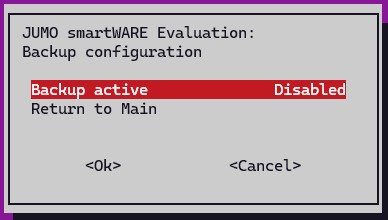
Double-clicking on "Backup active" can activate or deactivate data backup.
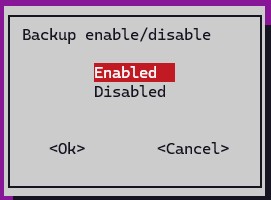
Activation of the backup is confirmed with "Ok".
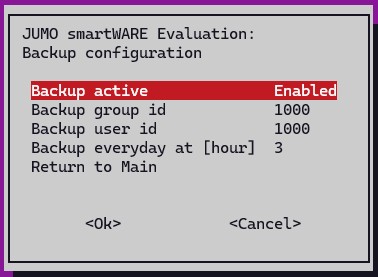
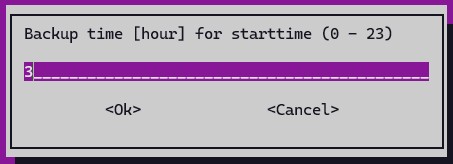
The time for performing data backup is 3 a.m. The configuration data for JUMO smartWARE Evaluation is then saved daily at 3 a.m. in the "~smartWAREBackup/dataview" and "~smartWAREBackup/datareport" directories. By double-clicking on "Backup everyday at [hour]", the time at which data backup starts can be changed.
If the backup option is activated, the device process data is also saved in the "~smartWAREBackup/datastore" directory at the point at which the data is recorded in Datastore.
The changes are confirmed with "Ok" and become active the next time JUMO smartWARE Evaluation is started.
The data backup data is then saved in the "~/smartWAREBackup" directory. A relevant link must be created in Windows® for this directory to link to another hard disk drive.
Report export
The "~\smartWAREExternal" data folder must be moved to its own directory using a soft link. The soft link should be created before installation or starting the software.
-
Create a directory:
sudo mkdir /data/jumo/smartWAREExternal -
Set owner and group of directories to "jumo":
sudo chown jumo:jumo /data/jumo/smartWAREExternal -
Create soft links in the home directory:
ln -s /data/jumo/smartWAREBackup smartWAREBackup -
Check with the "ll" command:
lrwxrwxrwx 1 jumo jumo Jun 17 08:48 smartWAREExternal -> /data/jumo/smartWAREExternal/
Activating the changed parameters
The generated .env file is saved under "~/smartWARE_452.5.0.0.14/.env".
The settings are first accepted in the system when JUMO smartWARE Evaluation is next started.
”~/smartWARE_452.5.0.0.14/stop_smartware.sh”
”~/smartWARE_452.5.0.0.14/start_smartware.sh”
The HTTPS protocol in the JUMO Jupiter device is only supported from firmware version 8.x and above. Installing the JUMO smartWARE Evaluation software on a cloud computer on the Internet should therefore only be considered with HTTPS support from firmware version 8.x and above.
Certificates
A certificate is required to run JUMO smartWARE Evaluation in the browser. A self-signed certificate is generated and copied to the "~/smartWAREData/reverse_proxy/certs" directory during installation.
If the user interface of the software GUI in the browser is opened using the HTTPS protocol, Windows® displays a warning message. This warning appears as the self-signed certificate of the browser is not classified as trustworthy.
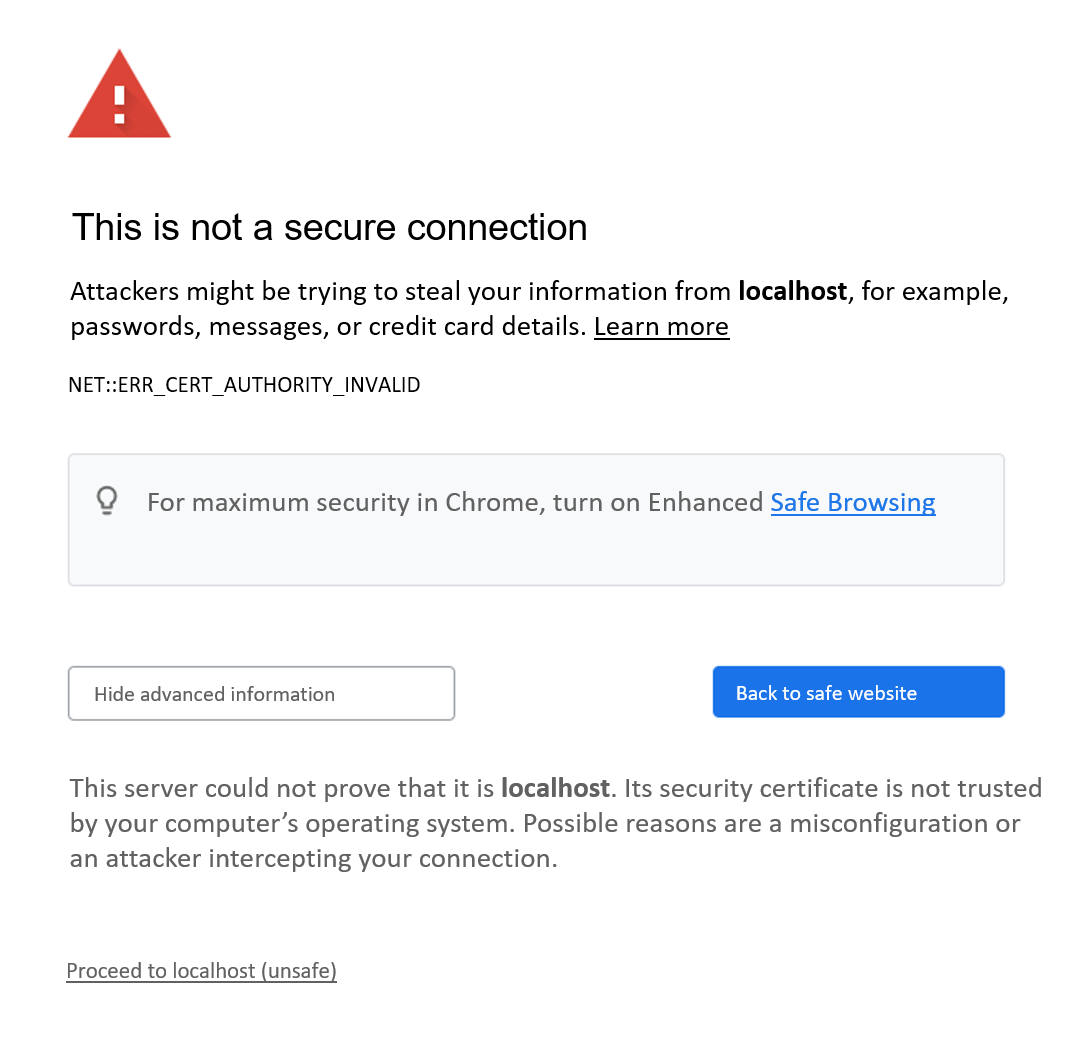
This message can be ignored by clicking on "Proceed to localhost (unsafe)".
So that the warning is not shown again when the page is called up, a signed certificate can alternatively be used.
There are two files in the "~/smartWAREData/reverse_proxy/certs" directory:
-
smartware.crt
-
smartware.key
These files can only be replaced if the user has root rights (sudo).
These certificate and key files can be replaced with the company's own, officially signed files. To do so, the JUMO smartWARE software must be stopped.
The two existing files must be renamed (e.g. as "smartware.crt_original" and "smartware.key_original"). The officially signed files must then be copied to the "~/smartWAREData/reverse_proxy/certs" directory and, if necessary, renamed.
The files must have the designations "smartware.crt" and "smartware.key" and be available in the PEM or X509 format.
After the files are replaced and the JUMO smartWARE services are started, the log file should be checked to ensure that the replaced files do not cause any problems:
cat ~/smartWAREData/reverse_proxy/error.log | more