Especially during commissioning, it often happens that you want to connect a laptop directly to the variTRON in order to be able to make changes to the variTRON.
All you need is a network cable, a network interface on the laptop and the right to change the network settings on the laptop.
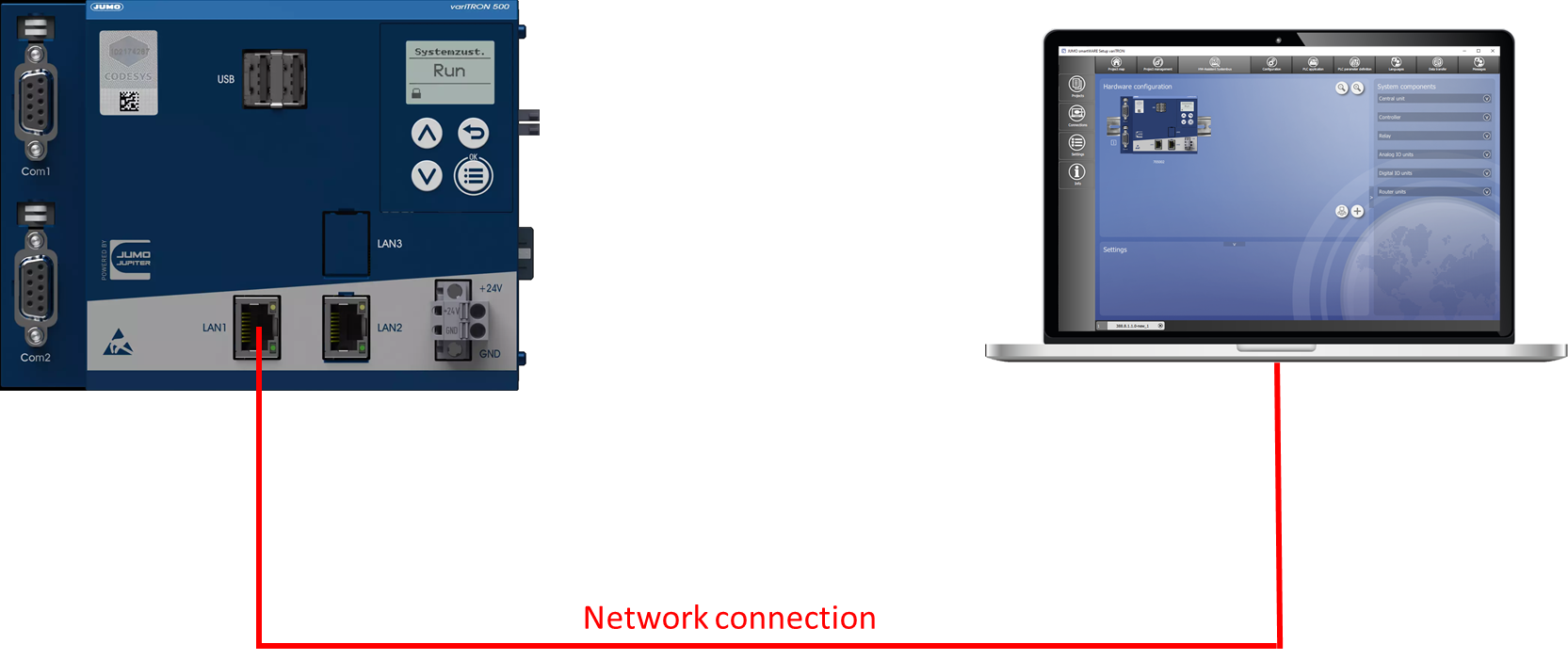
Network settings on the laptop
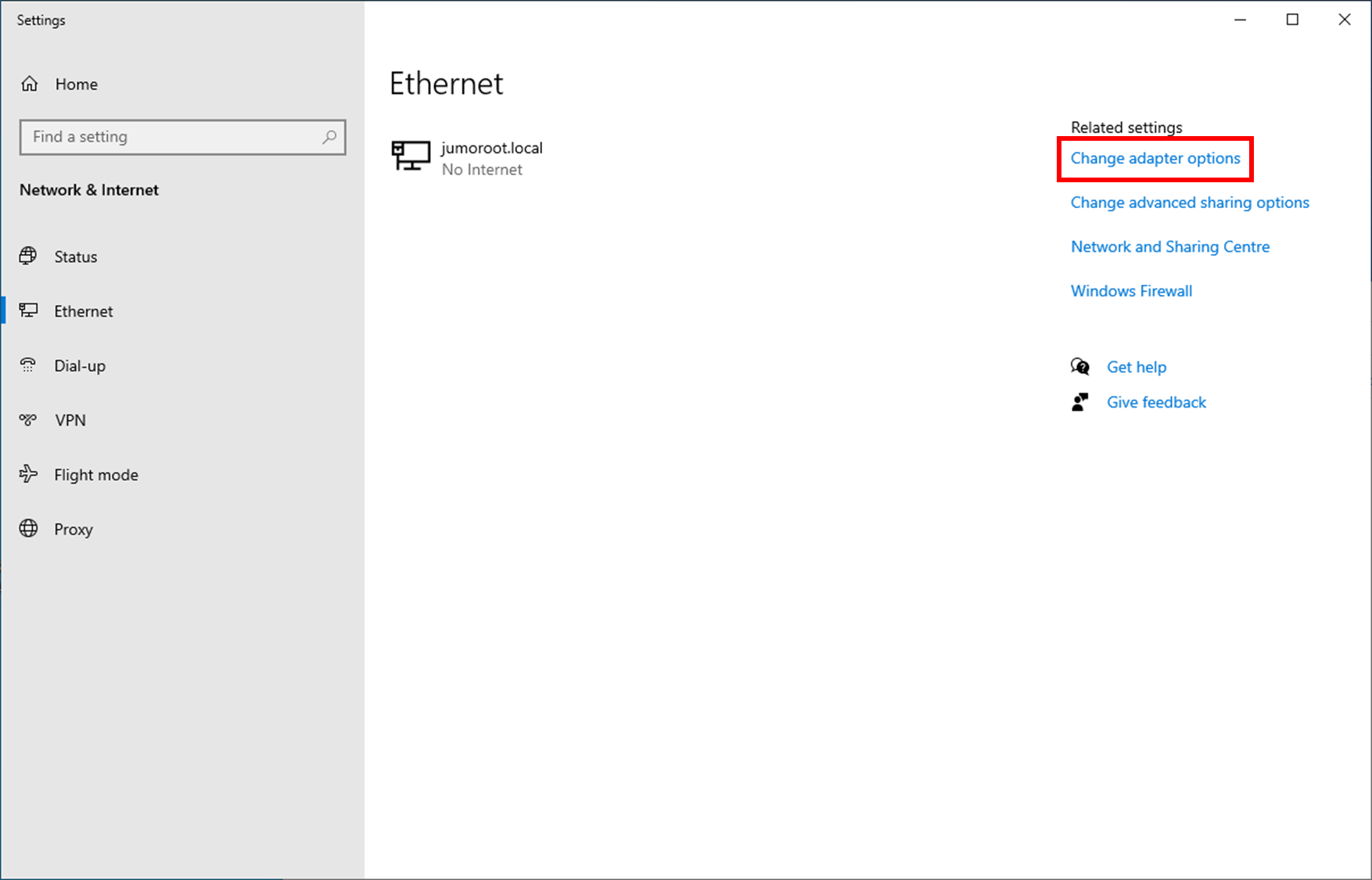
In the settings for the Ethernet connection, the Change adapter options must be selected.
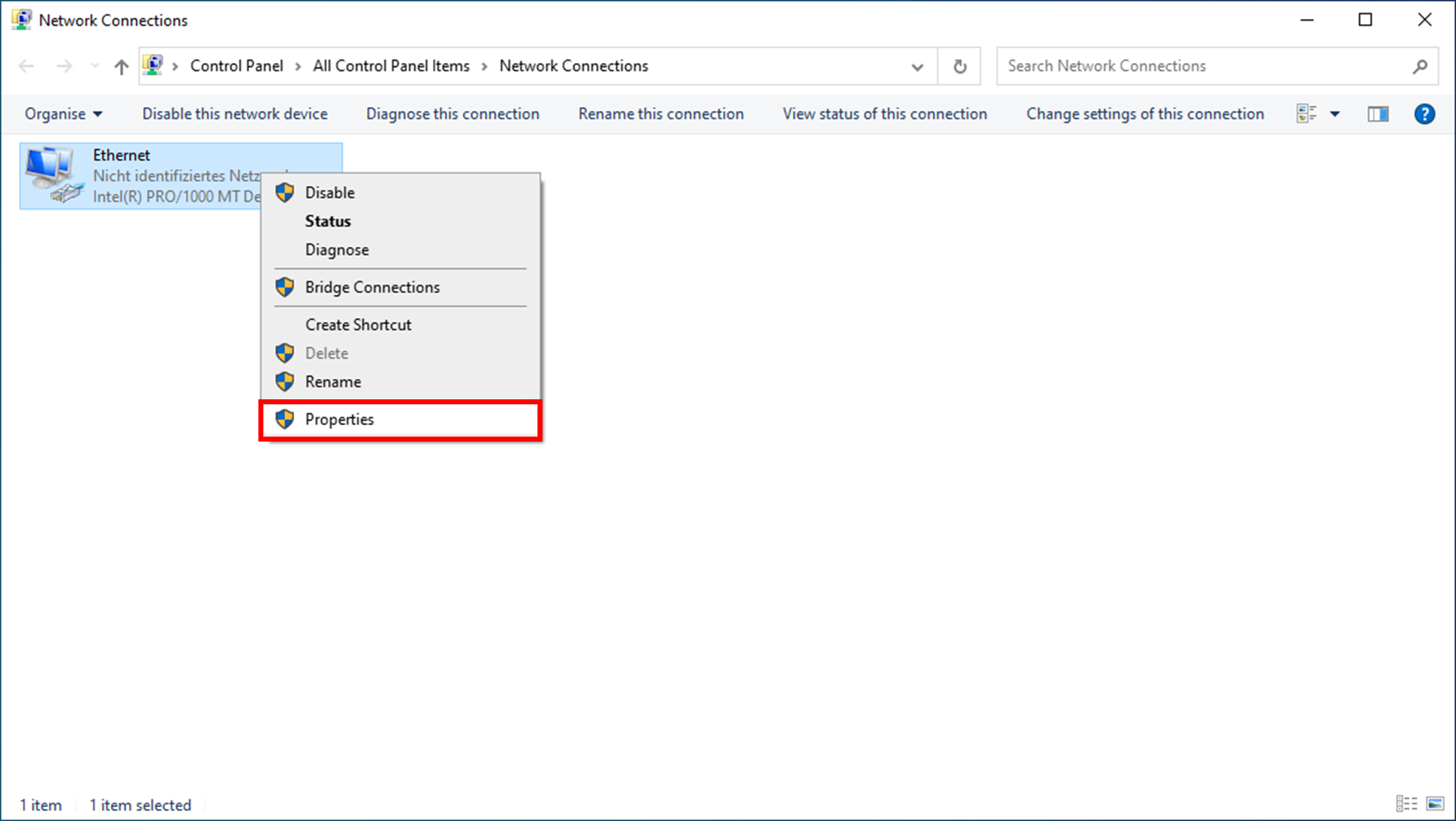
Select the Ethernet connection with the right mouse and select in the context menu under the menu item Properties.
Select Internetprotokoll IPv4 and click on Properties.
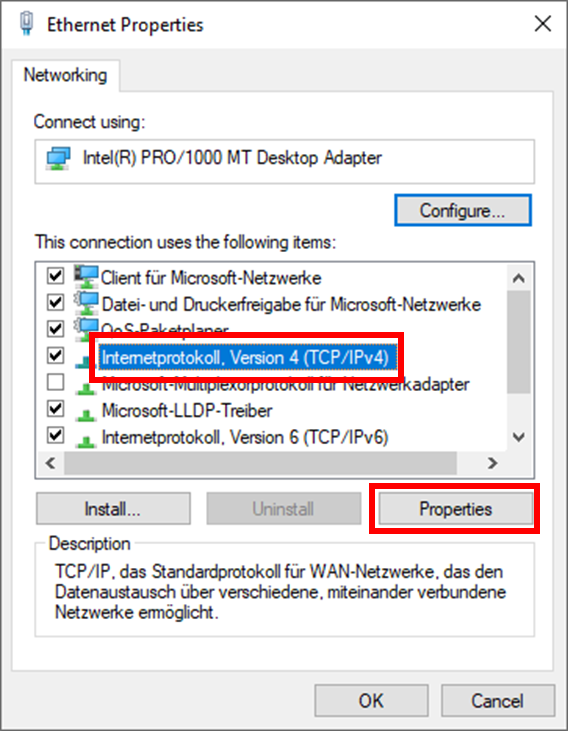
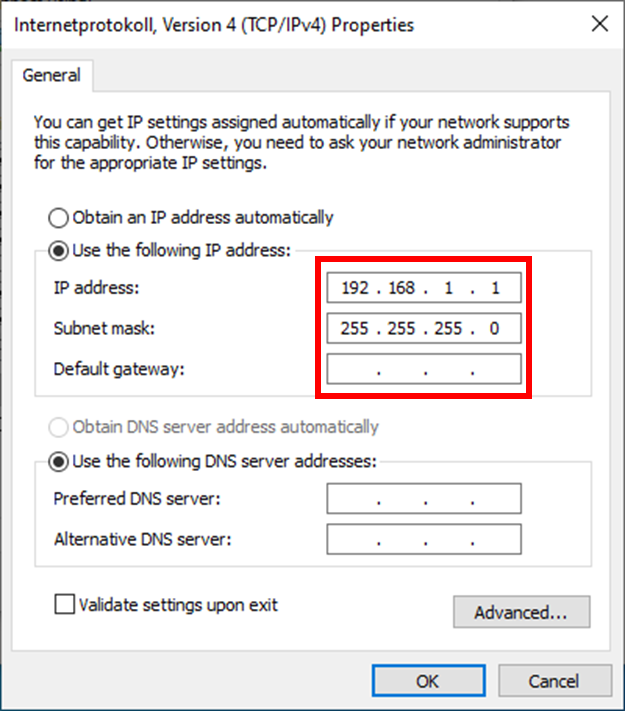
A fixed IP address can now be entered here.
Network settings on the variTRON 300 and variTRON 500
The following network setting steps only apply to the variTRON 300 and variTRON 500, as they have a small display with operating buttons on the housing.
To be able to change the network settings in the JUMO UI, you must log in with the Master user. The standard password is 9200.
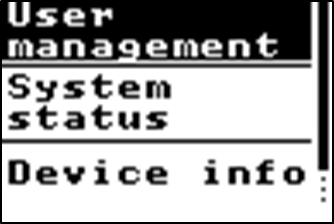
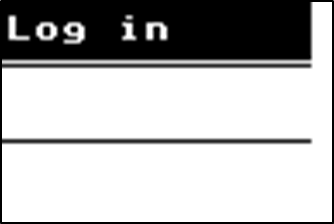
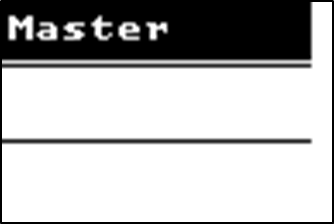
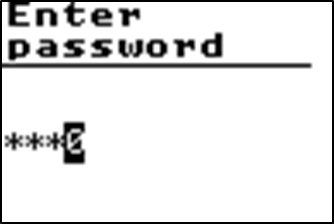
After successfully logging in, the network setting can now be changed.
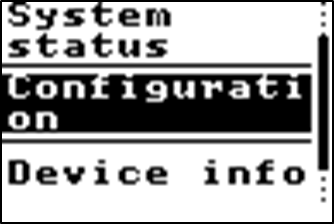
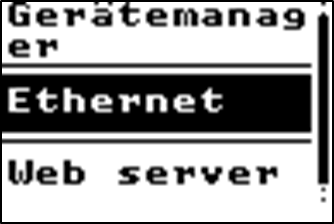
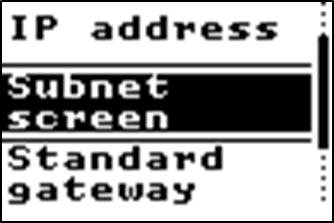
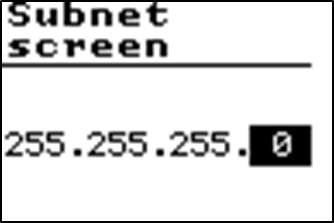
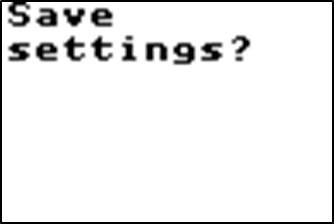
Network settings on the variTRON500 touch
The following description applies to operation directly on the device touchscreen.
If there are no applications running on the variTRON 500 touch, the first two steps can be skipped.
The user can toggle to the device UI using the "visualization menu".
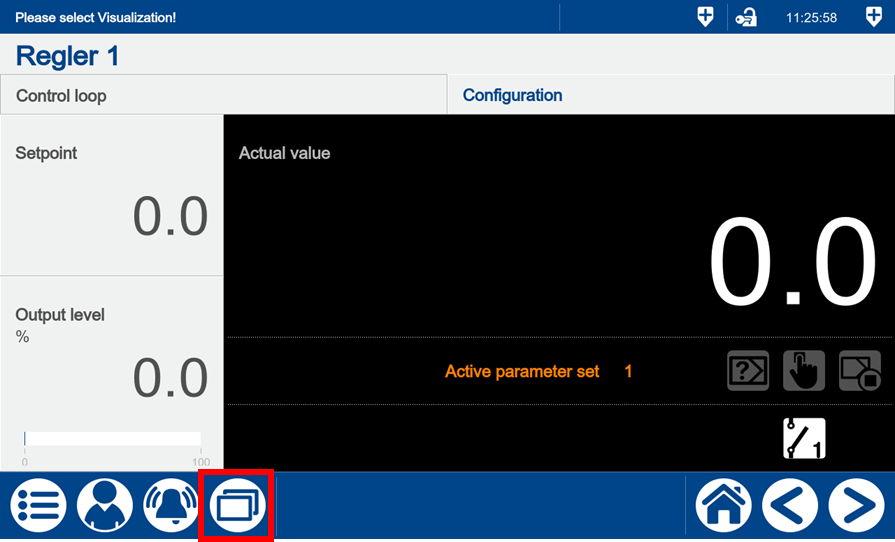
Select the "Recorder view" menu item. This menu item is only visible on the device display, not in the web view.
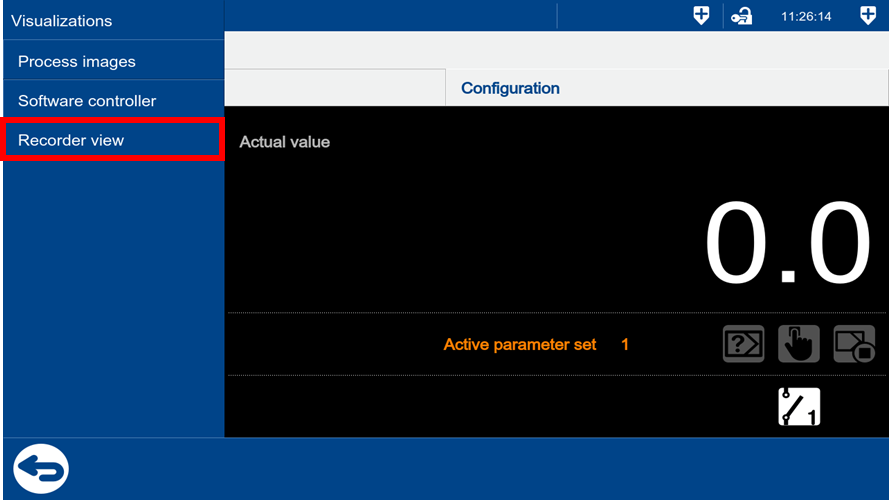
Log on as the Master user to be able to change network settings in the JUMO UI. The default password is 9200.
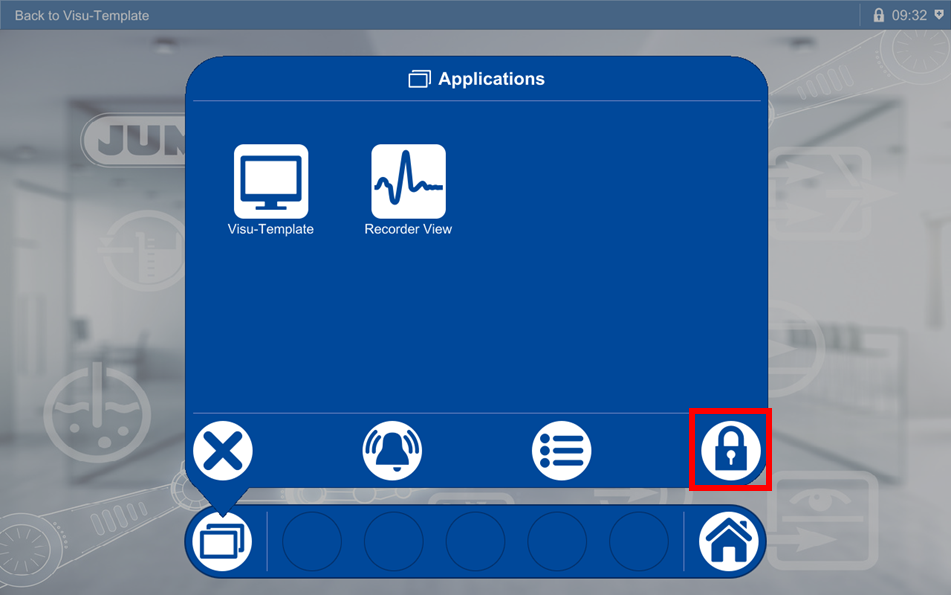
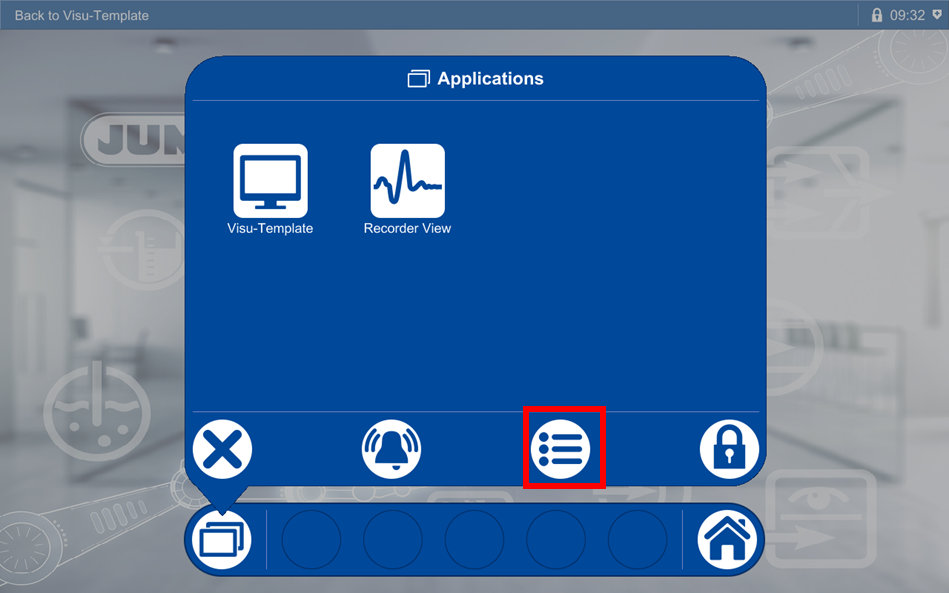
Once you have successfully logged on, you can switch to System management using the menu button.
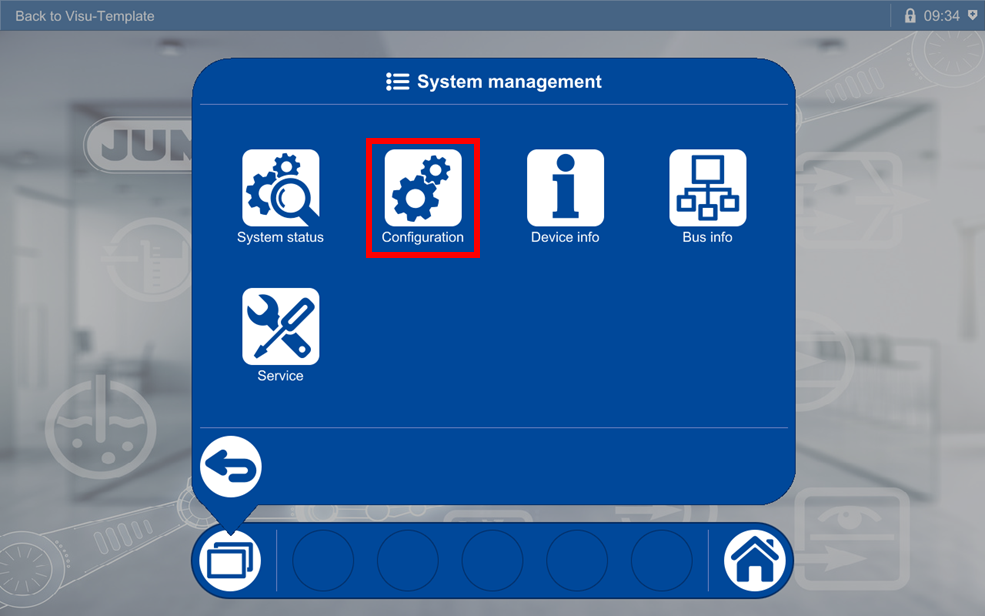
You can find options including the Network option under Configuration.
You can find the Ethernet element under Network.
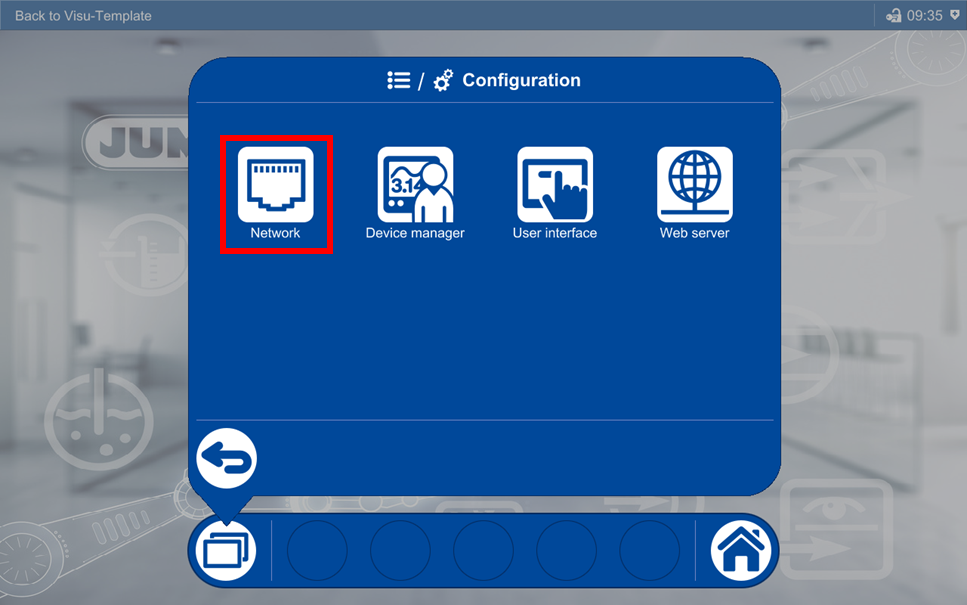
All available Ethernet ports are displayed once you have selected "Ethernet".
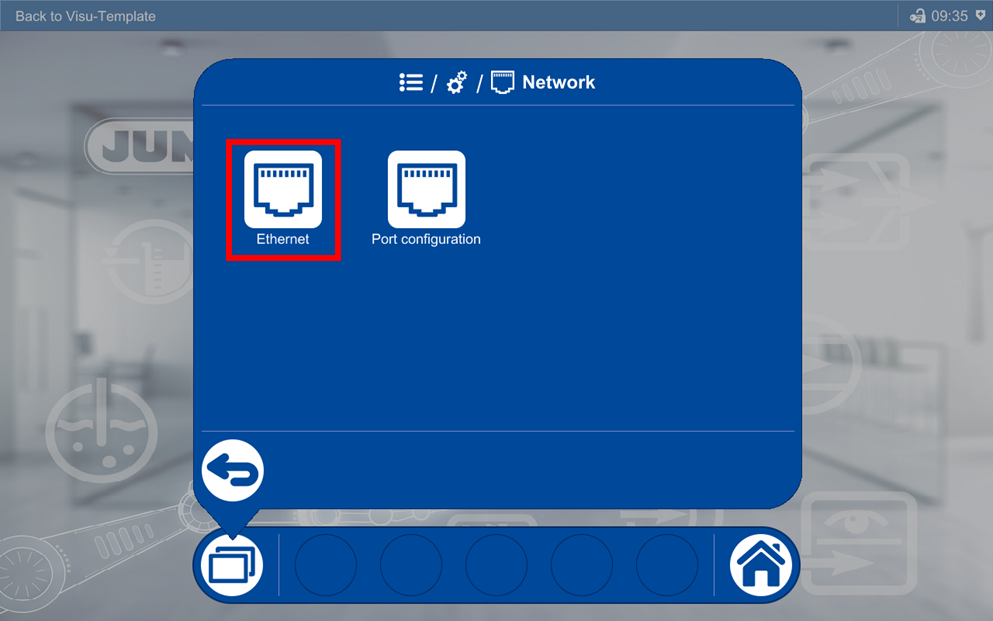
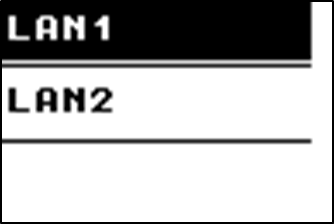
Since the connection modules are generally connected to LAN1, LAN2 is used for connecting to the company network.
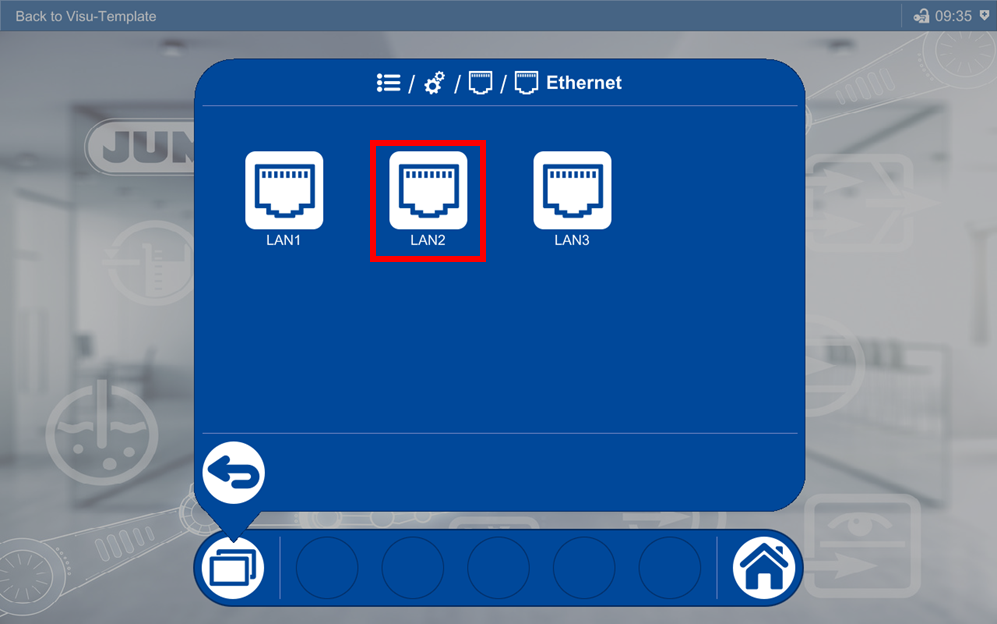
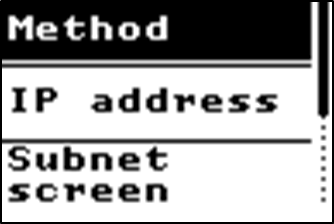
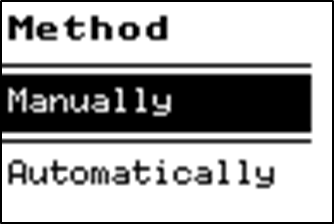
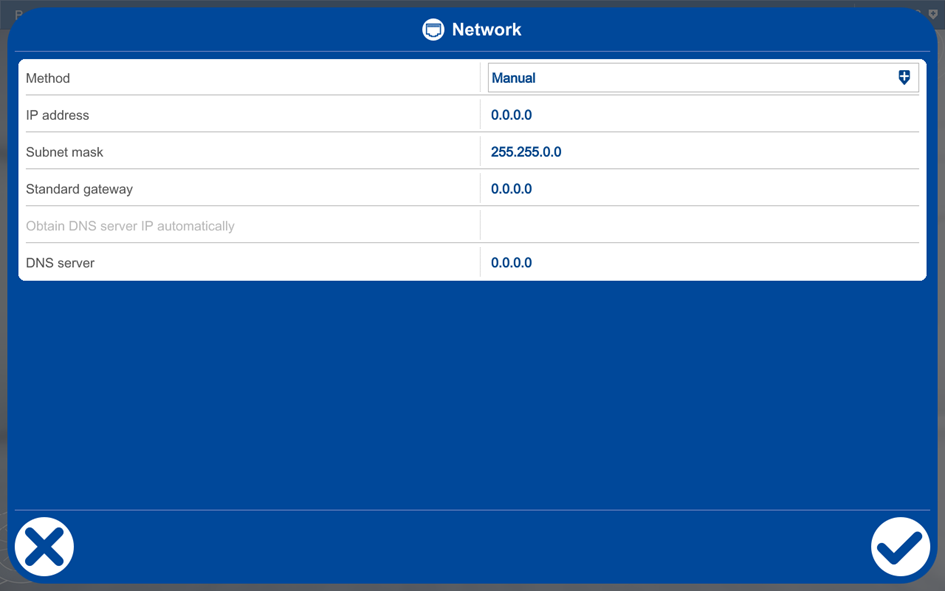
The method can now be changed to manual here.
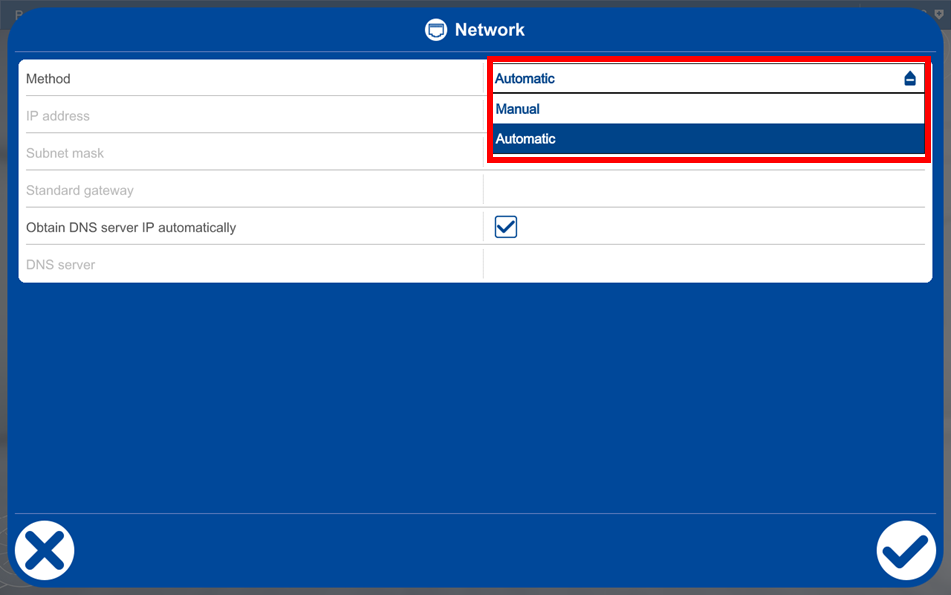
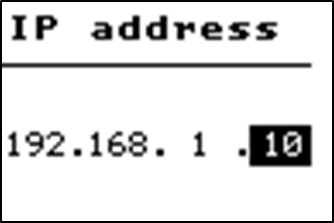
You can now enter your own IP address and additional settings here.
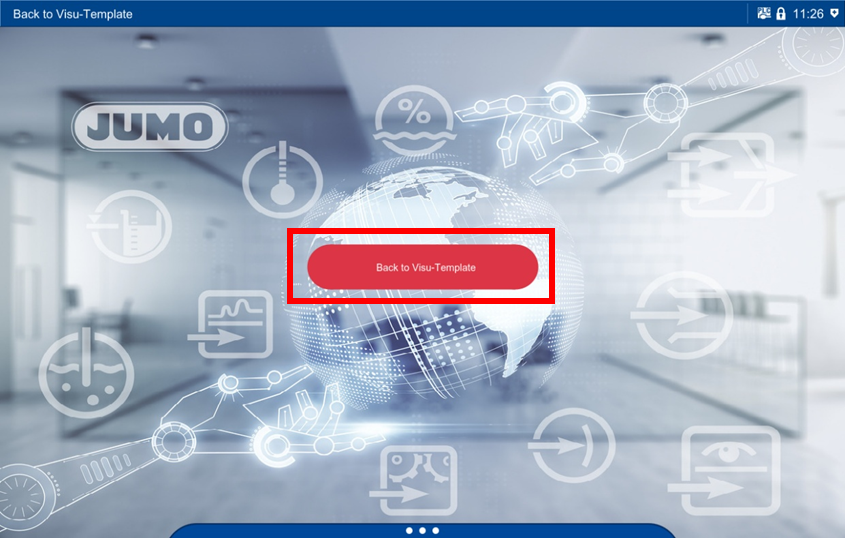
Open visualization using the menu bar to return to the CODESYS UI. Select the "Visu-Template" button.
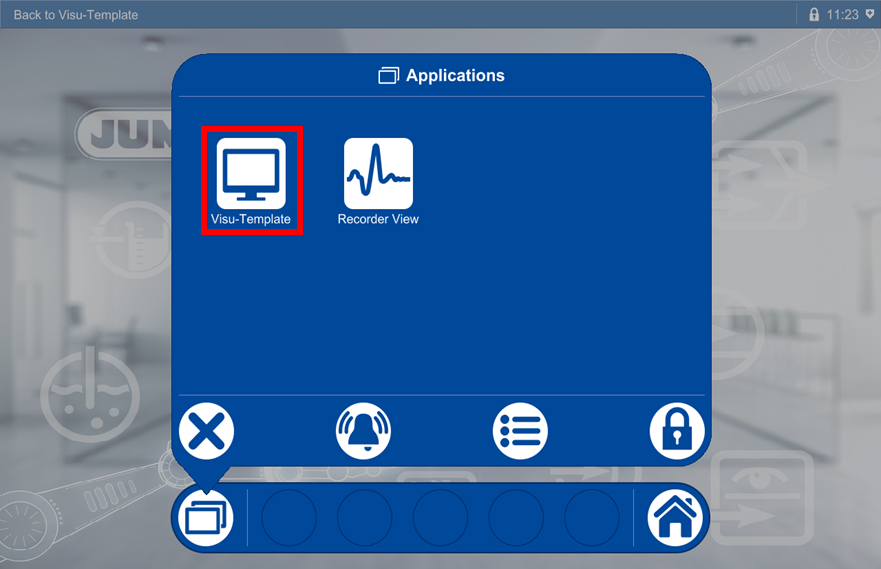
Press the "Back to Visu-Template" button in the screen shown to return to the CODESYS UI.