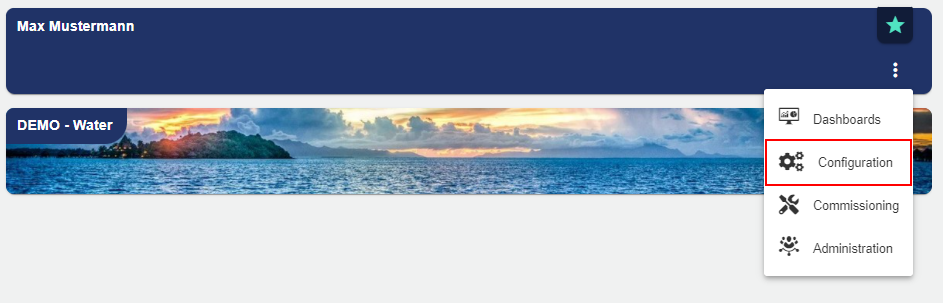
Group
The Groups can be found on the left side (inside the sidebar). Each Group contains a Configuration Structure, a Details area and a Access Rights - administration. A Group can contain multiple widgets and is used to provide a structured overview and for visual representation. A new Group is created using the Configuration of the selected Client.
For the "Digital Twin" or "Documents" group type, this area is displayed in a slightly different way. More about this in the following chapter: Group.
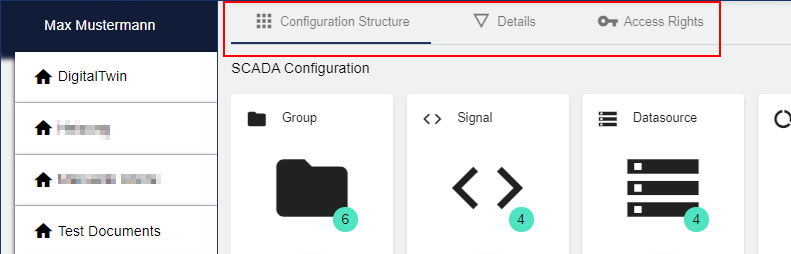
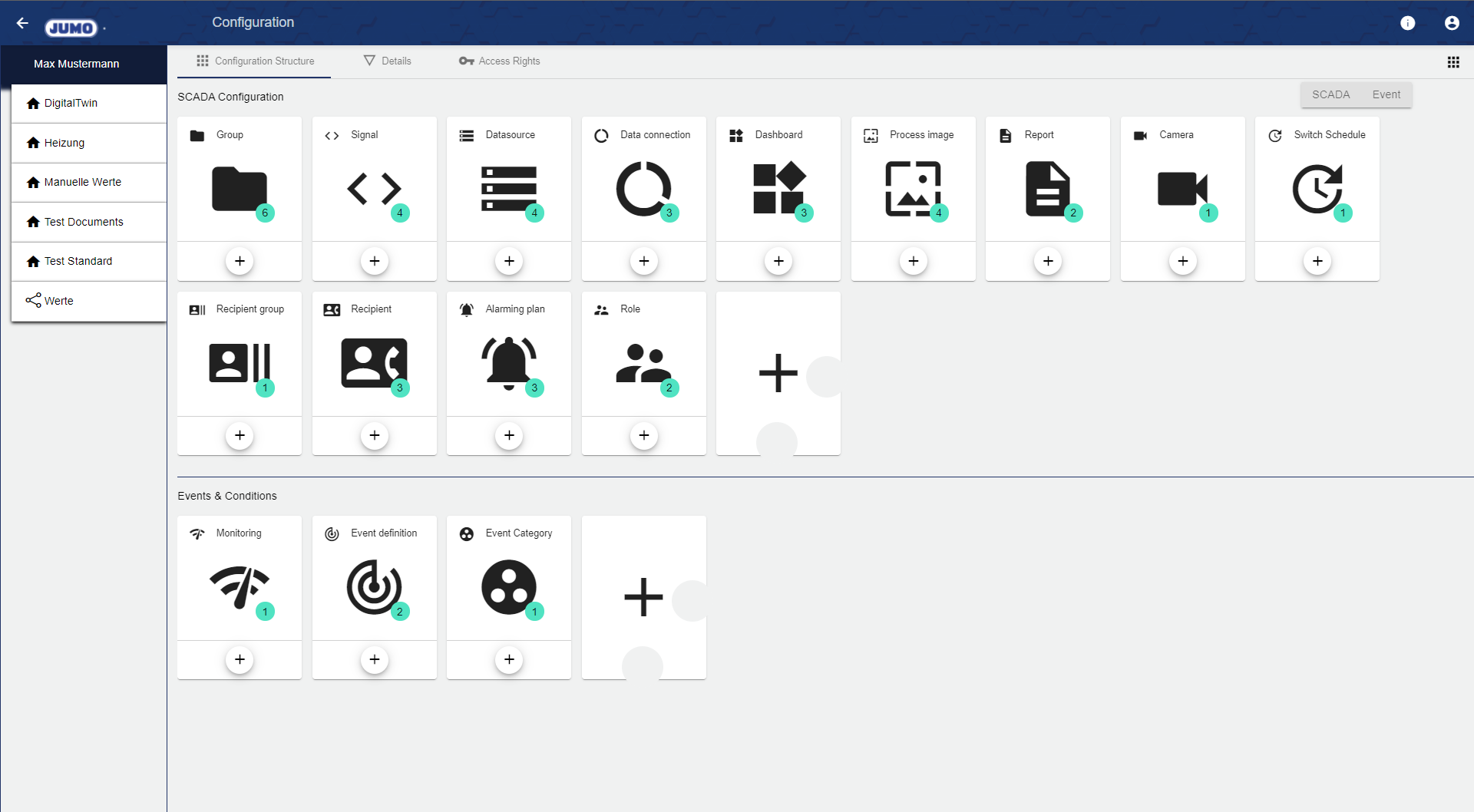
Here is an example of a Client with several groups below the main group "Max Mustermann":
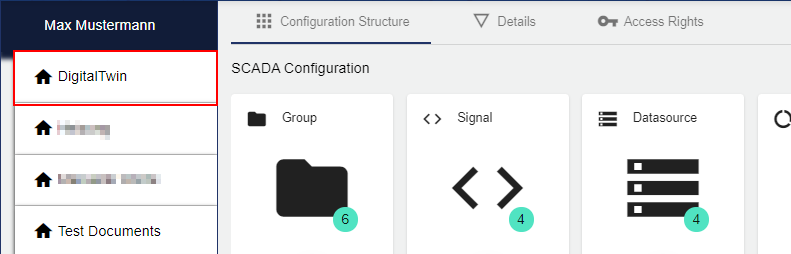
You can find an overview of the configuration options in the following chapter: Configuration Structure.
Select Entity
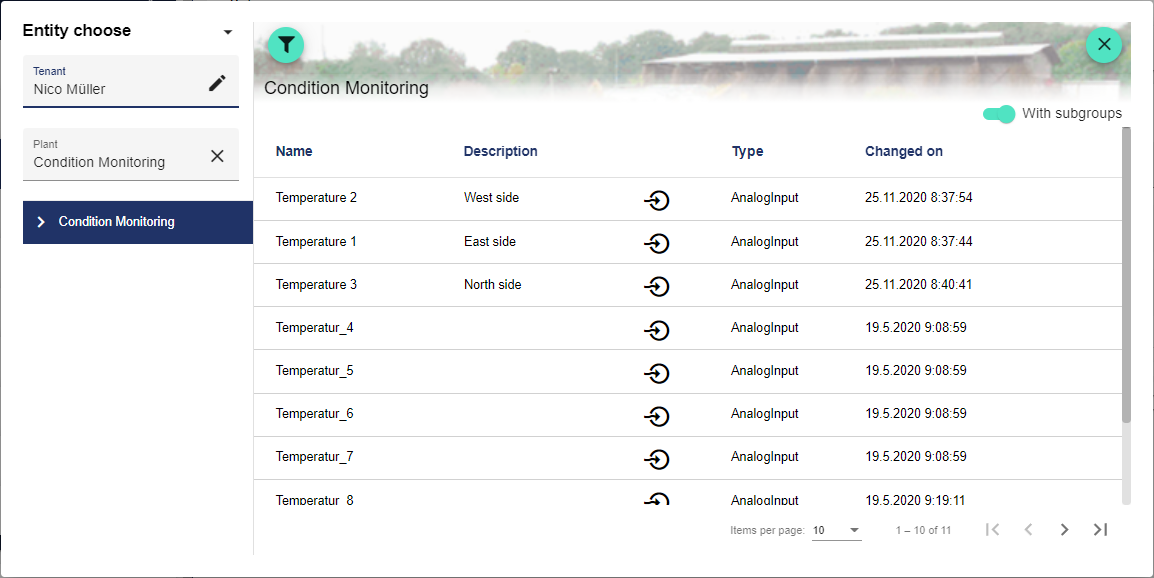
When adding objects, a Select Entity window opens, displaying all usable data for the selected client. From this list, for example, a previously created setpoint signal can then be linked to a scheduler. The window displays the structure tree (with the respective Groups of the selected client) in the left part.
The client can be customized using the "Pencil".
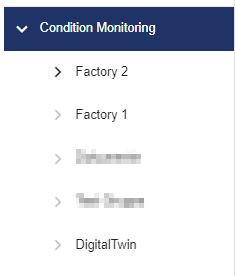
In this structure, you can select different Group and thus specify more precisely or limit the selection of the desired object.
Using the "Filter" icon, you can enter a signal name or a description as a search term. Activate the "With sub-groups" switch to display all other sub-groups.

Configuration Structure
All available configuration objects are displayed within the configuration structure. You can find details regarding the application of the individual configuration objects in the following chapter: Configuration Structure.
Only created configuration objects are shown. Click the "+" button to display all the options.
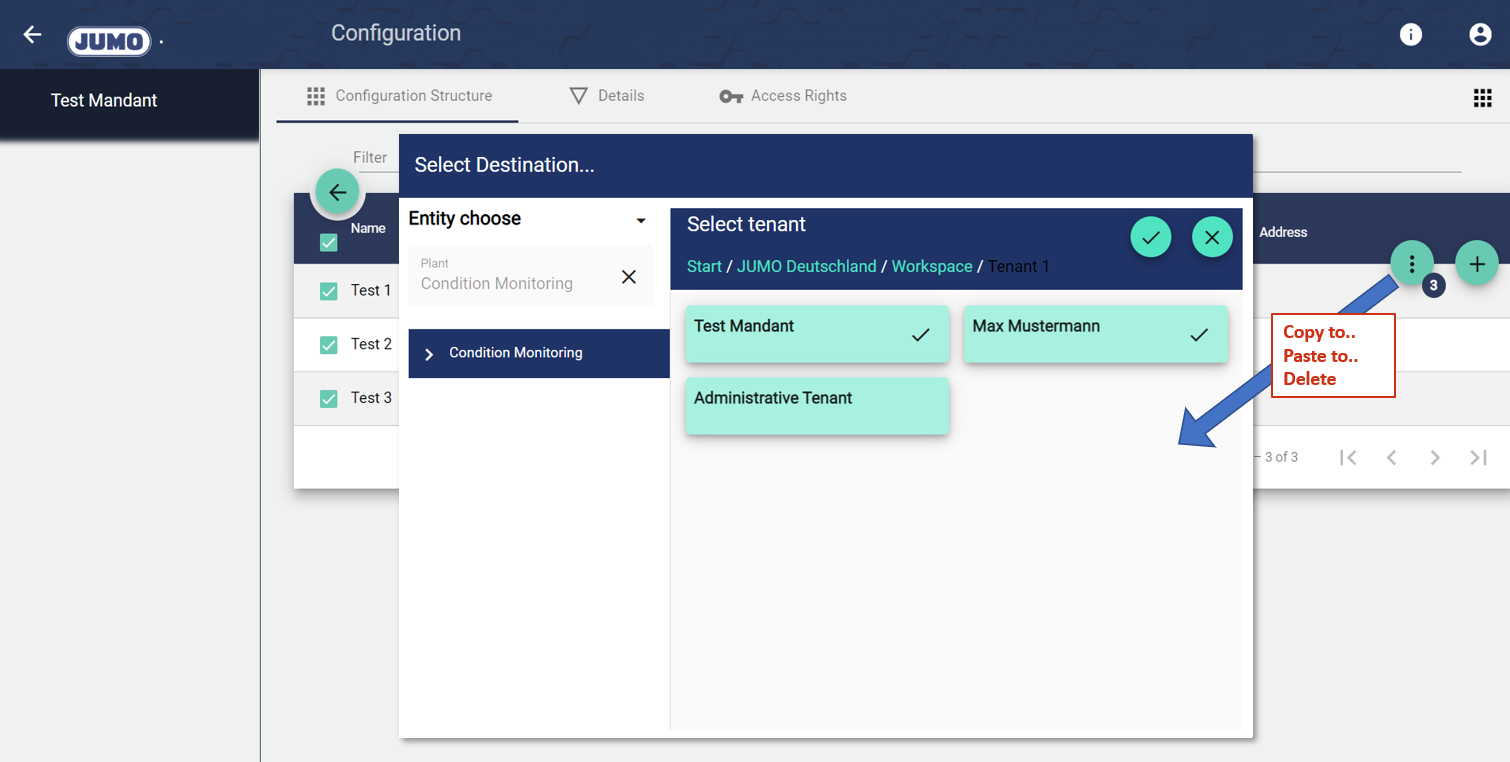
Elemente aus der Konfiguration können durch “anhaken” in andere Gruppen bzw. Mandanten kopiert oder verschoben werden. Zudem lassen sich mehrere Elemente gleichzeitig löschen.