
Installation
Installation must be carried out using the user account which is to use the application.
-
Copying the installation file "install_win64_smartWARE_452.6.x.x.x.exe" (the name depends on the version number) onto the server or PC to be installed.
-
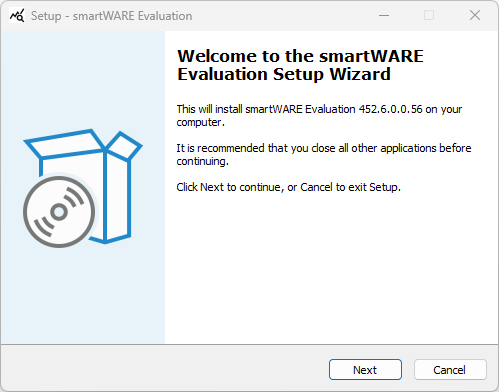
Starting the installation program. The Setup Wizard dialog opens and carries out the further installation process.
-
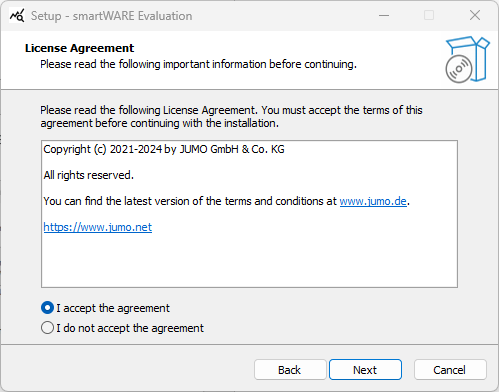
Accepting the license agreement.
-
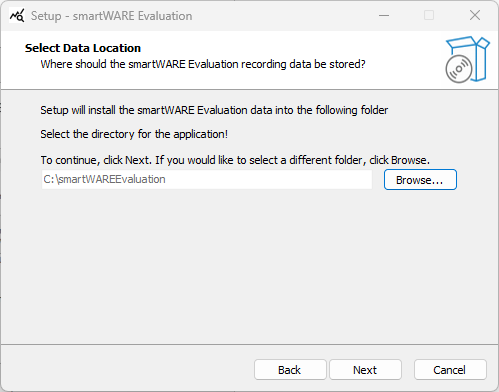
Selecting the installation directory for the application.
-
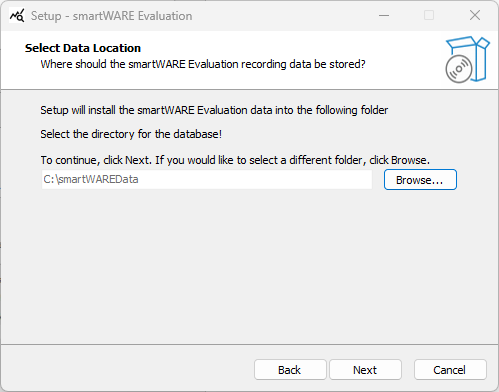
Selecting the directory in which the application database is saved.
-
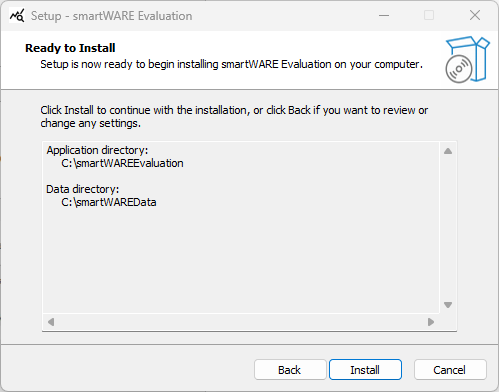
Checking the summary of installation settings.
If changes are required, return to the relevant view with "Back". Otherwise, start the installation with "Install".
-
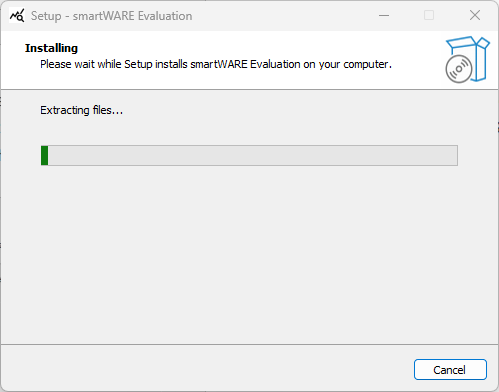
JUMO smartWARE Evaluation is installed on the computer.
-
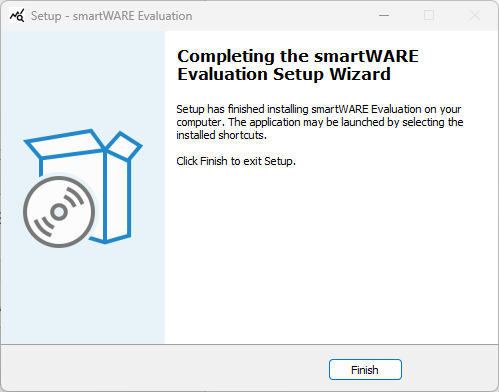
Finishing the installation with "Finish".
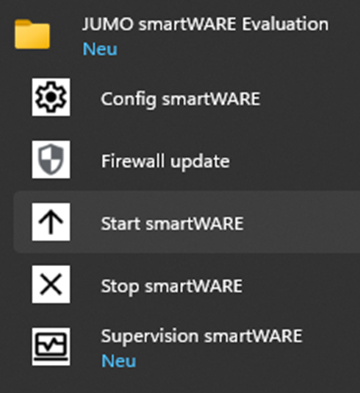
The "JUMO smartWARE Evaluation" folder is displayed in the Windows® start menu with the program entries.
|
.png?cb=e0fde060e4c86bad7c55f818606b37a6)
|
After installation is complete, the base settings must be configured.
The software is then started for the first time:
-
up to version 452.7.0.0.10 via Supervision smartWARE
-
from version 452.7.0.1.0 via the status GUI smartWARE (smartWARE Process Manager)
The software will be configured afterwards.
Persistent data
Persistent data is information that is permanently saved and is retained even after a software update. This data includes transmitted process values and the JUMO smartWARE Evaluation configuration, such as dashboards or device space information.
All data recorded from the devices is saved in the Windows® user path specified during installation by the Datastore service. During standard installation this path is:
C:\smartWAREData\datastore
The data is stored as compressed files and protected against manipulation by additional signed files. This entire set of data is called "cold data".
This directory must not be deleted. Deleting the directory or individual files included in it results in loss of the recorded data if there is no backup copy of the deleted data.
Program entries
Config smartWARE
The base configuration of JUMO smartWARE Evaluation is carried out with Config smartWARE.
Firewall update
The set ports in the operating system's firewall can be opened using the firewall update. Administrator rights are required to start the program. This may be necessary if the UAC (User Account Control) of Windows® has not detected access from "nginx.exe".
Start smartWARE
The software is started with Start smartWARE. The program entry is available, but should no longer be used, as it has been replaced by Supervision smartWARE.
Stop smartWARE
The software is stopped with Stop smartWARE. The program entry is available, but should no longer be used, as it has been replaced by Supervision smartWARE.
Supervision smartWARE (up to version 452.7.0.0.10)
The software is started and stopped with Supervision smartWARE.
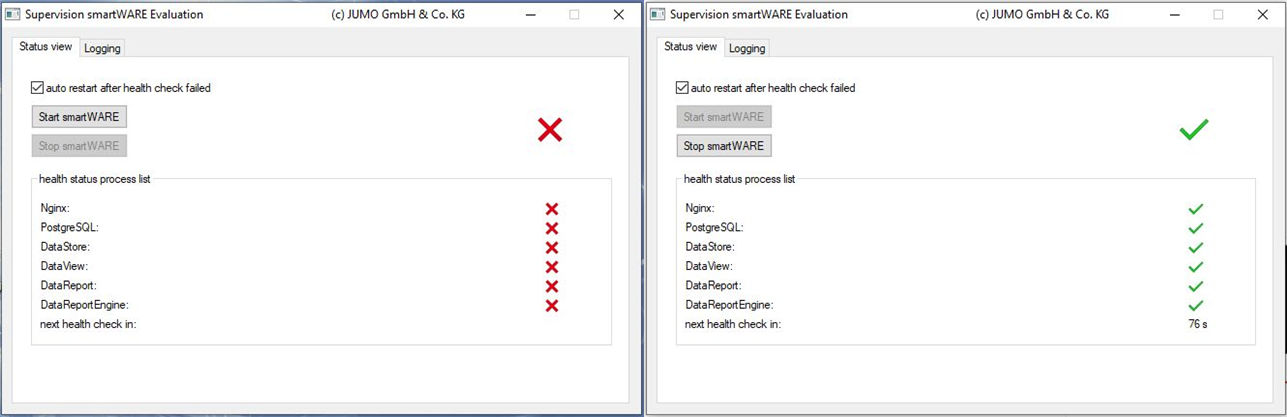
Correct running of the individual software program parts is also monitored. If a program part stops, it is automatically restarted.
When it starts for the first time, a note dialog from Windows® firewall opens, which is controlled by the Windows® UAC.
The dialog indicates that the program "nginx.exe" (part of JUMO smartWARE Evaluation) wants to access the network, but is prevented from doing so by the firewall. Access must be ensured, as otherwise no data can be received from other JUMO devices and the JUMO smartWARE Evaluation web GUI also cannot be opened on other computers in the network.
Click on "Allow access" and enable access to the network via the "nginx.exe" administrator account.
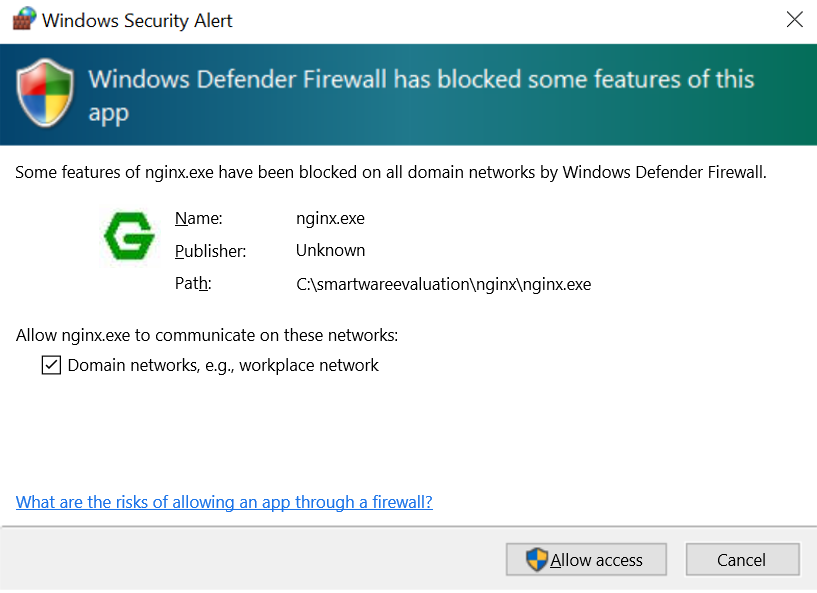
In the case of Windows Server® 2019, this firewall warning does not appear.
In this case, the firewall update has to be called up in order to open the ports in the firewall.
smartWARE Process Manager (from version 452.7.0.1.0)
The current Supervision smartWARE program will be replaced by the new smartWARE Process Manager.
This version includes troubleshooting and an improvement to process monitoring in Windows. Process monitoring is now handled by a background service (daemon) that can run independently of an active user session in Windows.
New features and improvements
-
Process monitoring in Windows via a daemon
Previously, smartWARE processes in Windows were monitored by the Supervision smartWARE program. Since this program has a graphical user interface, it could not run without an active user session.
From version 7.0.1.0, the start scriptstart_smartWARE.batwas enhanced to include a daemon process. This process runs in the background, monitors the active smartWARE processes, and automatically restarts them in the event of an unexpected termination.
As a result,start_smartWARE.batcan be run directly at system startup via the Windows Task Scheduler, regardless of whether a user is logged in.
If the daemon process is started manually and the user logs out, the daemon process is also terminated. For user-independent operation, the daemon must be started via the Task Scheduler (see the Daemon startup mode section).
-
SmartWARE Process Manager
The smartWARE Process Manager is a new management tool that replaces the previous Supervision smartWARE program.
It is used solely to visualize the process status and no longer provides independent process monitoring. This function has been completely transferred to the daemon process. -
Main view
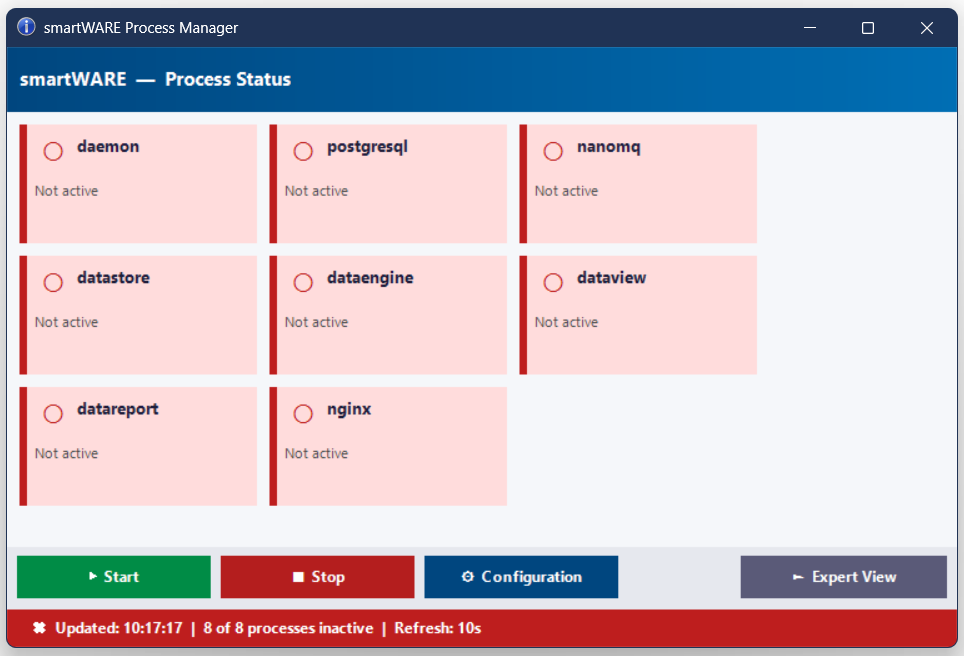
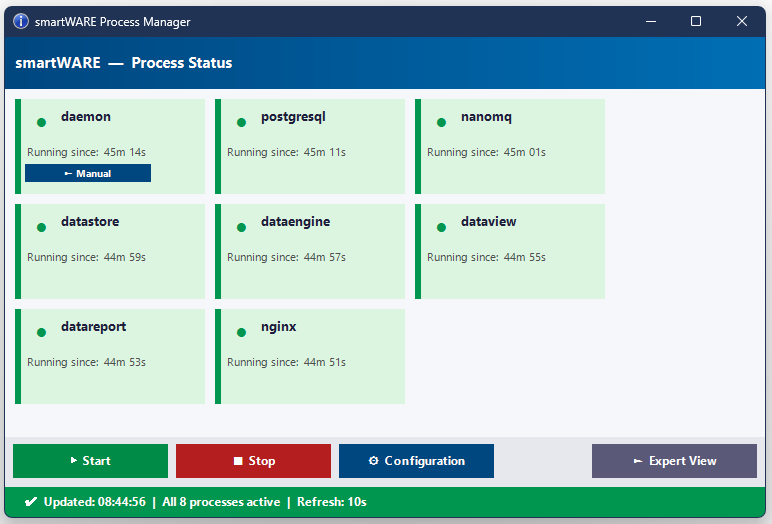
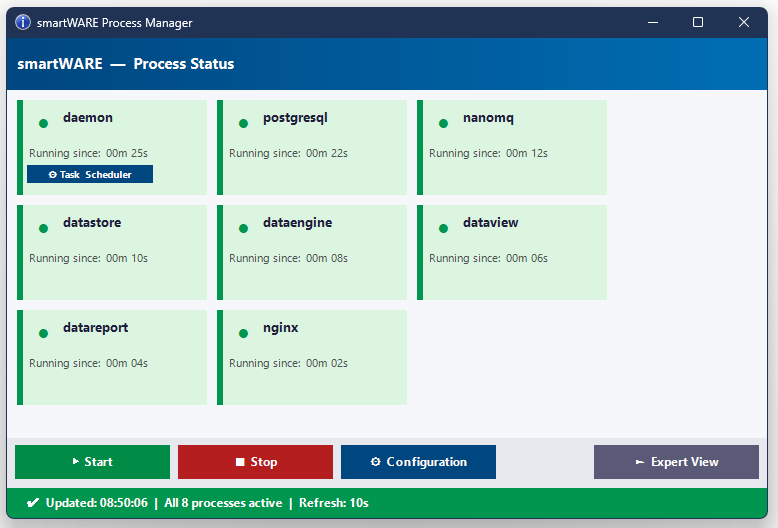
The main view displays the current status of all smartWARE processes. Each process is shown with its name, operational status, and other status information.
-
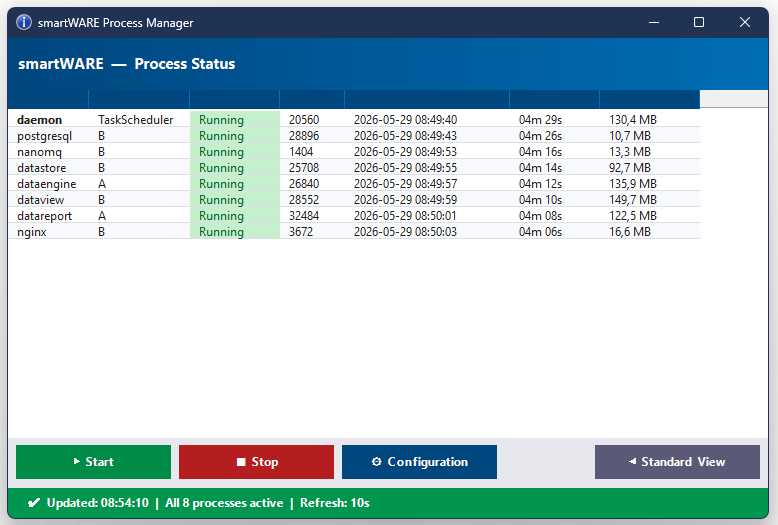
Expert View
You can use the "Expert View" button to display advanced process details. This view helps diagnose potential operational issues.
-
Configuration
Click the "Configuration" button to open the Config smartWARE basic configuration. There, you can adjust the software's basic settings, such as:-
nginx port
-
User management password rules
-
-
Daemon startup mode
The daemon process' status tile indicates how the monitoring process was started:
|
Display |
Meaning |
|---|---|
|
Task Scheduler |
The daemon was started using the Windows Task Scheduler and runs even when no user is logged in. |
|
Manual |
The daemon was started manually and is tied to the active user session. |
To ensure that process monitoring continues even when no user is logged in, the daemon process (start_smartWARE.bat startup script) must be started via the Windows Task Scheduler. In this case, monitoring is automatically activated at system startup, regardless of whether a user is logged in.
The start_smartWARE.bat script must be run under the user account under which the smartWARE software was installed.