
JUMO smartWARE Evaluation
Home / Evaluation / Reports
All automatically and manually generated reports are saved and listed in a table.
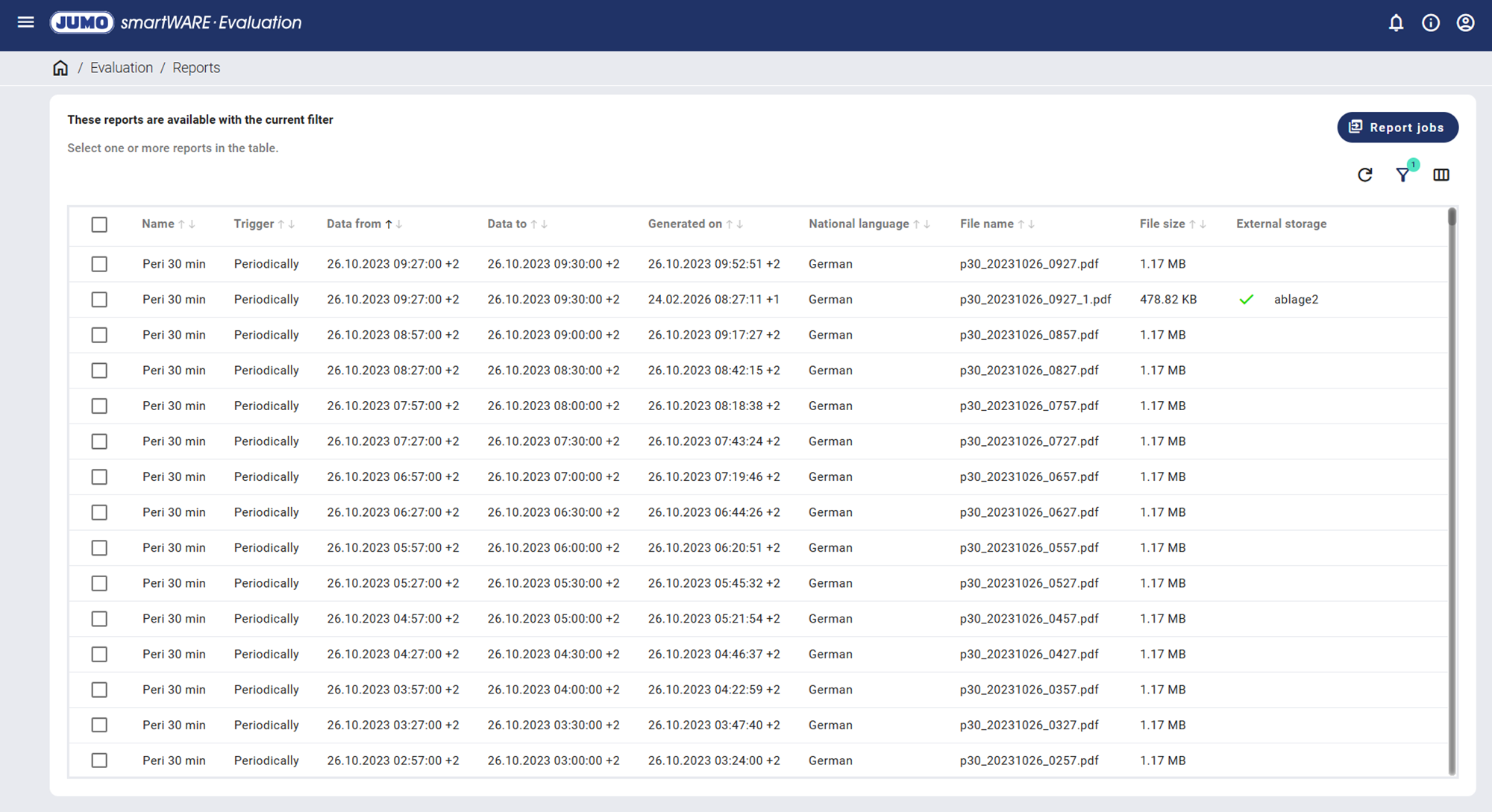
The generated reports can be sorted in ascending or descending order according to the relevant attributes and filtered using the "Filter" icon. Individual columns can be shown or hidden using the "Define columns" icon. The view is reloaded using the "Update" icon.
The "Report jobs" button is used to list all generated or planned report jobs.
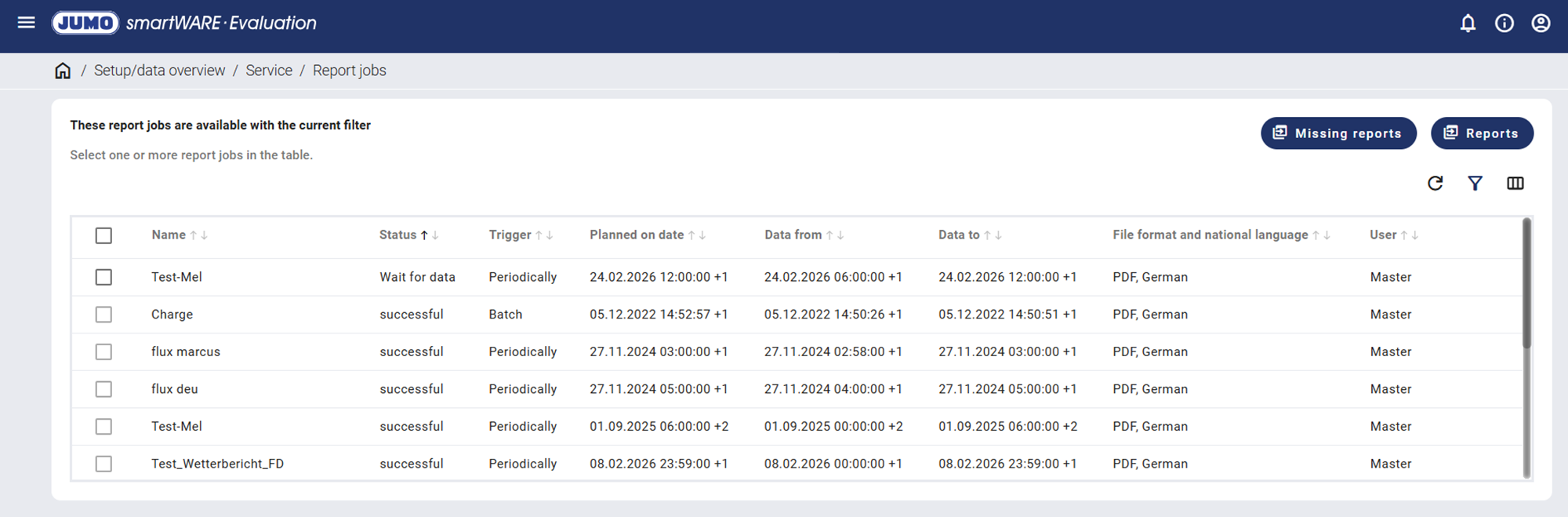
The "Missing reports" button can be used to search for missing reports. The "Reports" button can be used to return to the table with the generated reports.
The following icons appear on the right-hand side when hovering over a report:
|
Icon |
Function |
Description |
|---|---|---|

|
Display |
The selected report is opened in a new tab. This function is only available for reports that are in PDF format. |

|
Download |
The selected report is downloaded and saved in the download folder. |

|
Go to "Dashboard" |
The icon can be used to access the dashboard linked to the report directly. |

|
Generate again |
The selected report is generated again. |

|
Copy file externally |
The selected report is copied to the external archive. |

|
Delete |
The selected report is deleted. |
The boxes on the left-hand side can be used to select multiple reports at the same time. Alternatively, multiple selections can be made by left-clicking them while holding down the Shift or Ctrl key.
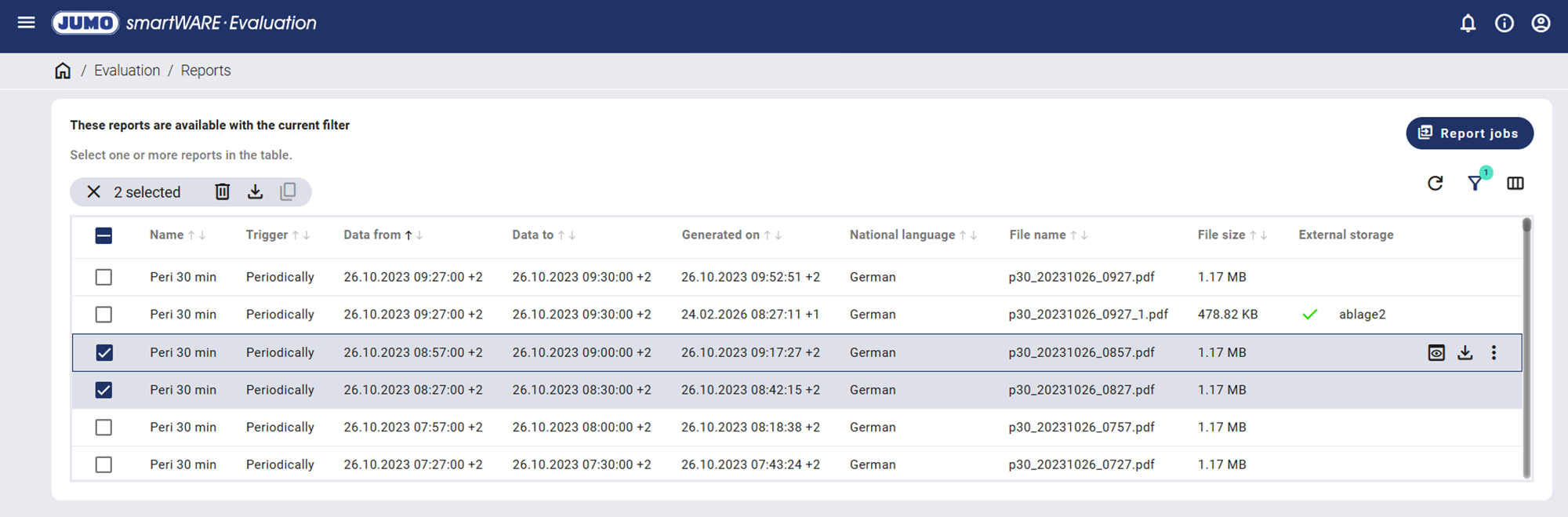
If multiple reports have been selected, a new menu appears, which can be used to delete or download the selected reports or copy them externally.