Add Widget
-
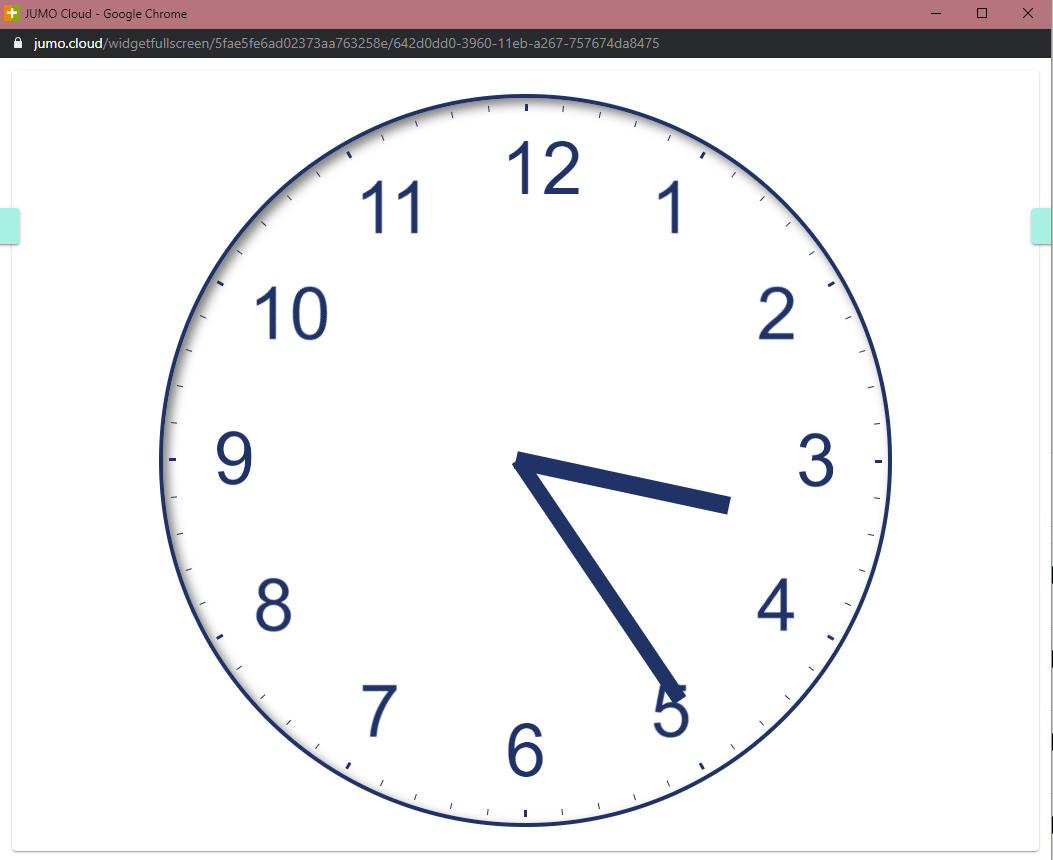
Select predefined widget size in the left selection menu.
-
Click the selected size to place it directly in a free space.
Add User-Defined Widget Sizes
-
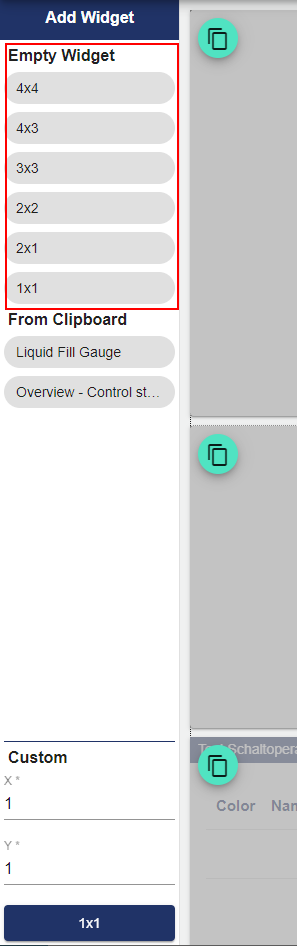
Enter the vertical and horizontal size of the widget in the fields on the bottom left of the page. Only whole numbers are accepted!
-
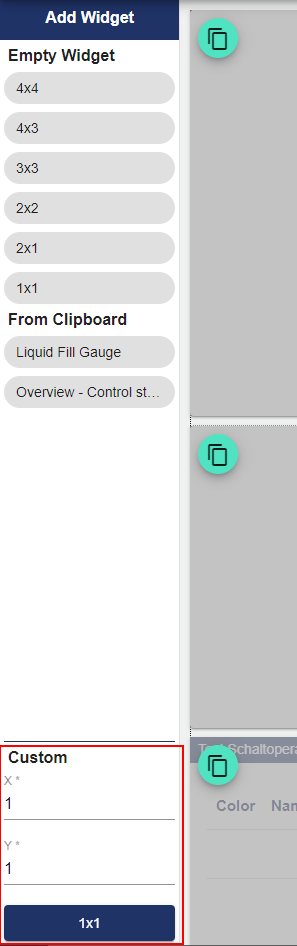
Select the dark blue button to insert the widget.
Widget Selection
You can find the widget selection in the Edit mode of a new or existing widget.
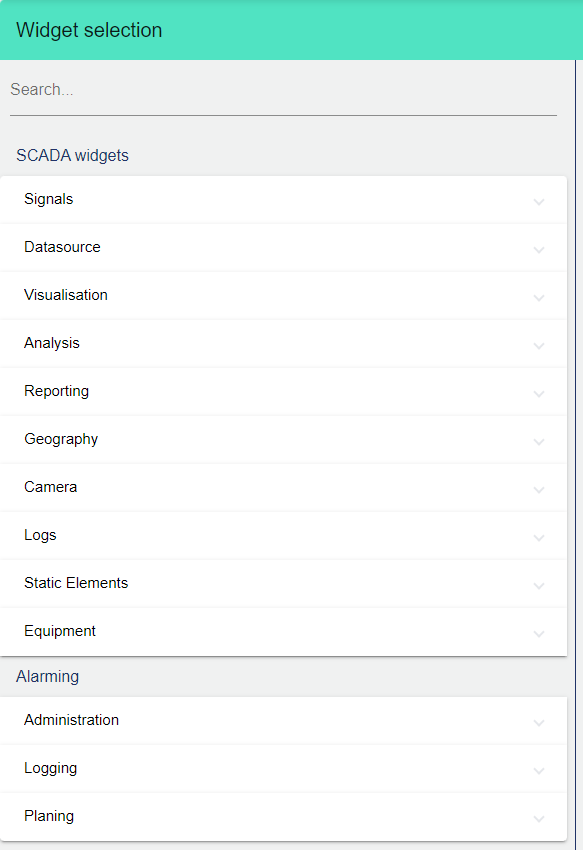
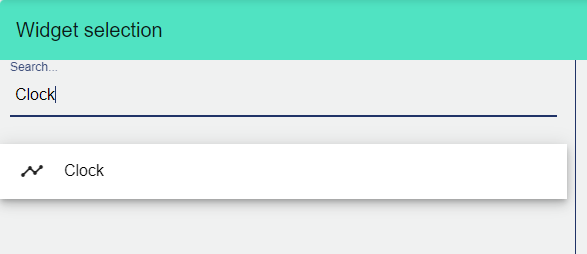
Search Widgets
Use the search bar to quickly find a specific widget.
Save Changes to Widgets
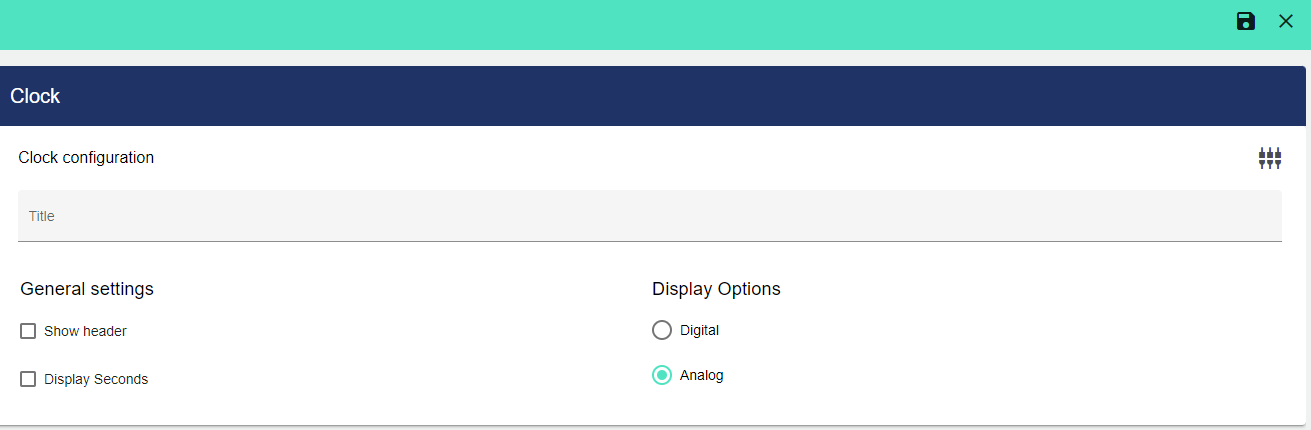
After completing the configuration, click the disk icon at the top right of the window to save.

Discard Changes to Widgets
To discard the changes from an edited or new widget, click the "X" icon.

Remove Widget
Widgets cannot be deleted when they are blocked - first, you should unlock the Widget to be deleted!
-
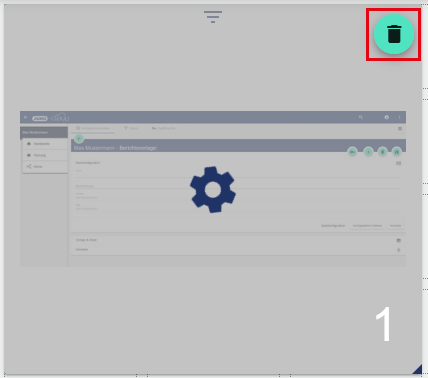
Select the widget to be deleted.
-
Select the trash can icon and confirm.
Change Size
Widgets cannot be resized if they are locked - you should lock/unlock the dashboard to be deleted first!
-
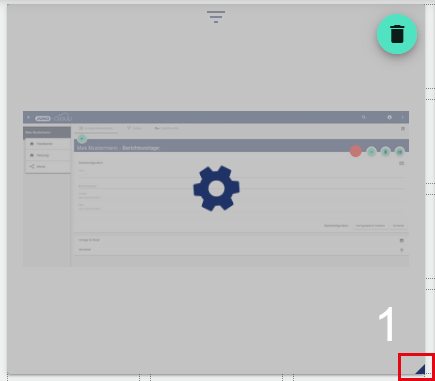
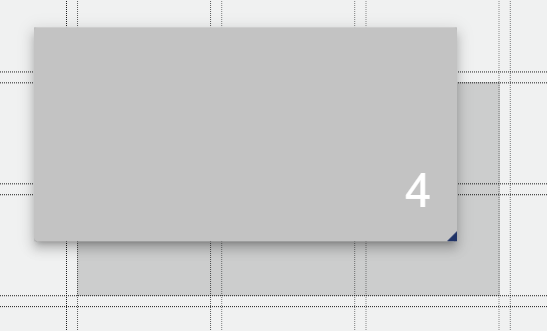
Place the cursor at the edge of the widget.
-
A dark blue corner appears which allows you to drag the widget horizontally or vertically up to the required size.
-
Save.
Moving Widgets
Hold down the mouse button and drag the widget to the required position. Then release the mouse button.
Copying widgets is described here.
Numbering Widgets
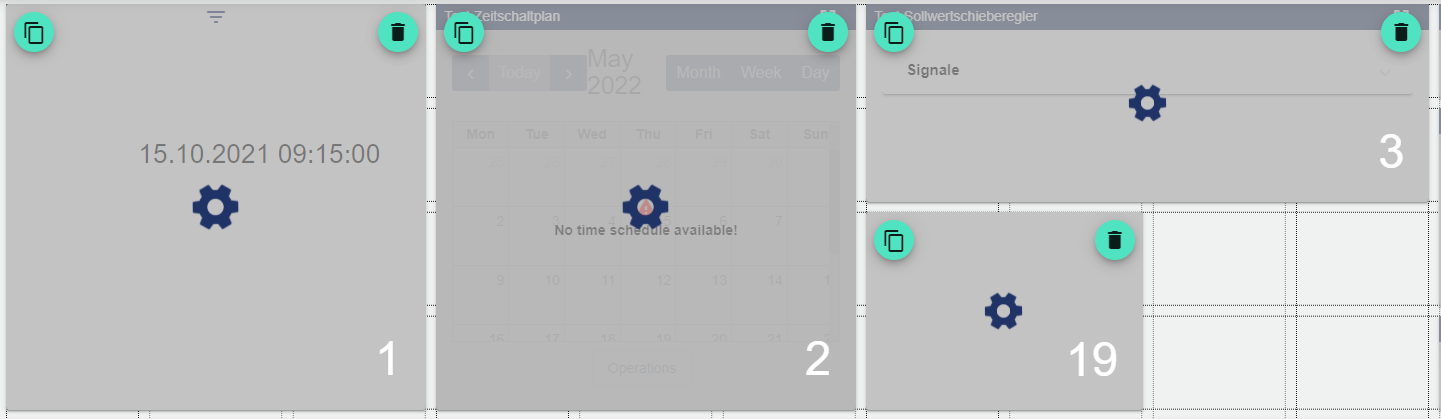
The widgets are pre-numbered by the system in the order in which they were created. This is helpful for identification in the event of a support request.
Change Widget Settings
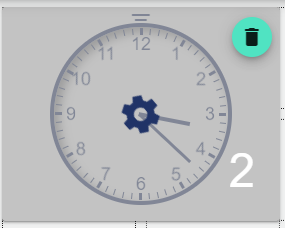
The settings for the widget can be accessed from the Dashboard Edit mode. There is a rotating cogwheel next to each widget, which you can click to open the settings.
Widget Header
For most widgets, there is an icon in the center of the top border that allows you to expand the widget header. This menu closes automatically after a few seconds.
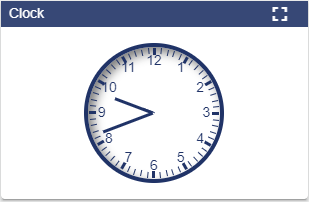
Switch Widget to Full Screen Mode
To view the selected widget in full screen mode, first open the dashboard widget header and then click the "Full Screen" icon.